Generate and open CL files from Esprit.
To generate a CL file from Esprit
-
Start Esprit.
-
Open a project.
-
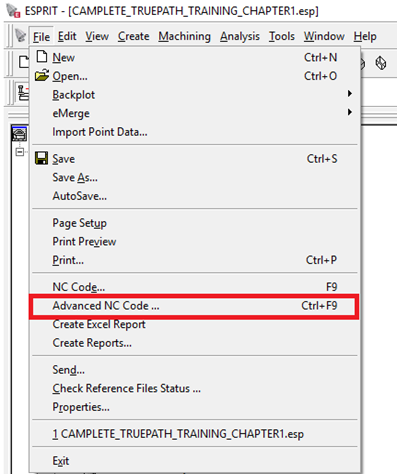
Click File > Advanced NC Code.
-
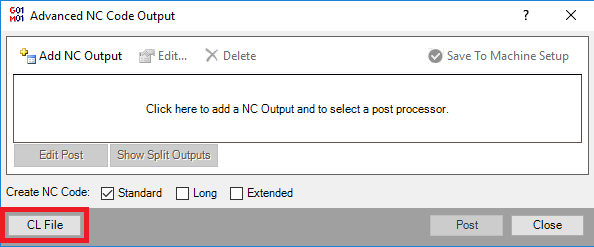
Click CL File.
-
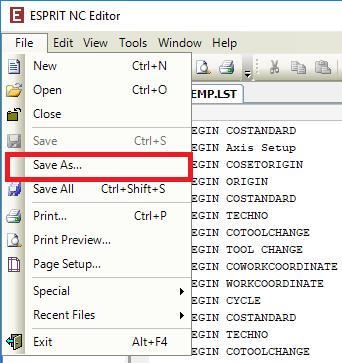
The data file appears with the LST filename extension. In the Esprit NC Editor, click File > Save As.
-
Navigate to the folder where you want to save the file.
-
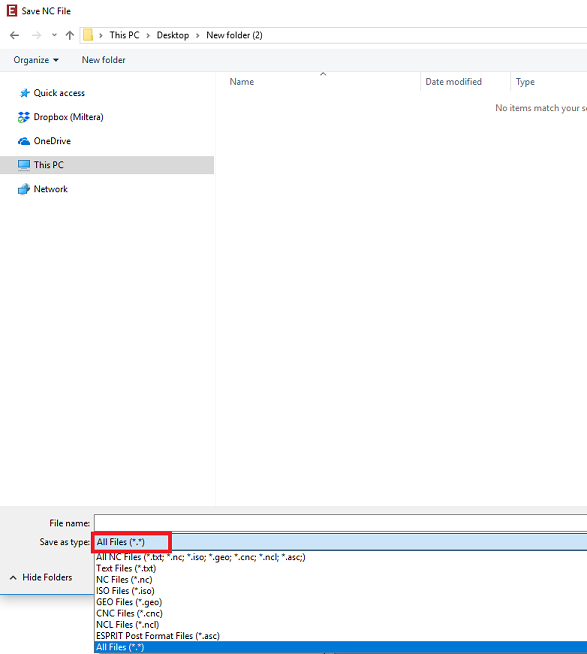
Change the Save As Type filter to All Files (.).
-
Enter the filename. Specify the filename extension as .cl and click Save.
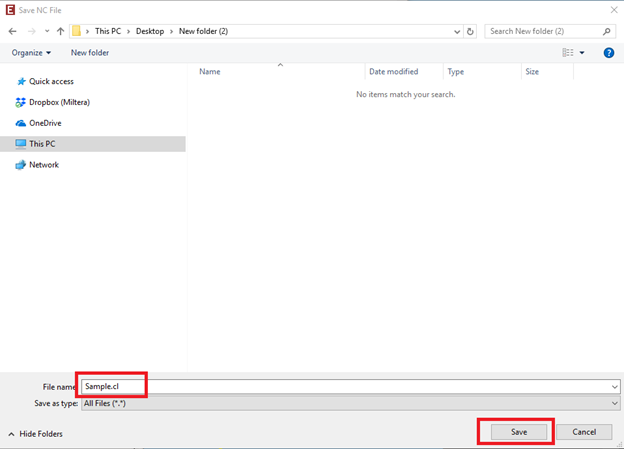
The CL file is saved and displayed in the Esprit NC Editor.
-
Click File > Exit to close the Esprit NC Editor.
To open a CL file in CAMplete TruePath
-
Start CAMplete TruePath.
-
In the ribbon, go to Home > Open.
-
Navigate to the folder where the CL file is saved.
-
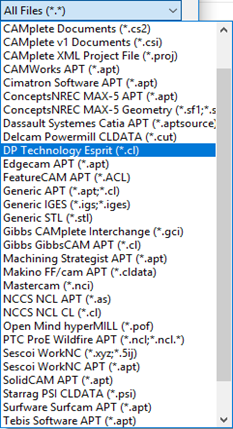
Select the DP Technology Esprit (*.cl) file handler from the drop-down menu.
-
Select the CL file and click Open.

You’re now prompted to select your machine and create a project in TruePath.