Export data from FeatureCAM Standard or Premium and use that data to create a project in CAMplete TruePath. If you are using FeatureCAM Premium, you can use the FeatureCAMToCAMplete macro.
About the FeatureCAM post-processor
To export from FeatureCAM Standard or Premium, install the CAMplete_TruePath.cnc post-processor for FeatureCAM. You can find it in the following directory: C:\Program Files\Autodesk\FeatureCAM20XX\Posts\Mill\Camplete.
Post the ACL file from FeatureCAM
To apply the CAMplete_TruePath.cnc post-processor to a FeatureCAM project, follow these steps.
-
Start FeatureCAM.
-
Open, or create, a FeatureCAM project.
-
In the Part View dialog, expand Global Settings and double-click Post Process.

-
Click Browse.

-
Navigate to the folder that contains the CAMplete_TruePath.cnc post-processor file.
-
Select the CAMplete_TruePath.cnc file and click Open.
-
Click OK to close the window.
-
Run the simulation in FeatureCAM to generate the NC Code.
Tip: Run the simulation at maximum speed to quickly generate the NC Code.
-
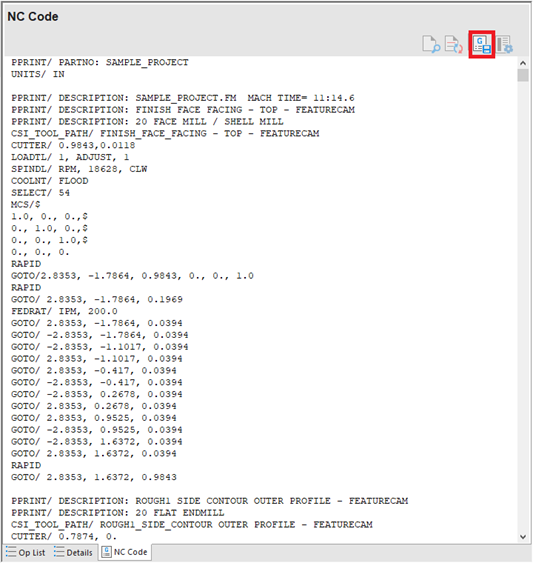
When the simulation is complete, click the NC Code tab in the Results section.
-
To export the ACL file, click the Save NC icon.
-
Save the file in a folder unique to this project.
Export geometry from FeatureCAM
You have already used the CAMplete_TruePath.cnc post-processor to export the ACL file for your project. You can now export the part, fixture, and stock geometry to the same folder where you saved the ACL file.
-
Select the part model in the 3D view of FeatureCAM.

-
In the ribbon, go to File > Export.
-
Navigate to the folder where you saved the ACL file.
-
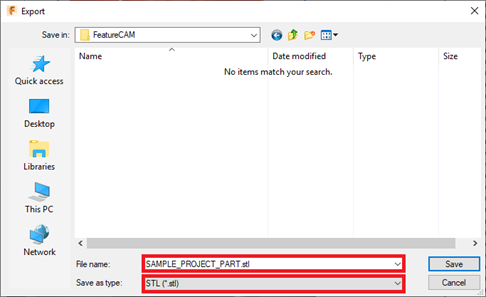
Change Save As Type to STL (*.stl). Include the keyword PART in the file name.
-
Click Save.
-
Repeat steps 1 through 5 for the fixture and stock geometry.
- For the fixture geometry, include the keyword FIXTURE in the file name.
- For the stock geometry, include the keyword STOCK in the file name.
Create a project in TruePath
Refer to the getting started video to learn how to create a project in TruePath from the data you exported from FeatureCAM Standard or Premium.