Transfer toolpath settings from PowerMill to CAMplete TruePath
CAMplete TruePath supports reading toolpath types (roughing, semi-finishing, finishing and drilling) from PowerMill CUT files. Toolpath type in PowerMill is set automatically based on the toolpath.
Mapping Toolpath Type
There are preferences in TruePath that allow you to read in the toolpath type and store it in an operation parameter for use with the NC Format. To set these preferences, follow the steps below.
-
Start Autodesk CAMplete TruePath.
-
In the ribbon, go to Manage > Tools > Options.
-
Click Advanced.
-
Select the preference File IO Preferences > POWERMILL: Toolpath Type Parameter Name (EXPERIMENTAL).
-
Enter a parameter name for the toolpath type parameter. In this example, we’ll use the name TOOLPATH_TYPE.
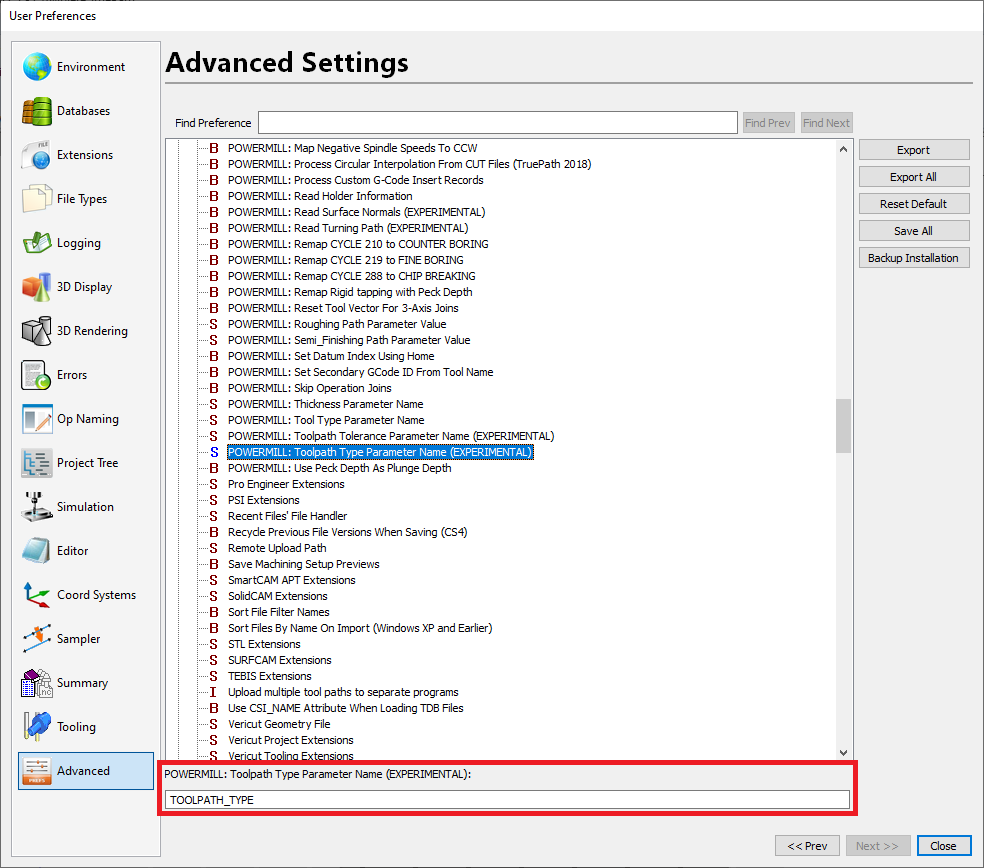
This will add the operation parameter TOOLPATH_TYPE to any TruePath projects created from PowerMill CUT files.
-
In the Advanced Settings, set the following preferences.
POWERMILL: Roughing Path Parameter Value – This parameter controls the value assigned to the operation parameter (TOOLPATH_TYPE) for operations that are read is as roughing operations from the CUT file(s). Assign it a value of 1.
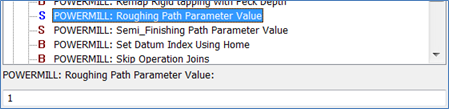
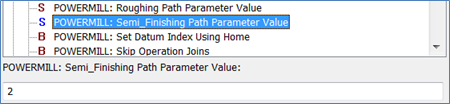
POWERMILL: Semi_Finishing Path Parameter Value – This parameter controls the value assigned to the operation parameter (TOOLPATH_TYPE) for operations that are read is as semi-finishing operations from the CUT file(s). Assign it a value of 2.
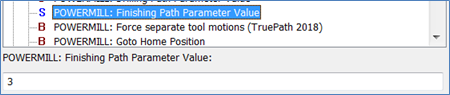
POWERMILL: Finishing Path Parameter Value – This parameter controls the value assigned to the operation parameter (TOOLPATH_TYPE) for operations that are read is as finishing operations from the CUT file(s). Assign it a value of 3.
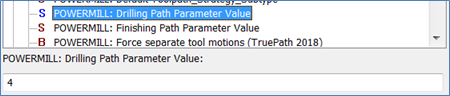
POWERMILL: Drilling Path Parameter Value – This parameter controls the value assigned to the operation parameter (TOOLPATH_TYPE) for operations that are read is as drilling operations from the CUT file(s). Assign it a value of 4.
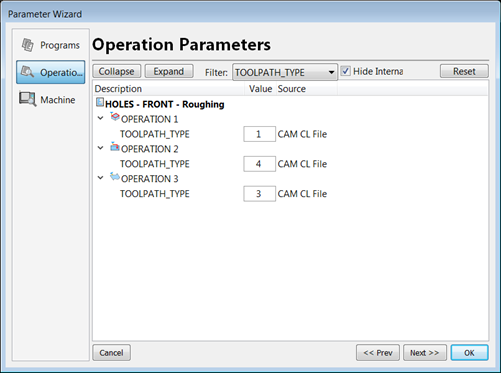
Next time you create a TruePath project from PowerMill CUT files, the TOOLPATH_TYPE parameter may be viewed by going to Programs > Tool Paths > Parameters. In this example OPERATION 1 is a roughing operation, OPERATION 2 is a drilling operation and OPERATION 3 is a finishing operation as per the preference settings in step 6 above.
These parameters may be used in the NC Format to call macros which can be output based on the value of the parameter. An example of this is controlling the HSM codes based on the operation type. For more information on modifying your NC Format, contact your reseller.
Mapping Toolpath Tolerance
CAMplete TruePath also supports reading the toolpath tolerance for each operation. The toolpath tolerance in PowerMill is set on the strategy page in the toolpath settings.
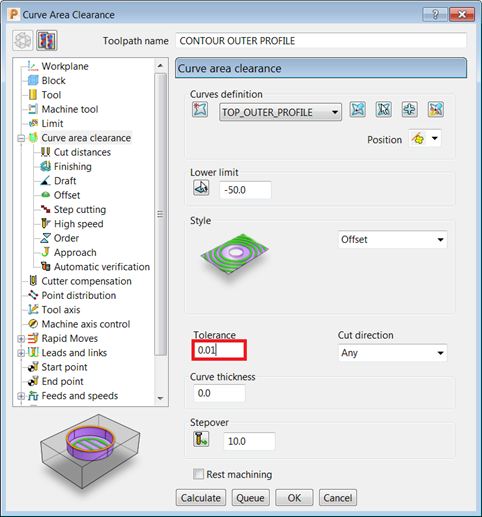
There is a preference in TruePath that allows you to read in the toolpath tolerance and store it in an operation parameter for use with the NC Format. To set this preference, follow the steps below.
-
Start Autodesk CAMplete TruePath.
-
In the ribbon, go to Manage > Tools > Options.
-
Click Advanced.
-
Select the preference File IO Preferences > POWERMILL: Toolpath Tolerance Parameter Name (EXPERIMENTAL).
-
Enter a parameter name for the toolpath type parameter. In this example, we’ll use the name “TOOLPATH_TOLERANCE”.
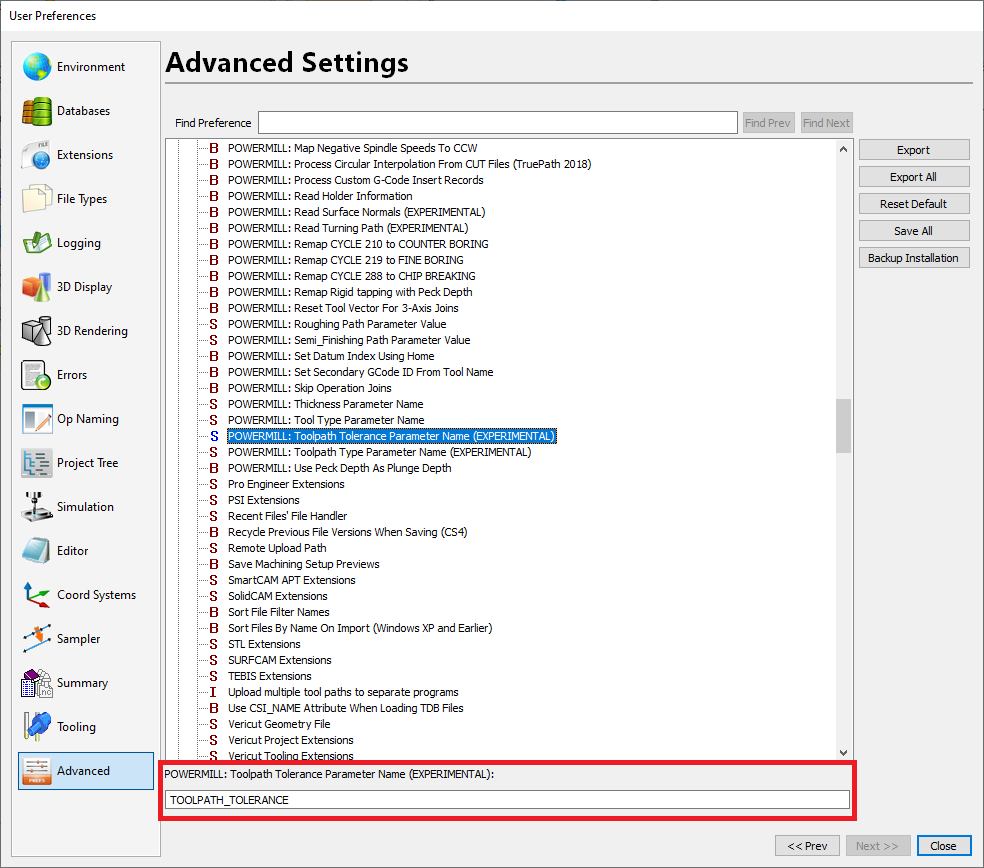
This will add the operation parameter TOOLPATH_TOLERANCE to any TruePath projects created from PowerMill CUT files. Next time you create a TruePath project from PowerMill CUT files, the TOOLPATH_TOLERANCE parameter may be viewed by going to Programs > Tool Paths > Parameters.
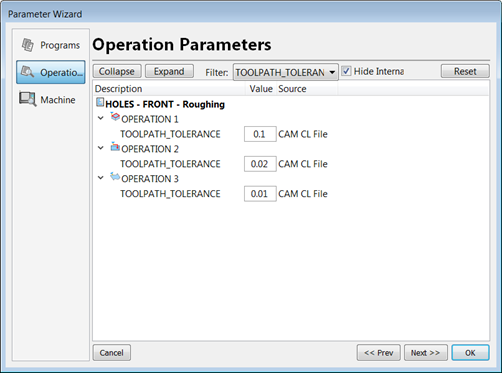
These parameters may be used in the NC Format to call macros which can be output based on the value of the parameter. An example of this is controlling the HSM codes based on the toolpath tolerance for a given operation.