Setup TruePath for hyperMILL and open POF files from hyperMILL in TruePath.
To get CAM CL data (POF files)
POF files are automatically generated when a toolpath is created. You can set the default output directory for POF files and control the POF output directory for specific jobs.
-
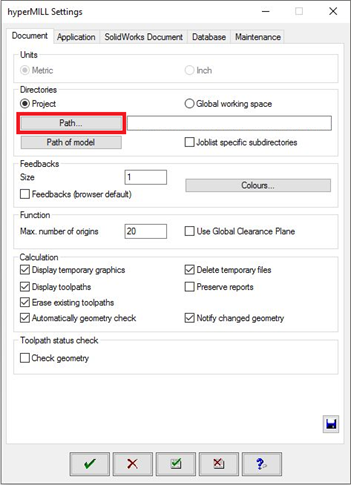
To set the default directory, access the hyperMill setting and click Path.
-
To set the POF file output directory for a specific job, click the Job tab and double-click Job List. This method allows you to keep POF files in a separate location for each job, making it easier to create a project in CAMplete TruePath.
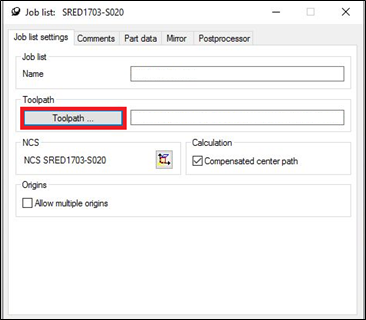
Tip: Press the I key in the job list to automatically renumber the POF files. In this way, they are imported in the correct order to TruePath.
To specify TruePath preferences for hyperMILL
You probably need to change two user preferences when you use hyperMILL with TruePath.
-
Start TruePath.
-
In the ribbon, go to Manage > Tools > Options.

-
Click File Types.
-
In the drop-down menu, select Open Mind hyperMILL.
-
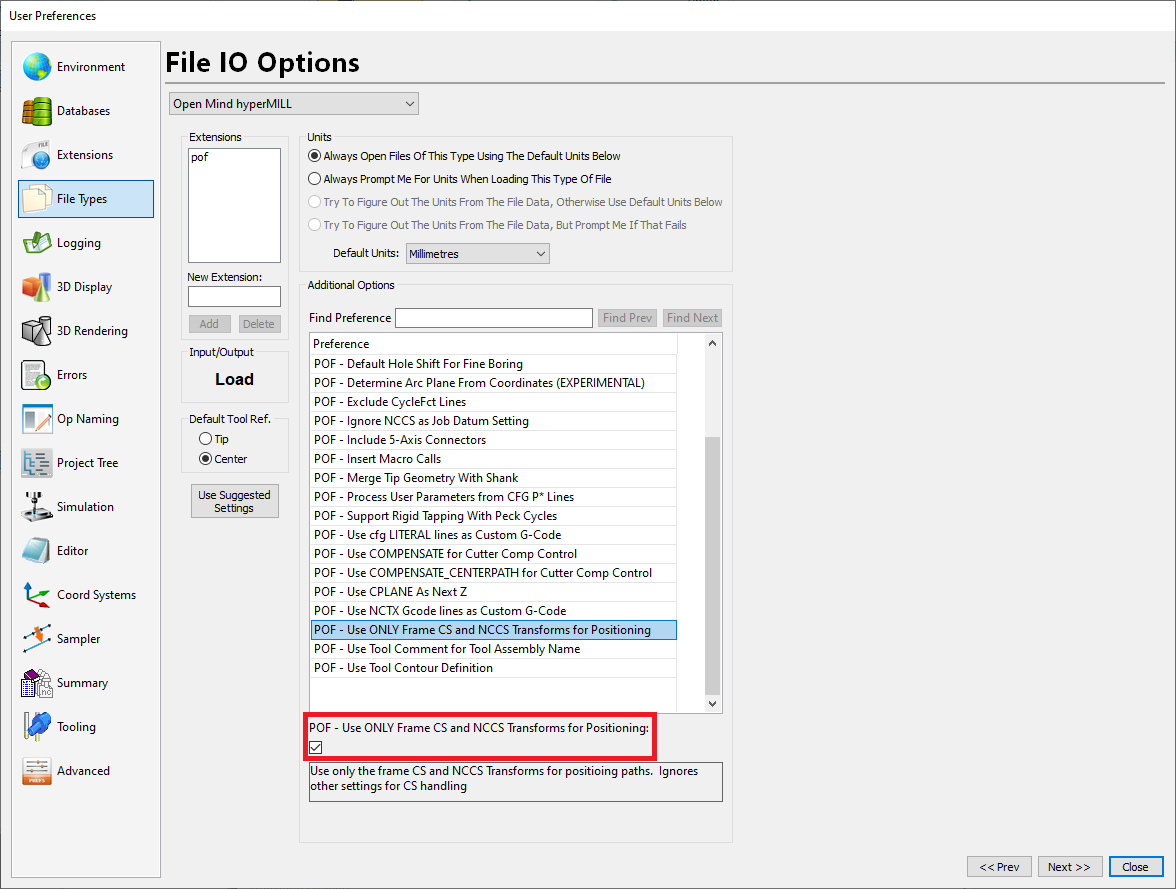
Under Additional Options, select POF – Use ONLY Frame CS And NCCS Transforms For Positioning. Click the check box to enable this feature.
-
Click Close.
-
Shut down TruePath.
To create a project using the New Project Wizard
Refer to the getting started video to learn how to create a project in TruePath from the data you exported from hyperMILL.