Export a model to an SMLX file. In the target application, import the model, or synchronize modifications using this file.
- In Advance Steel, open your model (DWG file).
- Select Export & Import
 Advance Export, and export your model to the SMLX file.
- In Robot, select Add-Ins Integration Autodesk Advance Steel.
- Using the Integration with Autodesk Advance Steel dialog, perform one of the following:
- Select Import and transfer the entire model. Use it when transferring the model for the first time.
- Select Synchronize from Advance and update your modifications using SMLX file. Use it when transferring the model to Robot again, for further modifications.
- If the Mapping of elements dialog opens, map sections and materials.
The imported or updated model displays in Robot.
Before You Edit a Model in Robot
After transferring the model to Robot, you may need to adjust the model geometry so that nodes of elements are connected and the model is consistent. You can do it using the options for structure correction and model editing in Robot. The adjustments of the model geometry are not saved in the .smlx file, and are not transferred to Advance Steel.
Background of the Advance Steel model
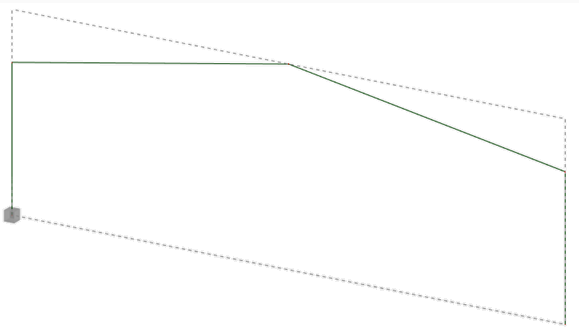
To display the background, select the Create Advance Steel model as backgrounds option in the Integration with Autodesk Advance Steel dialog, before you transfer the model to Robot. Then you can track differences in the model geometry between Advance Steel and Robot.
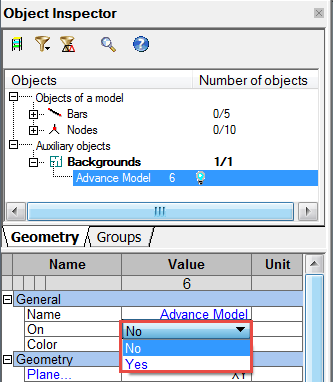
- In
Robot, in
Object Inspector, expand Auxiliary Object and select
Backgrounds Advance Model.
- In the bottom panel of Object Inspector, under General, in the line On, select No.