Connect Revit to Autodesk Docs to access related content in a web browser.
Use the View Online window to access related online Model Coordination clash analysis results (for projects with Model Coordination enabled) or jump to the project folder for this model in Docs.
To view online issues
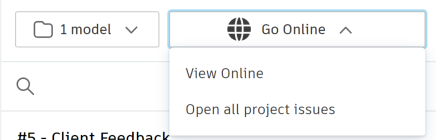
- Click the drop down menu on the Issues Add-in panel, and click Go Online from the list to enable online access.
- Click View Online
When Model Coordination is enabled in the project, you can view clash results by selecting the copy of the model for which you want to view clash results. Once a coordination space is selected, you can choose to view all clashes, view clash issues, or open in Autodesk Docs.
- View all clashes - this opens your web browser and takes you directly to the clash matrix for the copy of the model selected from the list.
- View clash issues - this opens your web browser and takes you to the list of assigned clash issues for the copy of the model selected in the list.
- Open In Docs - This option is available regardless of whether or not Model Coordination is enabled for a project. This option will open your web browser and direct you to the project folder for this model in Autodesk Docs.
To open project issues
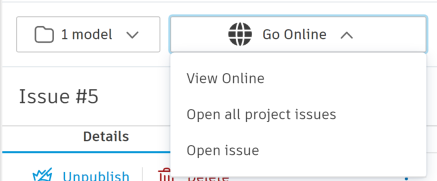
- Click Go Online.
- Select Open All Project Issues or Open Issue from the dropdown menu to view the issues list in Autodesk Docs for the current project.
Open All Project Issues will direct you to the issues list in BIM 360. Clicking Open Issue will direct you to the Autodesk Construction Cloud viewer.
Note: For Navisworks and Model Coordination issues, selecting Open Issue will open your web browser and direct you to the coordination issue in Model Coordination. For all other issues, Open Issue will open your web browser and direct you to the specific issue in Autodesk Docs. - The issue details will now be displayed in the Autodesk Docs viewer.