Creating Variants
Variants are key for product design reviews (PRDs). Core members from design, management, and engineering can get together to review a 3D product, such as their latest car. Using VRED variants/VSets, you can configure your car and its different parts, so it is easy to switch through them during the review.
Since a car can have many different versions, such as standard, sports, convertible, etc., as well as a variety of options, such as sports body pack, 100s of paint and interior material combinations, lights, etc., variants and VSets provide an easy way to step through these, in a packaged way.
Go one step further and create an HTML5 frontplate that links this functionality and allows your participants to change things to see what they want. See Using Python in VRED for how to do this.
How to Create a Variant
Supported types of materials variants are switch, Substances, and X-Rite materials.
In the Menu Bar, select Scene > Scene Graph to open the Scene Graph.
Select Scene > Variants to open the Variants module.
In the Variants module, click the tab corresponding to the type of variant you want to create: Geometry Variants, Material Variants, or Light Variants.
Note:This doesn't apply to Transform Variants and Sceneplate Variants, which will be discussed in other sections.
Drag a node or switch node from the Scene Graph into the list view (left side) of the Variants module. The node name appears in the list view and its potential states and hotkey (if you create one) are displayed on the right.
How to Set a Hotkey
To set a hotkey for a variant, from the list view (left side) of the Variants module, select a node or switch node.
In the section to the right, click the space to the right of the state to access its Hotkey drop-downs.
After entering the hotkey values, tap the blank space below it to set the hotkey.
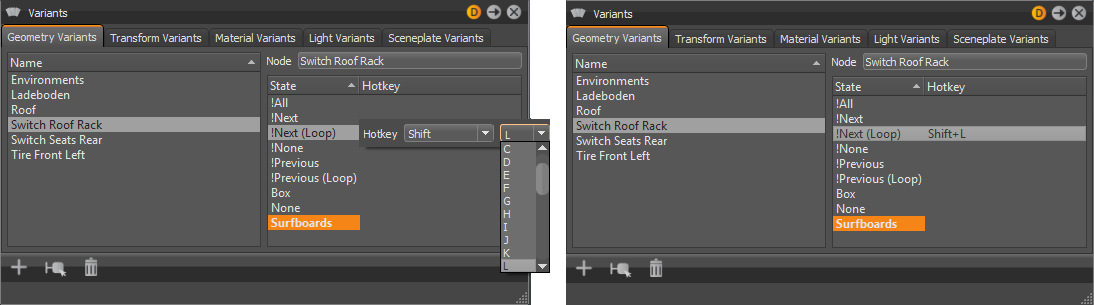
To enable a state, double-click the state. The currently enabled state is indicated by bold lettering; the default state is highlighted.
Note:To test your hotkey, click the Render Window, then use your hotkey.
How to Create a Transform Variant
Transform variants are used to add multiple transforms as variants to Scene Graph nodes. All nodes currently supporting transforms allow transform variants to be created (Groups, Lights, Shells, Surfaces, Meshes, and Lines). For example, a steering wheel can be set to varying positions. Instead of having a geometry variant for each position, you can now have one geometry with multiple transform variants. Using a transform variant reduces scene size, Scene Graph nodes, and memory usage.
In the Menu Bar, click Edit > Preferences > Transform.
Select the Scene Graph node to add transform variants.
In the Quick Access Bar, select Transform to open the Transform module.
Just below the title in the Transform module, select Window > Transform Variants.
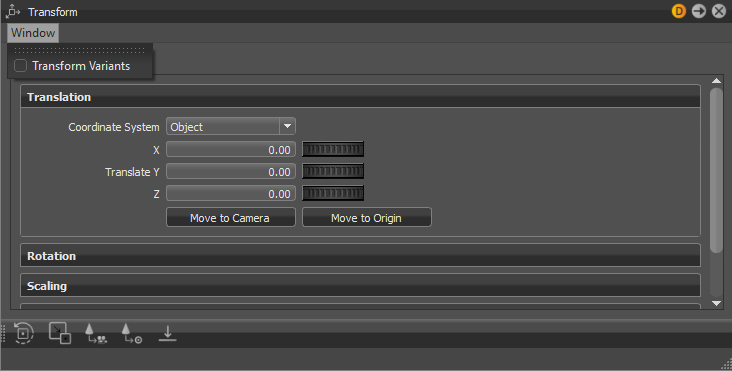
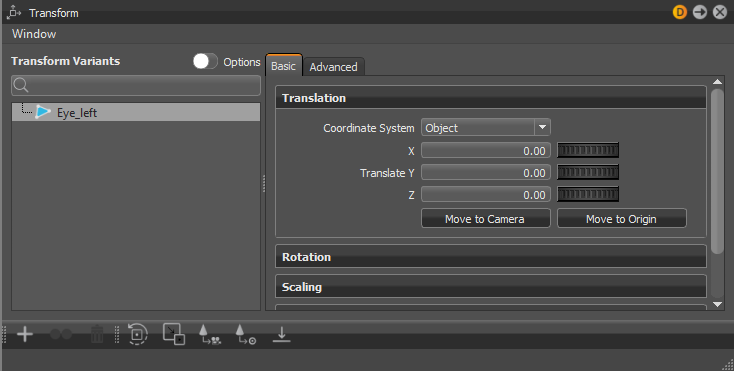 Note:
Note:To always show Transform Variants in the Transform module, in Preferences > Transform > Transform Editor, set Transform Variant Settings to Transform Variant Window.
In the Transform module, right-click the node and select Create or + in the Quick Icons Bar. The first variant is created from the current state of the geometry.
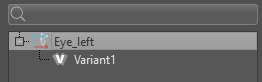
Adjust the geometry with any of the tools in the Basic tab. For example, Translation and Rotation. Right-click on the node and create a second variant.
Double-click a variant to display it in the Render Window.
How to Create a Variant Set
Use variant sets (VSets) to define multiple states for different properties at same time. In many cases, a variant alone is not enough for managing complex models. For example, many different switch nodes are needed to represent a specific version of the loaded model. Variant Sets provides more functionality for activating many states, simultaneously. For configurators, logical connections can be generated.
In the Menu Bar, click Scene > Scene Graph to open the Scene Graph.
In the Menu Bar, click Scene > Variant Sets to open the Variant Sets module.
In the Variant Sets module, right-click in the left side and select New Set.
Click the name of the new set to rename it.
In the Variant Sets module, click the tab corresponding to the type variant you want to create: Geometry, Material, or Light.
Note:The other types of variants will be discussed in other sections.
Drag a node or switch node from the Scene Graph under the appropriate tab of the Variant Sets module.
The node name is added to the tab, with supported states listed in a drop-down box.
To enable a state, select it from the drop-down box.
Optional: Create a hotkey for the variant set in the General tab.
In addition to hotkeys and the Variant Sets module, you can use VRED python scripting to switch between Variant Sets. Use the function selectVariantSet(name), where name is the name of the variant set.
How to Show or Hide Geometry in Variant Sets
Use this feature to show or hide Scene Graph nodes. This can be useful, for example, when using dissections in your scene.
- In the Variant Sets module, select a variant set.
- Go to the Show/Hide tab. You may need to repeatedly tap the last arrow to the right to access it.
- Drag nodes from the Scene Graph into the Show/Hide tab.
- Right-click in the list of variant sets.
- Select Show Geometry or Hide Geometry from the context menu.