Using Dragged Textures
Drag and drop images onto geometry, as a material texture or decal. With an HDR image, assign it to an environment.
How to Create a Material Texture
-
Drag an image file onto an object in the Render Window. This opens the Texture Drag & Drop dialog.
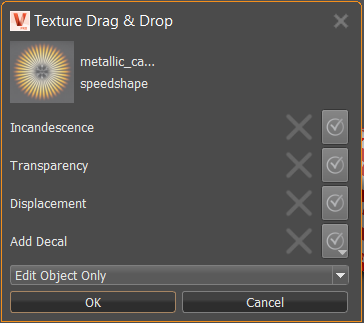
-
In the Texture Drag & Drop dialog, select material attributes for the new image texture.
Note:If you select Add Decal, the material attributes will be disabled.
-
With Add Decal not selected, from the drop-down list and choose Edit Material or Edit Object Only.
Note:Both options are only available when using the dropped image as a material texture and if the material is NOT assigned to multiple objects.
How to Create a Decal
-
Drag an image file onto an object in the Render Window.
-
In the Texture Drag and Drop dialog, select Add Decal.

-
From the drop-down list, select Add to Object or Add to Material.
Note:Add to Object is only available if the material is assigned to multiple objects.
A Plastic material, named Decal, with a planar projection of the diffuse texture and a multipass material are created. If a multipass material is already assigned to the geometry, this multipass material is used. VRED switches automatically to Texturing Mode. A manipulator appears on the image to resize and position the decal.
-
Hold the Shift key and drag the manipulator to rotate, scale, or translate the texture. Dragging the blue scale control adjusts the depth limit of the texture. The default Z value of the projection size is two hundred. Having a value other than zero, ensures the decal only appears on one side of the object.
-
Press T or ESC to exit the manipulator.
How to Create an HDR Image
- Drag an HDR or accepted environment format image into the Render Window. The HDR Drag and Drop dialog appears.
- Click Yes to add the environment as new or replace the active environment.