Environment Switch
By default, VRED provides two environment switches. One is in the Material Editor and the other in the Scene Graph. Both have an icon with an orange star  , which indicates a switch. These switches are connected and have the same number of children.
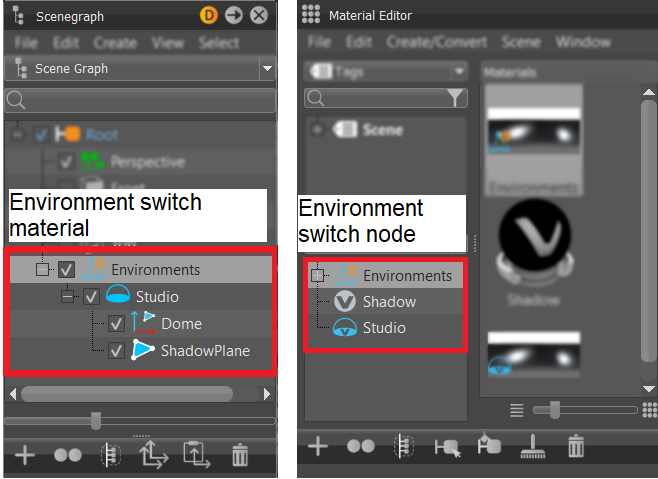
What makes them different is:
- The one in the Material Editor is a default environment switch material and uses a bin shader. It is set as the local environment for newly created TrueLight materials. Use it to manage and switch between environments in your scene. If you load the example file Automotive_Genesis (select File > Open Examples ... > Automotive_Genesis), you will see quite a few switches in the Material Editor's Materials Tree.
- The one in the Scene Graph is a default environment switch node. It contains the geometry for displaying the environment and a shadow plane. Its children are environment nodes. Use it to add different shaped geometries to change the shape of the environment onto which a switch material is projected. If you load the example file Automotive_Genesis (select File > Open Examples ... > Automotive_Genesis), when you open the environments, you will see different geometry shapes.
Use switches, whether they are environment or something else to change things quickly. Use an environment switch to instantly set your model in a new location or to see how it will look in different lighting conditions. One minute, it's a dark garage. The next, it's the seaside in the middle of the day or Times Square at dusk. If you have clients wondering what a car would look like painted some other color, switch to the metallic blue fire or OCS Red Candy. Different interior colors or fabrics? Switch them quickly and easily, on-the-fly.
How to Activate an Environment
Load the example file Automotive_Genesis (select File > Open Examples ... > Automotive_Genesis) and change the environment to activate another pre-loaded one.
-
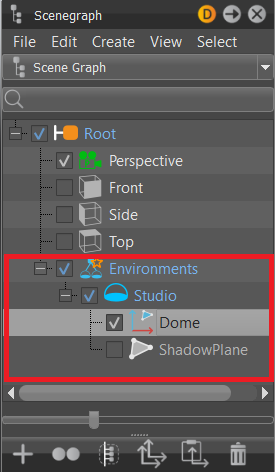
In the Scene Graph or Material Editor, expand the Environments switch.
-
Place a check next to one of its child environments to activate it.
How to Reorder Environments
Environments can be reordered by dragging and dropping them in the Scene Graph or Material Editor. When changing the order of the children in one switch, the same is done automatically in the linked switch.
How to Create an Environment
Newly created environments are automatically added to the default environment switch. A dome geometry is used for a newly created environment. You can change this shape afterwards.
An environment must first be created in VRED before a switch can be created. In the Material Editor, right-click an environment in the Materials List and select Create Environment > Sphere Environment or Skylight.
How to Delete an Environment
The default environment material and geometry switch cannot be deleted. However, their children can be. If a child is deleted, the child in both the default environment switch material and geometry switch are deleted.
In either the Scene Graph or Material Editor, select the child to be deleted, then click from its Quick Access Bar to delete the child environment.
How to Locate and Load an Environment Switch
There are a couple ways to load an environment switch. The easiest is to drop an environment material onto the default switch in the Material Editor. When you do this, a corresponding environment geometry is created and added to the switch in the Scene Graph. To locate an environment switch, do the following:
-
In the Menu Bar, click Scene > Material Editor to open the Material Editor dialog box.
-
Select Environments in the Materials List.
This is the Environment switch.
-
Expand the Environment switch.
By default, it contains a Studio environment.
-
To load other environments into the switch, in the Menu Bar, select Scene > Asset Manager > Environments.
-
Open one of the folders, select and drag one or more environment previews from the Asset Manager onto the Environments switch in the Material Editor's Materials Tree.
How to Change the Environment
Once you have located and loaded the Environment switch with an assortment of locations, it's change from the default environment to something else.
-
In the Material Editor's Materials Tree, under the Environment switch, check the environment you want to use in the scene.
Its name and properties are shown loaded into the right side of the Material Editor dialog box (Attributes Pane).
-
If needed, adjust the properties of the environment.
-
To add another environment to the switch, right-click in the Materials List, select Create Environment, the type of environment (Sphere Environment or Skylight), and an environment.
The new environment is added to the Materials List and also automatically added to the Environment switch.
Note:For more complex scenes, you can add more environment switches; right-click in the Materials List and select Create Environment > Environment Switch.