Sphere Environment
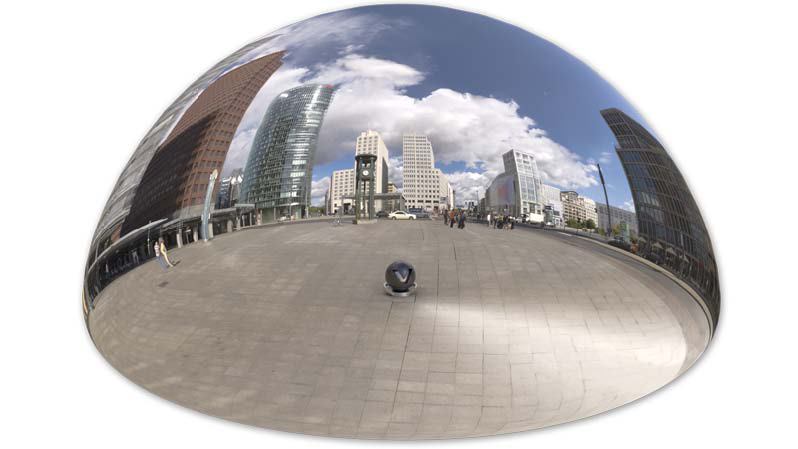
Environments add realistic reflections and light sources to the scene. Use Sphere Environments in Truelight Material. They deliver precomputed Image-Based Lighting (IBL) for the Truelight Material they are assigned to. The lighting of a Truelight Material can be adjusted with the settings of the Sphere Environment. Each Sphere Environment can be assigned as an input node of each Truelight Material in the Material Editor (see General Truelight Material Settings » Common » Environment). The Sphere Environment is a single-sided shader in OpenGL rendering mode.
The Sphere environment gets its representation and lighting behavior from a texture file.
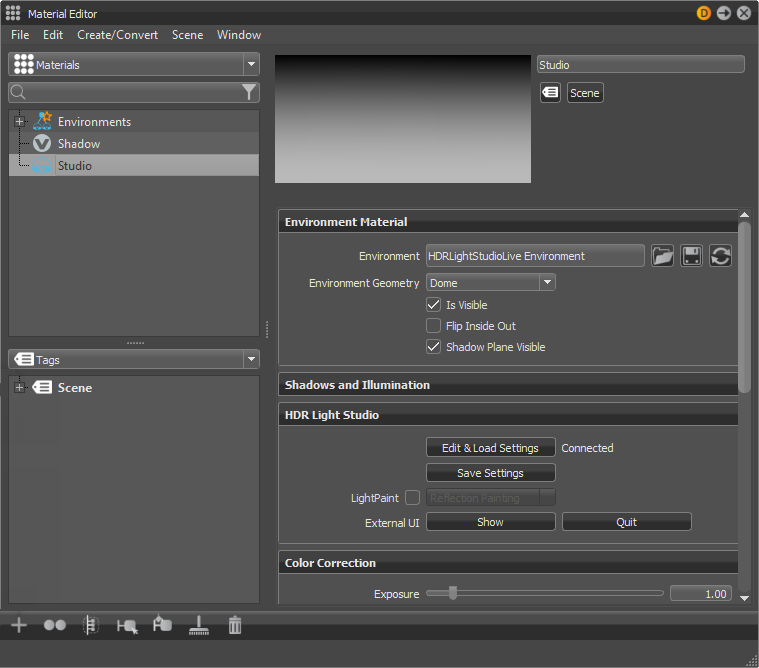
Environment Material
-
Environment - Loads the HDR image to be used as light source. The HDR image is used as an environment, which is reflected on reflective surfaces in OpenGL rendering. In raytraced rendering, the 3D space is reflected in the surfaces. LDR (.png and .jpg) can also be loaded.
-
Use Image Sequence - Select when an image sequence is loaded in the Use Texture box. An animation for the sequence is created in the Curve Editor. Go to Animation > Timeline. Click play to view the animated image sequence on the material.
Note:For definition of an image sequence, refer to the Phong material Diffuse Texture section.
-
Frame Offset - Sets an offset to the image number, when an image sequence is loaded in the Use Texture box and when Use Image Sequence is selected.
-
Inline Image Sequence - When selected, loaded image sequences are packaged within the .vpb file. If the .vpb is moved to another computer, the image sequence does not need to be moved separately.
-
Environment Geometry - Selects the geometrical form for the current environment.
- Custom: Loads an external geometry file.
- Dome
- Sphere
- Cube
-
Is Visible - Sets the light source to on, by default. Controls the visibility of the environment within the render view. A hidden, but activated environment furthermore influences all scene-contained objects, regarding their look and appearance.
-
Flip Inside Out - Flips the normals of the Environment Sphere.
-
Shadow Plane Visible - Enables or disables the shadow plane on the ground.
Shadows and Illumination
-
Shadow Lightsources - Sets the number of explicit light sources. There are 256 light sources available.
-
Use Lightsources Only - When selected, only the shadow lightsources used for the environment are used for illumination. At least one lightsource must be entered in the Shadow Lightsources option for results. In the Raytracing Settings tab, set Illumination to Full Sphere to get illumination from the floor.
-
Material Shadow Intensity - Sets the shadow intensity of the generated lightsources on BRDF-based materials.
-
Ground Shadow Intensity - Sets the shadow intensity of the generated lightsources on the shadow material.
-
Map Filter Radius - Sets the radius used for filtering the shadow map lookup in OpenGL.
-
Map Resolution - Sets the quality of OpenGL shadow maps. Higher values increase the quality.
HDR Light Studio
The HDR image of a Sphere Environment can be interactively created using HDR Light Studio by Lightmap LTD. This part of the GUI is visible, if a demo or full version of HDR Light Studio detects VRED on startup.
-
Edit & Load Settings - Opens HDR Light Studio and tries to load a project saved for this material. If no project has been previously saved for this material, you start with a blank canvas. The current HDR image is replaced. All changes made on the HDR Light Studio canvas are immediately applied to the HDR image of the connected VRED Sphere Environment.
-
Save Settings - Internally saves the HDR Light Studio project for the Sphere Environment currently being edited.
-
LightPaint - This feature has been available since HDR Light Studio version 4.0. Integration of LightPaint within VRED allows you to directly click the VRED Render Window for positioning light sources in the HDR image.
For example, the current light source reflects in that position. Refer to the HDR Light Studio manual for detailed information on the different painting modes. Choosing one of the three painting modes activates the Paint tool in the VRED Render Window. Hold SHIFT and click within the scene to place the selected light source in the HDR Light Studio canvas. Hold SHIFT and right-click within the scene to select a light source. The active painting mode is used to determine the light node in the HDR map.
-
External UI - Contains two buttons for working with area lights and HDR Light Studio.
-
Show - Displays the HDR Light Studio window, if previously closed.
-
Quit - Shuts down an HDR Light Studio background process (
HDRLightStudio.exe) and free up the license. Once all edits have been made in HDR Light Studio and the HDRI saved, click the Quit button to release the HDR Light Studio license for others to use.
-
Color Correction
-
Exposure - Sets the HDR-Image’s exposure level. The higher the exposure level, the longer the series of shutter cycles which are used to calculate the image’s light intensity.
-
Whitebalance - Sets the camera's white balancing color temperature. Lower values balance the camera to a lower color temperature and therefore create cooler (bluish) colors. A higher value balances the camera to a higher color temperature and produces a warmer (yellowish) color.
-
Hue-Shift - Shifts all colors in the HDR-Image uniformly through the hue color range.
-
Contrast - Separates the light and dark color values further from each other.
-
Brightness - Raises the color value of the whole HDR-Image.
-
Saturation - Sets the HDR-Image’s saturation.
-
Reflected Saturation - Sets the HDR-Image’s saturation when the HDR-Image reflects in any surface.
Transformation
The source of spherical projection of the Sphere Environment Material can be set with transformation parameters.
-
Environment Size - Sets the radius of the Sphere Environment Material’s projection sphere. The projection sphere must enclose all objects using a material having this Sphere Environment Material as environment shader assigned. All objects that are outside the projection sphere using a Truelight Material with this Sphere Environment Material as input channel, are not rendered properly.
-
Center X, Y, Z - Defines the projection sphere’s center position.
-
Get from Object - Sets the projection sphere’s center. To center the projection pivot automatically, select an object and press Get Center. The selected object center is now used as projection spheres pivot.
-
Rotate X, Y, Z - Sets the Sphere Environment Material’s orientation.
-
Scale X, Y, Z - Sets the Sphere Environment Material’s size. With the scale value, the image projection can be stretched and squashed on any axis.
Raytracing Settings
These settings take effect in Raytracing Mode only.
-
Is Visible in Reflections - Sets the visibility.
-
Use as Lightsource - Uses the HDR ALS light source. Only supported in FullGI illumination mode.
-
Use Accurate Geometry - When selected, uses the accurate geometry. This option is unselected by default. If unselected, all diffuse and glossy reflection calculations are based on the virtual sphere of the environment. Selecting this option, the real environment geometry is used for more accurate diffuse and glossy illumination in Precomputed+IBL and Full Global Illumination Mode. (At the cost of a 20–25% performance hit compared to default finite sphere environment.)
Note:This option is only supported for diffuse and glossy environment reflections.
-
Emit Caustics - Activates/deactivates Emit Caustics. Allows the HDR to emit caustics. Only supported in FullGI illumination mode with caustics.
-
Material ID - Sets the id of the material.
-
Illumination - Offers the following options:
-
Upper Hemisphere - Emits light only from the top half of the sphere.
-
Full Sphere - Emits light from the whole sphere.
-
-
Override IBL Sampling Quality - If enabled, the setting overrides the global IBL Sampling quality for sampling the environment map.
-
Interactive Quality - Sets the IBL sampling quality during interactive rendering.
-
Still Frame Quality - Sets the IBL sampling quality during Still Frame rendering.
-
Connecting Area Light to HDRLS
Connect your VRED environment to HDRLS (HDR Light Studio).
HDR Light Studio must be installed to do this.
-
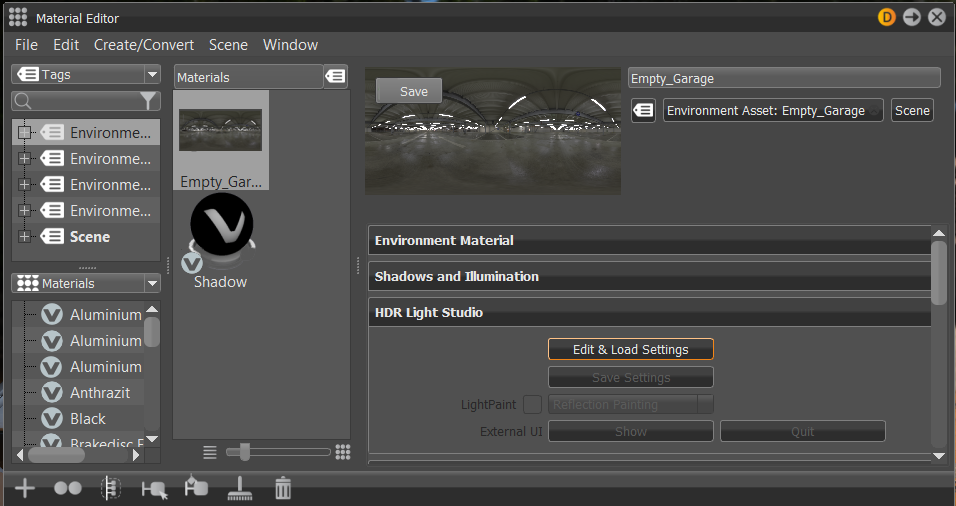
In the Material Editor, select an environment material, then in the HDR Light Studio attributes section, click Edit & Load Settings.
-
Enable the Area Light option to create a light node in HDR Light Studio, that will promote this light to an area light. VRED automatically creates a rectangular area light,then receives a texture, transformation, enabled state, and primary visibility for the area light.
-
In the Scene Graph, the light becomes part of the Environment node of the environment material connected to HDRLS. All area lights belonging to this environment are added to a group (both in Scene Graph and Light Editor).
-
When switching the HDRLS Area Light option on/off, the light node is re-created in VRED.
A Smart Dolly of 1000.0 (in HDR Light Studio) positions the area light 1000 units (default: mm in VRED) from the world center or last light paint point. If your object is bigger than 1000 mm (1 m), the light might be initially inside the object. Increase Smart Dolly or use light paint to move it out.
Try setting the HDR Light Studio Smart Dolly Scalar preferences to 10. This sets the default distance of an area light of the world center or light paint position to 10.000 units in VRED. Use the Smart Dolly slider to bring the light closer and inside the dome. This helps to make the dome geometry larger, so the area light fits inside the dome.