X-Ray
The X-Ray material was created as a material for hands in a VR environment, in particular, for Oculus users. However, use it whenever you want to assign a transparent or semi-transparent material to an object, like for a technical illustration.
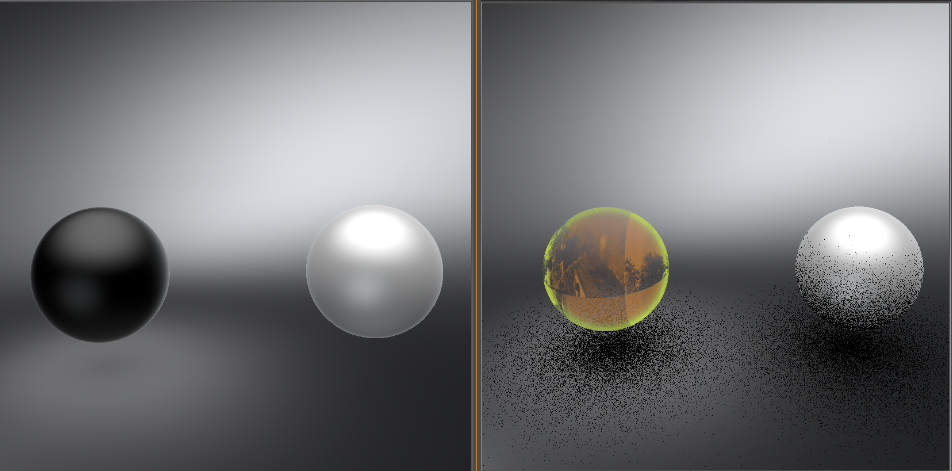
If an X-Ray material is in a layered material, the effect is not visible in OpenGL mode. It is visible, however, in Raytracing mode. In the images below, the first is an example in OpenGL mode. The second is in Raytracing mode.
In the Menu Bar, select Scene > Material Editor, then in the editor, select Create/Convert > Create Material > X-Ray.
X-Ray Material
Base Color
Defines the base color of the material. Click the color field on the right to access Choose a Color dialog and select a color.
Single-sided
Toggles the visibility of backfaces. By default, this attribute is enabled, so only one side of the object is rendered. When enabled, it is important for normals to be correctly oriented. Single-sided can also be switched off in the Material options.
Cast Shadows
Casts a shadow, when enabled. In OpenGL, the shadow is based on non-transparent object forms. In Raytracing, transparency is considered.
Fresnel Transparency
The three Fresnel Transparency attributes help define the transparency of the object. When Bias is increased, the surface of your object becomes opaquer. When Scale is increased, the edges of your object become opaquer, as it takes into account the normal falloff. When Power is increased, it defines the intensity of the outline created with Scale.
Fresnel Color
The Color attribute defines the color of opaque surfaces and outlines. It is added on top of any base color that was set separately. Use it to change the color or brighten the outline. The other Fresnel Color attributes are the same as the Fresnel Transparency attributes, since they customize the falloff based on surface normals and the viewing direction. They will influence the strength of the hue, applying more or less color to opaque surfaces and outlines.
Transparency
This is based on the viewing angle. The surface is rendered ore opaquely when viewed from a gazing view. The surface is rendered more transparent, when it is facing the view.
See Through
Set how easily you can see through the texture.
Use Texture
Click the box after the title to enable Use Texture and expose options for modifying the texture. Set how the texture will be mapped and the type of mapping it will use, whether to use the original texture size or not, how often the texture repeats and/or if it offset, whether it's rotated, and is there any anisotropy.
- Click the folder icon and select the texture you want; if at any point the texture is updated, click
 Restore to load the latest version.
 - Click
 to save the texture to a different location.
 - Click
 to delete the texture.
Raytracing
Set the Material ID and Line Tube Radius when raytracing the texture.
Common
Set occlusion color and intensity, sort key, and environment.