Create an exploded view animation
How to animate the assembly of components of your model.
After your model has been created you can apply keyframes to positions of each of the main parts to display an animation that shows all parts of an assembly arranging themselves to form the object. The best way to accomplish this type of animation is to start at the end with the assembled model and develop the animation backwards.
To explain this concept we have used an example of assembling a computer mouse where it first appears assembled, then being assembled, and finally fully unassembled.
When creating your model separate the main components and Assign them to separate layers.
Set the final keyframe
We are assuming that you have a completed model.
- Create a new layer and name it cameraview
- Verify that nothing is animated on your model by clicking the Play button on your timeslider.
- Choose Pick > Object
 and drag a pick box around the entire model to select all of its components.
 - Choose Animation > Keyframe > Set Keyframe
 and create a keyframe for each models component at its current position. Set the keyframe for frame final time.
 - In the Time Slider, click the Start/End button (located at the left end of the Time Slider).
- Choose Min/Max from the menu.
Set the initial keyframe
Pick nothing to deselect all objects.
Choose Pick > Object
and pick a component of your model you wish to animate first.Dolly out from the scene to have a better picture of the whole scene.
Move the first component of the model you wish to animate well above the model. In our example we are moving the mouse buttons.
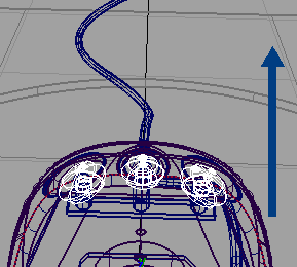
The mouse buttons have been moved above the model.
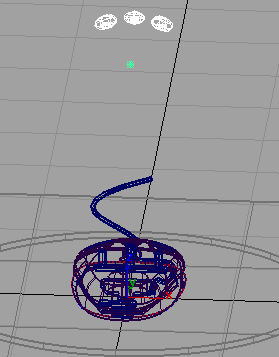
Deselect all objects.
Pick the second component of your model. Here we have chosen the top surface of the mouse.
Drag the right mouse button up to move the top surface well above the rest of the model but just below the mouse buttons.
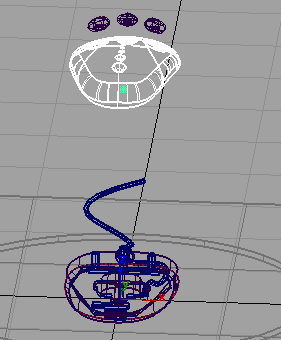
Deselect all objects.
Repeat the steps 1-5 using a combination of Transform and Rotate functions until you have positioned each of the components of your model.
Select all of the mouse component objects.
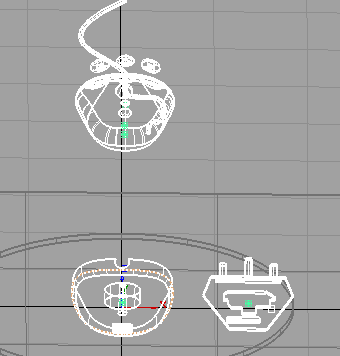
Create a keyframe for your model components at this position. Set the keyframe to frame 0.
Play back the animation
As the model components come together, they intersect each other. In our example, the circuit board is in its final position in the base of the mouse well before the rest of the components come together.
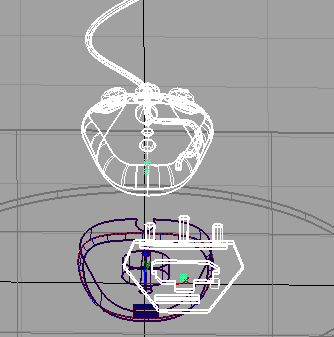
Establish where collisions occur

Click the Scrub Bar and drag the time bar towards the end of the animation to review where the objects are colliding.
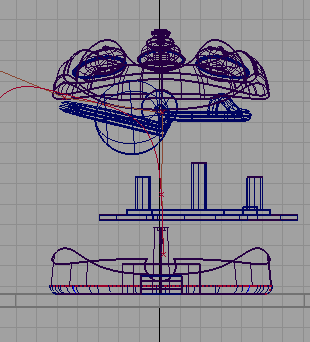
Scrub back in your animation to see which objects collide. Pick the object which needs to be changed.
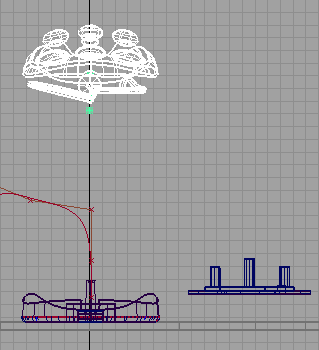
Change keyframes of objects to not collide
Open Animation > Editors > Action Window
 .
.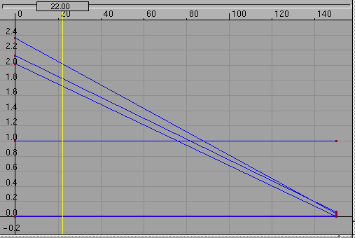
In the Action Window, choose Views > Lookat.
Move the selected keyframes to frame to an new keyframe time.
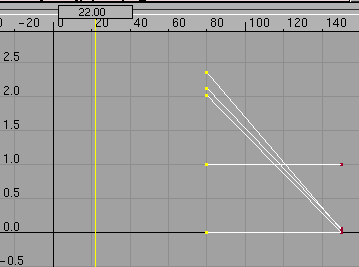
Close the Action Window.
Review your animation
- Choose Animation > Show > Playback
 .
.