Create rounded edges and corners

Use the Round tool to create rounded surfaces along edges (fillets) and at corners where existing surfaces meet. The tool creates curvature continuous filleted surfaces and tangent continuous corner blends. When blending corners, you have the choice of different geometries, including single surface, three surfaces, triangular surface, and six surfaces with setbacks.
You can also create mitred corners, which include two corners with radius values greater than zero. Note that there may only be two edges meeting at the corner, both with radius values greater than zero.
Some settings in the Round Control window are global, such as the Initial Radius and Create Corner Blends, which means they affect all the selected edges. The in-canvas manipulators let you adjust radius and Corner Blend on individual edges and corners. For more information on the radius and corner blend manipulators, see the following:
Create rounded surfaces along edges with or without blended corners
In the Surfaces tool palette, select the Round tool
 icon.
icon.In the Round Control window, set the values to use for rounding edges and blending corners:
Continuity - You can modify this value and update the results at any time.
Initial Radius - This value is used to globally set the radius value for the selected edges. After edge selection, you need to use the in-canvas radius manipulators to set radius values for each edge.
Corner Blends - By default, if you select edges that meet at a corner, the corner is also rounded. You can set options for Equal Radius Corner, Unequal Radius Corner, Mitred Corner, and Four Sided. After edge selection, you need to use the in-canvas radius manipulators to modify the Corner Blend type for each corner.
See Use the corner blend manipulator.
Turn Create Corner Blends off if you want to the leave the edge fillets unblended. You can use other tools, such as the Corner Blend tool, later to get the shape you want.(see Create a corner blend surface).
Depending on the number of edges you want to round, do either of the following:
Click Box Pick if you want the Round tool to locate edges for rounding. Drag to select the surfaces with the edges you want to round.
The Round tool locates all the edges that meet other surfaces. Edges that do not meet within tolerance, meet tangentially, or where the fillet would have to switch sides, are not selected.
If you make a selection error, click Clear Selection. Otherwise, confirm your selection by clicking Accept.
Note:After clicking Accept, only the Pick Edges selection mode is available to select more edges. To return to Box Pick mode, click Undo All in the Round Control window.

To select individual edges, click Pick Edges in the viewport, and then select each edge you want to round.

The edges to be rounded are highlighted in green with squares indicating the end points of each edge. Blue radius manipulators set to the Initial Radius value appear on each edge.
Click Build to round the selected edges and corners.
Fillet surfaces are built along each shared edge. All new surfaces are grouped under the same DAG node.
To make further modifications, such as selecting more edges or adding manipulators, see Modify rounded edges and corners.
Modify rounded edges and corners
After building the fillets surfaces and blended corners you can make several modifications to get the desired results.
To modify the rounded edges, such as selecting more edges or adding manipulators, do the following:
To add edges to round, click Revert in the viewport, select the edges you want to add, and then click Build.
Newly selected edges are rounded using the set Initial Radius value.
To adjust the radius values of the edges, select the Radius manipulator, and then drag right or up to increase radius or drag left or down to decrease.
Tip:You can set the Radius value of multiple edges by Ctrl-selecting them and dragging.
To add extra radius manipulators, click locations along selected edge.
See About variable radius fillets for more information.
To delete a radius manipulator, Shift-select it.
To move radius manipulators, click and drag the small triangle on the manipulator and drag it along the edge.

For more information, on radius manipulators, see Use the radius manipulator.
To change the blend type of a corner, click the corner blend manipulator to toggle between the different corner types.
See Use the corner blend manipulator.
 Note:
Note:The types of corner blends available for each corner depend on the number of filleted surfaces that meet at the blended corner as well as whether or not the radius values of these surface fillets are equal.
About variable radius fillets
You can add as many radius manipulators as you want to set the radius of the fillet at several points along the edge.
Even if you do not place radius manipulators at each end of an edge, the fillet will extend from one end of the edge to the other. The fillet radius at each end of the edge will be the same as that of the outer radius manipulators.

If two or more edges are tangent continuous, they are treated as a single edge. Creating a smooth variable radius fillet across the surfaces then requires only two radius manipulators (rather than one for each edge). However, the fillet will be made up of a separate surface for each edge.

Create mitered corners
To successfully create a mitered surface, one surface is common to both edges; the other two surfaces must intersect.
In the Surfaces tool palette, select the Round tool
.Select two edges that meet at a corner.
The shared edges are highlighted in green with blue squares indicating the end points.
Radius manipulators and a corner blend manipulator appear.

Adjust the radii on the two edges as desired.
Click on the corner blend manipulator to toggle between Sharp and Blended corner treatment.
Click the Build button.
Four surfaces are built: two fillets and two surfaces at the corner.
Note:If one of the two edges has a radius of 0.0, no corner surfaces are built, only a single fillet.
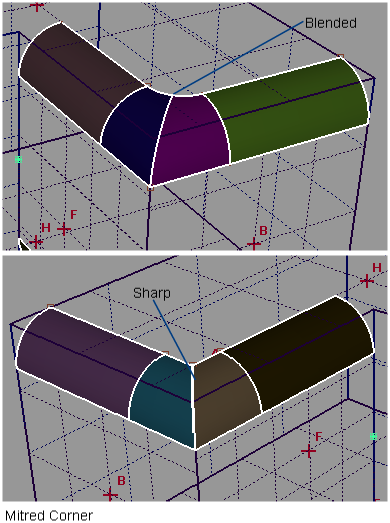
You can still modify the radius manipulators and click Build again to rebuild the surfaces.
If you need to select extra edges or deselect some edges, click the Revert button.
The fillets and corner surfaces are removed, and surfaces are untrimmed. You can then select/deselect edges, then click Build again.
Use the radius manipulator

The radius manipulator appears when you click on an edge. It has two handles, as shown above.
- Click and drag the small triangle to move the manipulator along the edge.
- Click and drag the arc to change the radius value (or use the keyboard to enter an exact value).
Holding the  key and clicking on a radius manipulator removes it.
Use the corner blend manipulator
This manipulator can have one of six possible shapes:
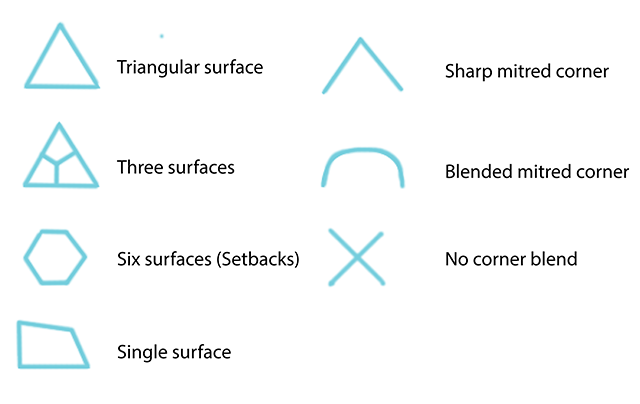
Clicking on it will toggle it between all the possible choices for the corner geometry. The shapes available depend on the radii of the fillets incident on the corner.
This manipulator only appears when creating corners.
For more information on the different corner types, see Options in Surface > Round .
What if...?
The round operation fails?
- Make sure the radii are not too large for the surfaces.
- Make sure the surfaces don’t have internal tangent discontinuities (caused my multiple knots).
- Make sure that the all edges are within set tolerances. The default tolerance is set in Preferences > Construction Options under Tolerance >Topology > Topology Distance (see Preferences > Construction Options. You can also set the Custom Tolerance in the Round Control window to test different tolerances.