Create an offset copy with Object Edit > Offset
Offset several curves in the same direction simultaneously
Pick one or more curve(s) or curve(s)-on-surface.
In the Object Edit tool palette, select the Offset tool
 .
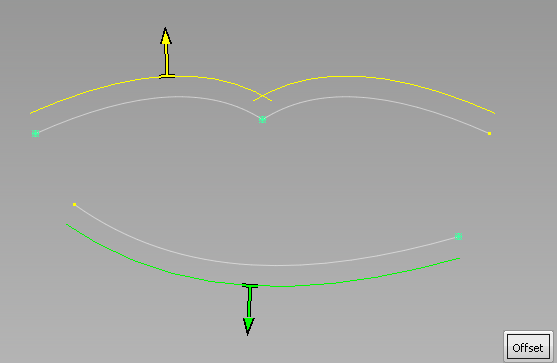
.Curve sets are created based on topology. Each set shows an offset preview of a different color with an arrow indicating the unified direction of the offset.
 Note:
Note:The Topology Distance (in Preferences > Construction Options) is used to determine which curves form a unified set that must be offset in a single direction.
Do any of the following:
- Click on an arrow to modify the offset direction for a set.
- Drag the
 left and right to change the offset distance.
 - In the Offset Control window, type a number to set the offset distance exactly and specify other options for the offset.
- Select additional curves (or de-select them) by holding the
 key while clicking them or using a pick box.
Click the Offset button.
What if...?
I get strange results when I try to offset a curve?
- If your curve is not in the XY, XZ, YZ, or construction plane, you may get strange results. Open the options box, and set the Curve Offset Plane option to Geometry Average.
- If your curve is planar and non-periodic but the offset presents a bad CV distribution (for example twists or bow ties), set Normal Mode to NUV.
- The Offset tool can have trouble with objects that have multi-knots or CV multiplicity.
Offset several surfaces in the same direction simultaneously
Pick the surfaces you want to offset.
In the Object Edit tool palette, select the Offset tool
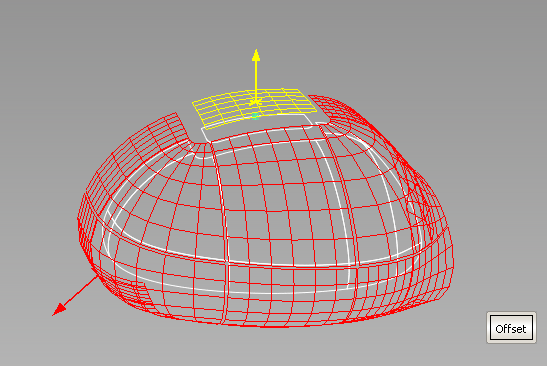
.Surface sets are created based on topology. Each set shows an offset preview of a different color with an arrow indicating the unified direction of the offset.
 Note:
Note:The Topology Distance (in Preferences > Construction Options) is used to determine which surfaces form a unified set that must be offset in a single direction.
Optionally do one of the following:
- Click on an arrow to modify the offset direction for a set.
- Drag the left and right to change the offset distance.
- In the Offset Control window, type a number to set the offset distance exactly and specify other options for the offset.
- Select additional surfaces (or de-select them) by holding the key while clicking them or using a pick box.
The offset preview updates.
Click the Offset button.
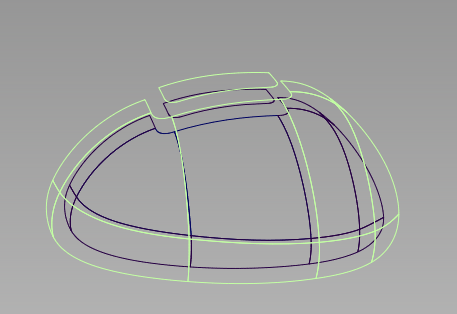
The offset surfaces are created and grouped.
What if...?
The surface offset has a bad CV structure (for example bow ties)?
Try setting Normal Mode to NUV.
Offset multiple surfaces while maintaining continuity
Use Surface Edit > Claymate  . Note that Claymate is not included with all Alias products.
Pick the surfaces you want to offset.
In the Surface Edit tool palette, select the Claymate tool
.The Claymate Options window appears.
Turn the Claymate Offset option on, then click Go.
The Claymate Control window appears.
Set the Offset Distance in the Claymate Control window.
Pick any other surfaces you want to offset, then click Go.