Create a light
How to create a light using either the Create light tools or the Multi-lister, and how to set light properties.
By default, lights are named sequentially as you create them: Light, Light#2, and so on. To avoid confusion, however, name all lights as you create them. If you let the system assign default names and later combine two or more files, all lights are renumbered to avoid duplicate names. It may then become difficult to distinguish lights by name.
Create a light using the Light tools
Select a tool from the Render > Create lights cascading menu, or click one of these icons on the Visualize shelf:
 Note:
Note:If shelves are not visible choose Windows > Shelves
 .
.Place the light by clicking in the modeling window, or by typing a set of coordinates in the prompt line.
A new light swatch appears in the Multi-lister, and a new light icon appears in the modeling window. Each type of light has a unique modeling window icon and Multi-lister swatch.
In addition, light manipulators are displayed in the modeling window.
(To display the manipulators for an existing light, select the Pick > Object
 tool, select the light, and select a Light tool.)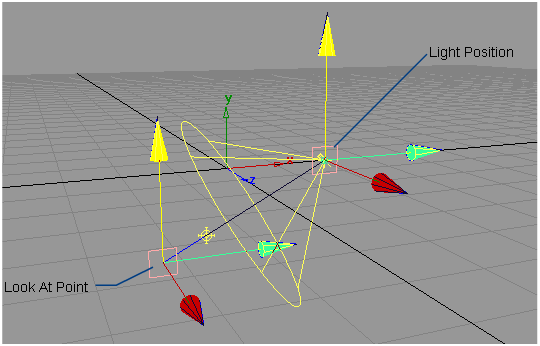
Most lights have one manipulator that controls the light’s position. Spot lights have two manipulators: one manipulator controls the light’s position, the other manipulator controls its direction (look-at point). Each manipulator consists of a square icon at its center, and three colored arrow icons radiating from the center in the X, Y, and Z directions.
By dragging a square icon you can move the light or the light’s look-at point across the view plane (in orthographic windows) or parallel to the ground plane (in perspective windows). By holding the
 key while you drag a square icon you can snap the light to grid points.
By dragging an arrow icon you can move the light or the light’s look-at point in the X, Y, or Z direction.
Create a light using the Multi-lister
- In the Multi-lister (Render > Multi-lister
 > Lights), select Edit > New Light. A new point light swatch appears in the Multi-lister, and a new point light icon appears in the modeling windows at 0,0,0. Double-clicking the icon opens up the Control Window that allows you to change the light type and other parameters.
Display the light options box
Do one of the following:
- Select Create lights from the Render menu, then click the box beside the name of a light type (for example, Render > Create lights > Point
 ).
). - Double-click one of the light icons from the Create shelf.
Related Reference
- Volume texture
- Render > Create Lights > Point
- Render > Create Lights > Spot
- Render > Create Lights > Directional
- Render > Create Lights > Ambient
- Render > Create Lights > Linear
- Render > Create Lights > Area
- Render > Create Lights > Volume
- Render > Create Lights > Create Defaults
- Render > Editors > Light links
- Windows > Shelves