Modify brightness and contrast in an image
How to adjust the tonal range of an image by adjusting brightness and contrast.
Import the image (File > Import > Canvas Image
 ) or pick the layer to be adjusted in the canvas Canvas Layer Editor.
Choose Paint Edit > Color Correction > Brightness & Contrast
 . The active layer is loaded into the Brightness and Contrast window.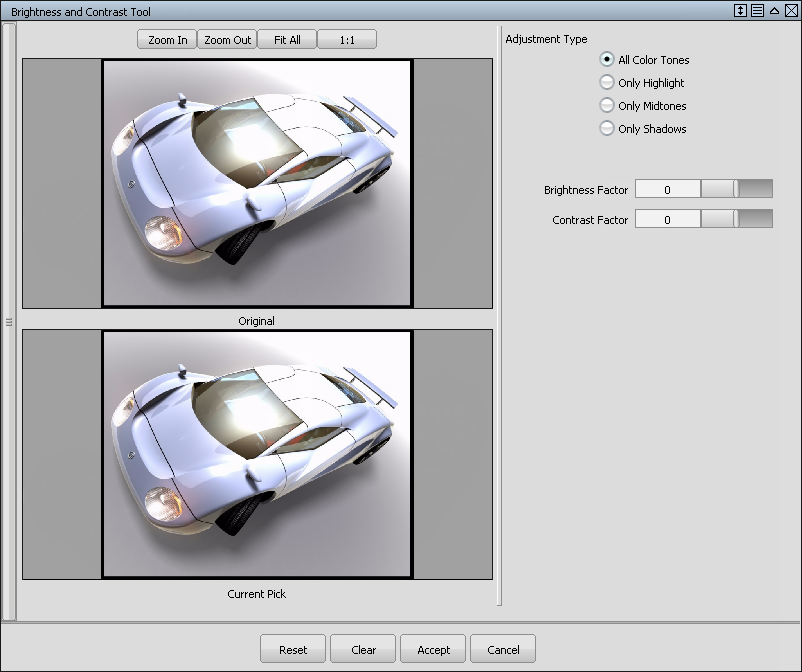
Zoom in and pan to see the area of the image that provides the best view (using the buttons at the top of the Brightness and Contrast window).
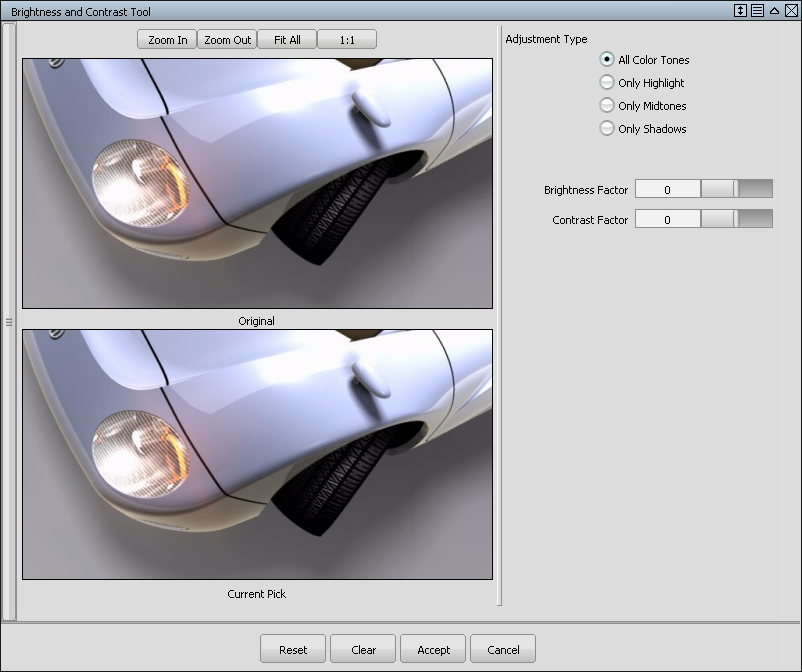
Decide what tonal value to change. In this example, we’ll increase the contrast for all color tones. Then we’ll make the shadows darker and the highlights brighter.
Make sure the Adjustment Type is set to All Color Tones.
Increase the contrast for all color tones by increasing the Contrast Factor until the bottom image looks correct.
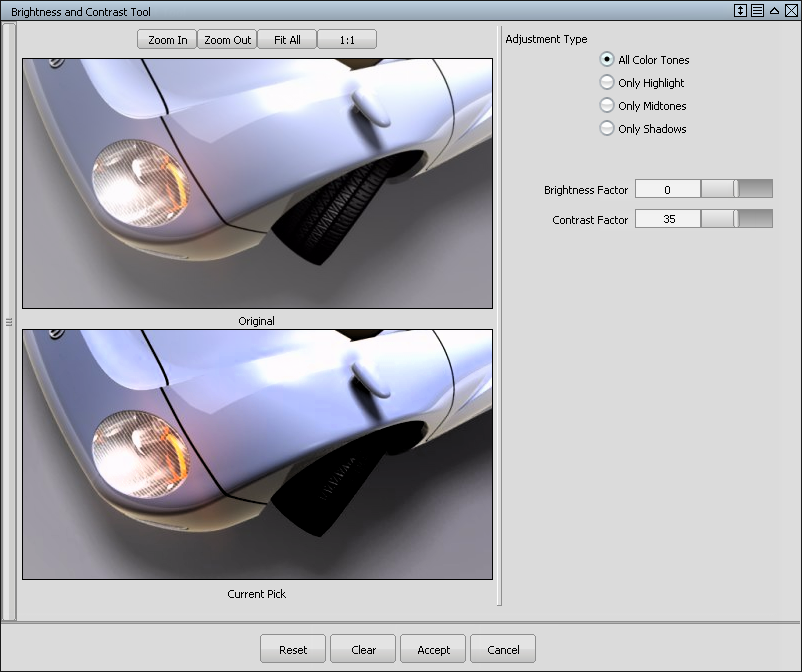
Press the Accept button.
The changes are applied to the layer and the Brightness and Contrast window closes.
Choose Paint Edit > Color Correction > Brightness & Contrast
again to reopen the window.To make the shadows darker, set the Adjustment Type to Only Shadows, then decrease the Brightness Factor, until the bottom image looks correct.
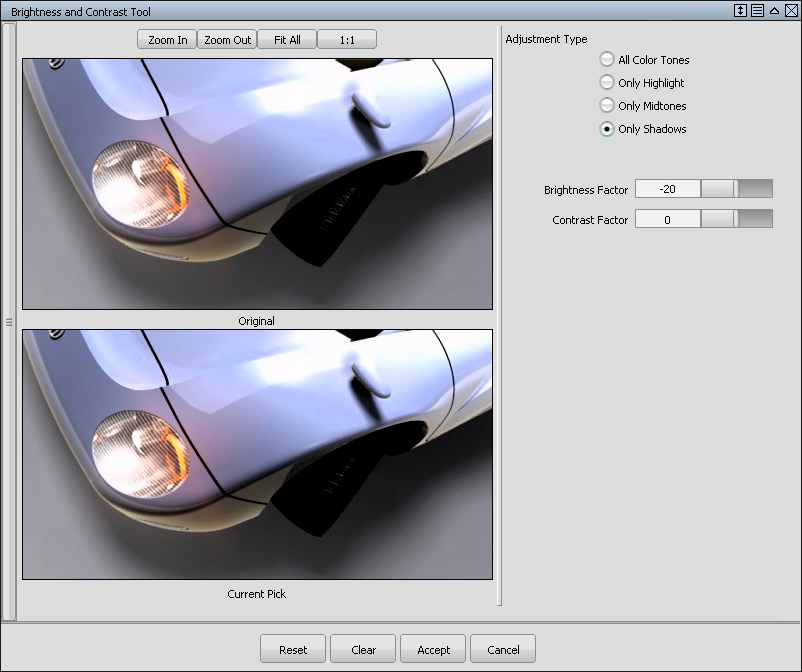
Press the Accept button.
The changes are applied to the layer and the Brightness and Contrast window closes.
Choose Paint Edit > Color Correction > Brightness & Contrast
again to reopen the window.To make the highlights brighter, set the Adjustment Type to Only Highlight, then increase the Brightness Factor, until the bottom image looks correct.
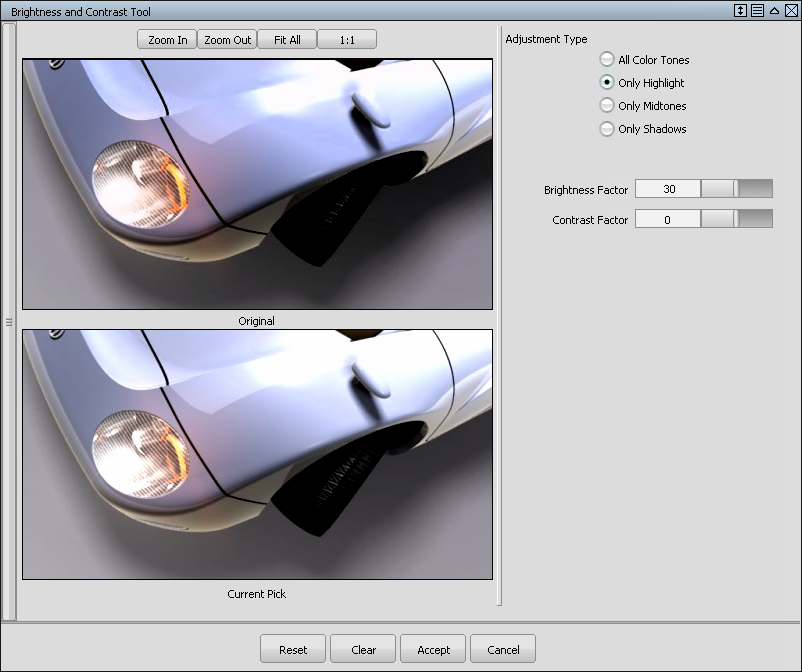
Press the Accept button at the bottom of the Brightness and Contrast window.
The changes are applied to the layer and the Brightness and Contrast window closes.