AutoCAD Help is contextual, which means that it responds to what you're currently doing. To pull it up, press F1 in the following situations:
- To get help for the command in progress, press F1 during the command.
- To get help for a dialog box, palette, or tooltip, press F1 while it has focus.
- To get to the Help Home page, press F1 when AutoCAD has focus and neither of the previous two conditions apply.
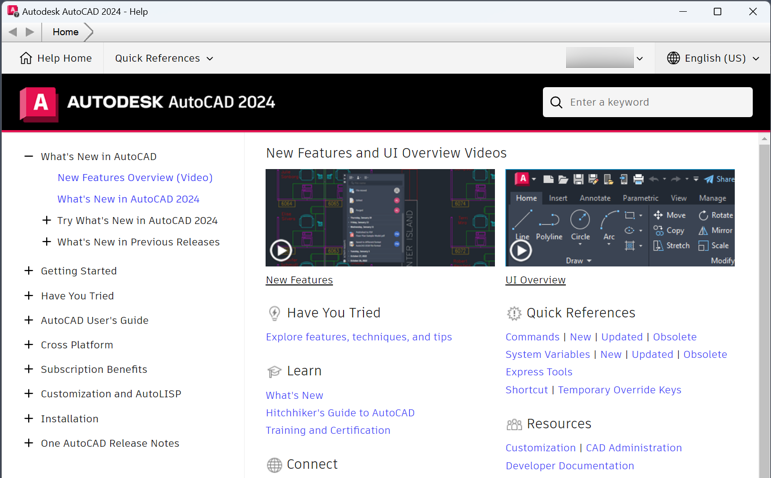
There are three primary areas on the Help Home page:
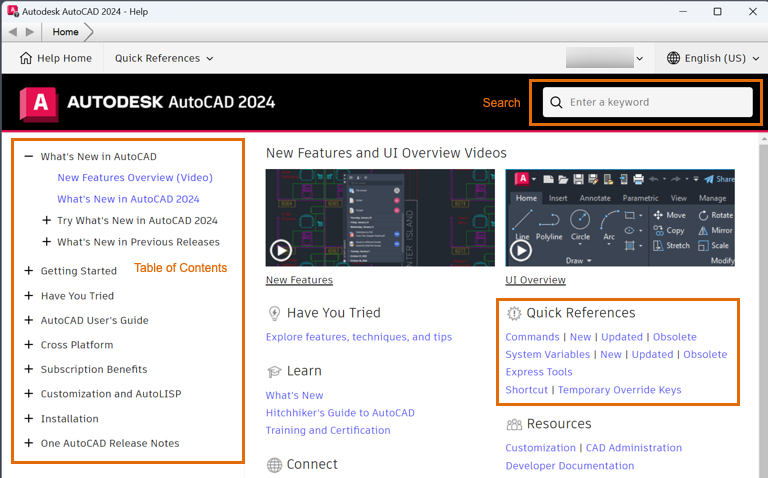
- Table of Contents. Each featured area expands to display a list of primary concept topics.
- Search. Sources related help content based on the keywords you enter.
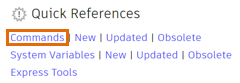
- Quick References. The Commands link lists all commands alphabetically, with separate lists provided for New, Updated, and Obsolete commands.
There are also lists for system variables, Express Tools, and various keys, including the Function keys F1 - F12.
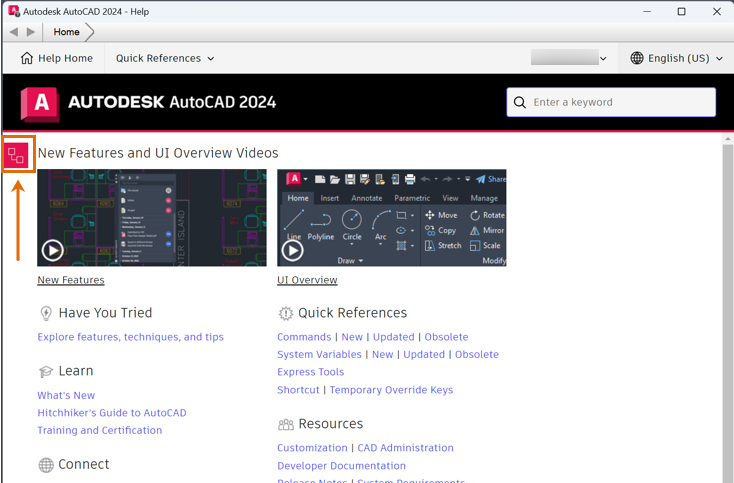
Pressing F1 pulls up the Help system, but to answer a specific question, you'll have to leverage the keyword search. But this option can return hundreds of results. No one wants to scan through a long list of search results. Is there a more efficient way to get to the topics that cover the information you're looking for?
Let's explore several different ways of better leveraging AutoCAD Help.
Exercise:
Imagine that you want information about controlling the scale of a hatched area.
- Enter the keyword
hatch in the Search. As you type in the word, the type-ahead feature offers several choices.
The type-ahead feature is currently available for a small but growing list of AutoCAD terms. Go ahead and finish typing hatch.
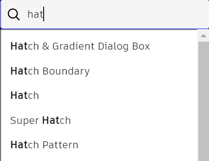 This action pulls up over a thousand results. Fortunately, you can filter these down.
 Tip: To get the best results, enter only a single keyword for your searches. Searching multiple words results in a combined list of each keyword.
 - Under REFINE BY, click Product Documentation.
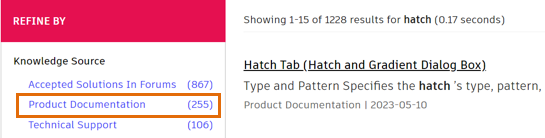
This action narrows the knowledge sources to one: Product Documentation. This action greatly reduces the number of results.
- Next, scroll down the list of filters to Product Feature and click Hatches and Gradients. This action further narrows the results.
As you click each filter, you will see them added to the right pane.
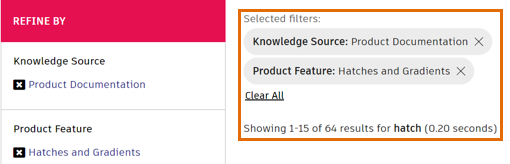
- In the left pane, under Content Type, click Concept.
Finally, you'll see in the right pane that the results are reduced to a manageable number for you to review.
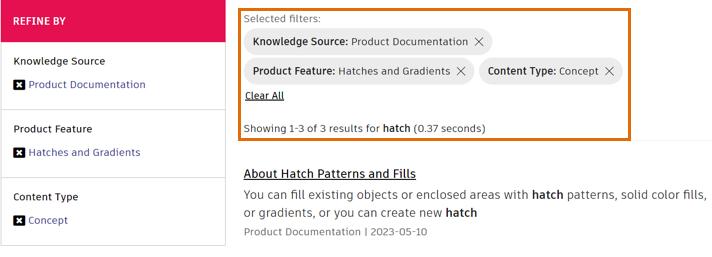
The selected filters can be removed individually from the list, or cleared completely if you want to replace one or more of the filters. While it takes several clicks to specify what you're looking for, it's much better than scanning through a lot of topics that aren't what you're looking for.
- Try removing the filters individually by clicking the [x] next to them and then replacing them with different filters. When you're done experimenting, return to the three filters displayed in the previous step.
- Go ahead and click the Concept topic, About Hatch Pattern Scaling.
- In the right pane, scroll down to the bottom of the topic. Notice the three types of links: Related Concepts, Related Tasks, and Related Reference.
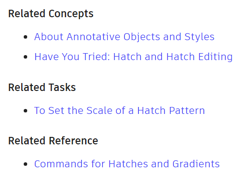
These are three general types of information: conceptual descriptions, stepped tasks, and links to related commands and system variables.
- Next, in the left pane, scroll down in the table of contents.
Notice that the table of contents is now automatically expanded to display the major Concept topics relating to hatches and fills.
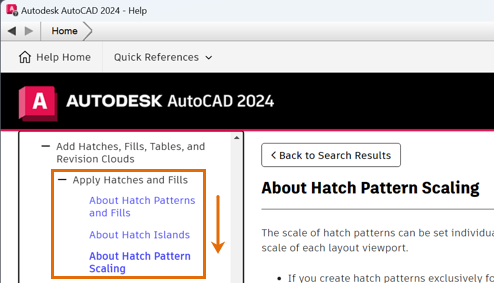
You can use the table of contents to see the list of closely related topics about hatches, or you can use it to navigate to an area of interest.
- Click the topic, About Hatch Patterns and Fills, and scan the topic in the right pane.
- Scroll down to the end of the topic and click
Commands for Hatches and Gradients.

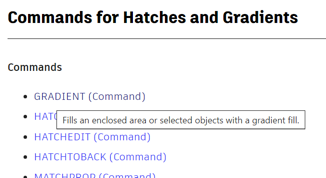
- From the list of commands, click
GRADIENT (Command).
If you're not sure what a command does, hovering over the link displays a descriptive tooltip.
- Move the Help window so it doesn't cover the AutoCAD ribbon. Then, in the Gradient topic, click the Find link shown below, which you'll only see if you have the Help page open within AutoCAD.
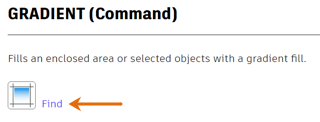
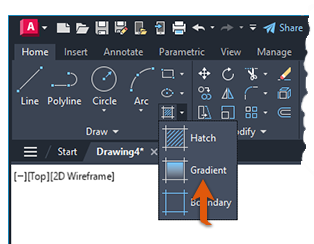
As a result, the ribbon opens to the correct tab and displays a bobbing arrow that displays the location of the command.
We've now reached our goal of locating the topic about scaling hatches, but let's explore a little further to discover several additional features.
If you already know the command name, you can access it quickly in the Help Home page under Quick References. Follow these steps to access a command directly.
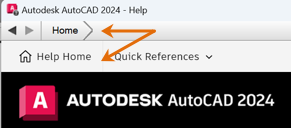
- Click Home or Help Home from the Gradient topic.
- In the right pane, click the Commands link.
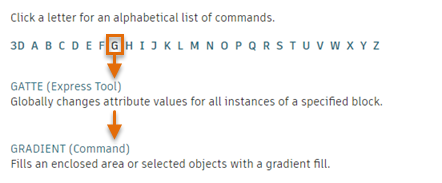
- Click the letter G to see the list of commands and scroll down to display the link to the Gradient command.
Provide Feedback and Comments
Finally, at the bottom of every Help topic is an opportunity to share your feedback.

We keep a data set of these responses, and we read your comments. When a pattern emerges that identifies a shortcoming in Help, we update or rewrite that Help topic.
To be as responsive as possible, we also collect data from the keywords that people enter. This data, which remains strictly anonymous, helps us determine what areas in AutoCAD are the most commonly searched for and therefore are highest priority in new and updated Help topics. Help updates are periodically published online, so you always have the most up-to-date information automatically.