Broadcast Monitoring Using AWS CDI
AWS Cloud Digital Interface (CDI) allows Flame Family products to broadcast 8, 10, and 12-bit video signal at up to 4K/60p. Where you would use Serial Digital Interface (SDI) to broadcast a signal on-premise, you can use CDI to brodcast an uncompressed signal in an AWS cloud deployment.
To learn about the technology, see the AWS Cloud Digital Interface documentation.
This topic explains how to set up your Flame Family AWS cloud instance to use AWS CDI.
Preparing a Flame Instance for CDI
For CDI to work, the instance must first be configured to use the Elastic Fabric Adapter (EFA) network device. You enable EFA when the instance is being configured, not when you configure Flame.
The steps to configure the instance for CDI depends on whether you are configuring a standalone Flame or a used Flame in a workgroup (networked) environment.
Do not forget to to assign the EFA security group to the instance.
Configuring CDI in Flame
If your instance is properly set with EFA, you can configure Flame to use CDI.
To configure Flame to use CDI as a broadcast device:
Open the Flame Setup application
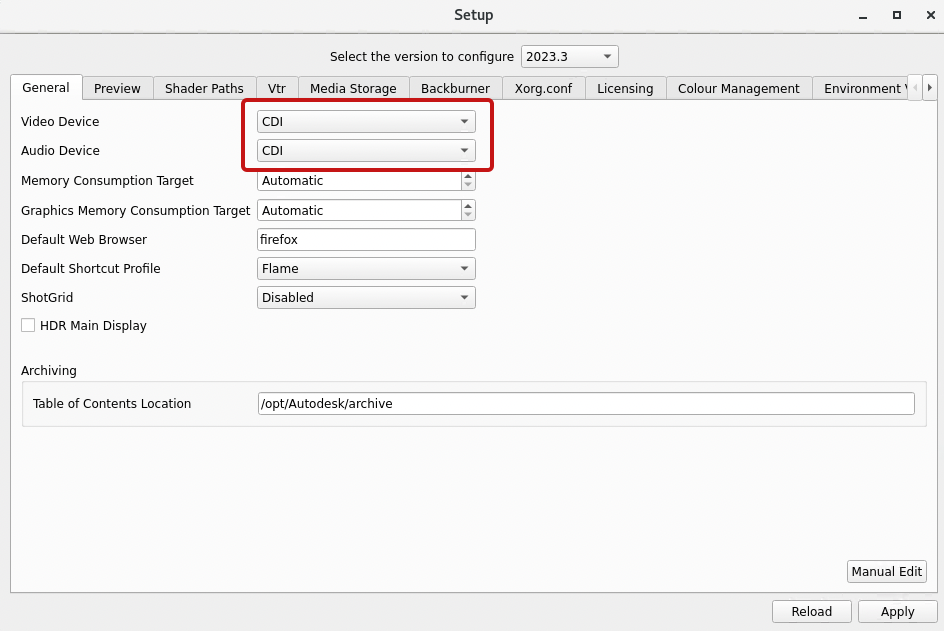
In the General tab, set Video Device and Audio Device to CDI.
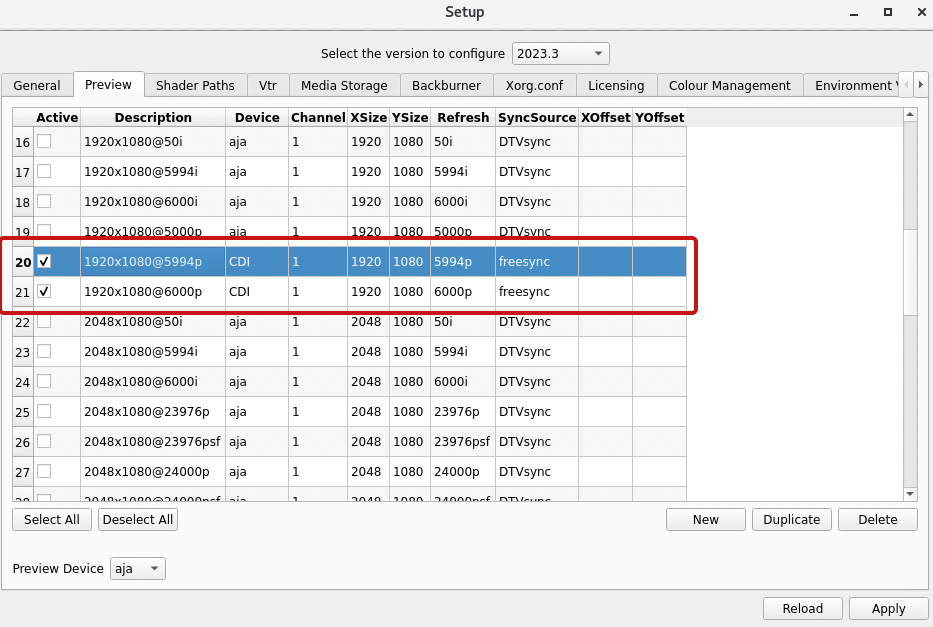
Open the Preview tab and select the CDI preview timings you need.
Launch Flame.
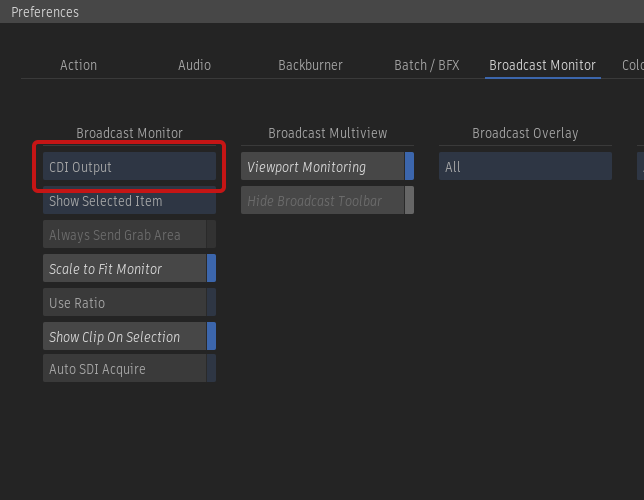
Open Flame menu > Preferences > Broadcast Monitor.
Set Broadcast Monitor to CDI.
In the CDI Options section, set TCS, Local IP, Remote IP, and Port.
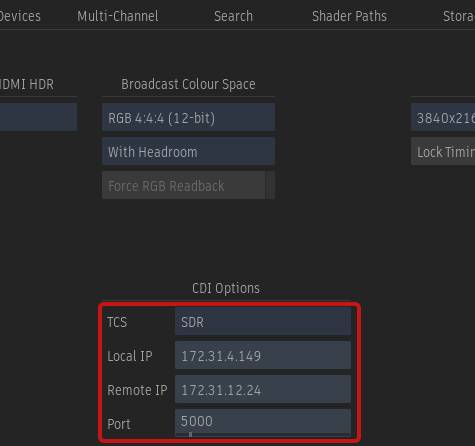
- TCS (Transfer Characteristic System): Set the type of transfer function used for the broadcast signal. This only sets CDI metadata. it does not set Flame to you are still responsible to Flame to correct HDR or SDR right images.
- Local IP: Enter the private IP of your local machine (can be found in the AWS Console page, under section EC2).
- Remote IP: Enter the IP of the remote CDI receiver.
- Port: Enter the port to use for the remote CDI receiver.
Close the Preference. Flame should connect automatically to the CDI receiver as soon as it detects it.
How to Install the EFA drivers
If you're using the Autodesk-provided Rocky Linux AMI, you can safely ignore this section.
If you're using your own Rocky Linux AMI, you must install manually the EFA drivers on the Flame instance.
Login to your instance with the flameadmin user.
Perform the following commands.
curl -O https://efa-installer.amazonaws.com/aws-efa-installer-1.20.0.tar.gz
tar -xf aws-efa-installer-1.20.0.tar.gz && cd aws-efa-installer
sudo dnf remove srp_daemon
sudo ./efa_installer.sh -y --minimal
sudo mkdir /etc/systemd/system.conf.d
cat <<EOF | sudo tee --append /etc/systemd/system.conf.d/limits.conf
[Manager]
DefaultLimitNOFILE=8192
DefaultLimitMEMLOCK=infinity
EOF

sudo mkdir /etc/systemd/user.conf.d
cat <<EOF | sudo tee --append /etc/systemd/user.conf.d/limits.conf
[Manager]
DefaultLimitNOFILE=8192
DefaultLimitMEMLOCK=infinity
EOF
Restart your instance.