Software license configuration
The first step after installing your products, is to configure the software license using the License Configuration tool.
Note: If you choose not to complete the License Configuration following installation, you will see the Autodesk Let’s Get Started when you launch the product. Close the Let’s Get Started dialog and follow the steps below to set up your user environment.
Using the License Configuration tool
The License Configuration tool supports:
- Named User License
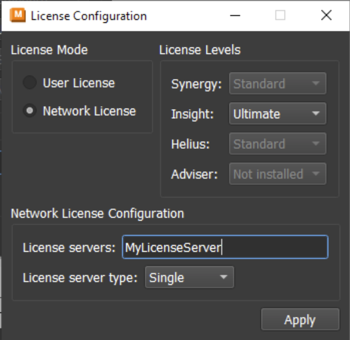
- Network License
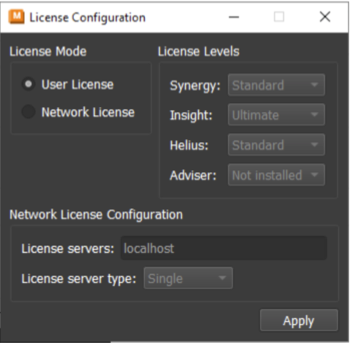
| Named User License configuration | Network License configuration |
|---|---|
 |
 |
The License Configuration tool can be accessed from the Windows Start menu, located in the Autodesk Moldflow Adviser.
Named User License configuration
Once you activate the License Configuration tool, select the License Mode you wish to apply.
With the Named User license the default license is:
- Adviser Ultimate
Click Apply to accept your Named User License setup and close the License Configuration tool.