Generate surface features from vertex and pixel colors
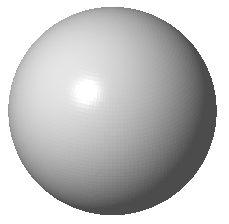
|
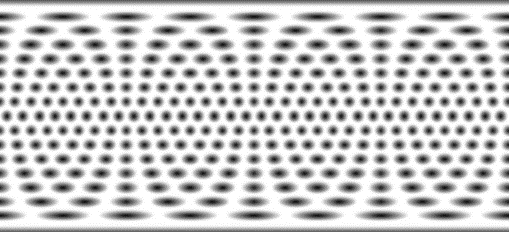
|
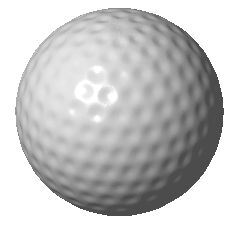
|
- Select the part in the project tree and choose .
- If your part has texture or color already, you can skip this step, otherwise apply color or texture now. In the latter case, you can keep Texture & Color open; you do not have to apply, close, and reopen Texture & Color to proceed with extrusion.
- Adjust the values as necessary.
- Click Extrude for a preview. You can undo this if needed to start over.
- Click Apply changes to produce the part with the imposed texture.
Extrusion options reference
| Refine edges | Subdivides the existing triangle mesh along the texture's borders and subsequently the textured area.
Note: Very small edge values increases calculation time.
|
|
| White movement, Black movement | Sets the bracket of displacement. A positive value pulls the colored area out of the original geometry. A negative value subtracts the colored area from the original volume. Depending on which parameter receives the more positive number than the other, the extrusion result can be a positive or a negative of the original texture. | |
| Extrude Area |
Switches between Whole Part and names of applied textures, if the part has any applied. Causes to either apply extrusion to the entire part covered by any texture or the area of only the selected texture. |
Note: If the part has only one texture partially covering the available surface, and no further color or texture information, both available options have the same effect.
|
| , Extrude color | Limits the extrusion to the respective sources in case there are both color information and textures that can be extruded |