Sets Window
The Sets window is a dockable window, which displays both selection sets and search sets available in your Navisworks file.
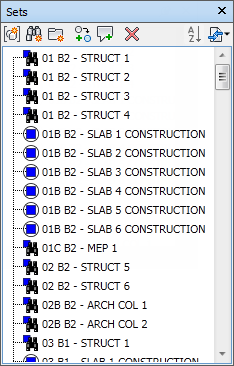
The selection sets are identified by this icon:  , and the search sets are identified by this icon:
  .
.
You can customize the names of selection and search sets, and add comments. You can copy and paste names from the Sets window. To do this, right-click an item in the Sets window, and click Copy Name on the context menu. Alternatively, you can click an item in the Sets window, and press CTRL + C. The name is now copied to the clipboard.
You can also show the selection and search sets as links in the Scene View. These links are created automatically by Navisworks. Clicking on a link restores the geometry within the corresponding selection or search set to the active selection, and highlights it in the Scene View and on the Selection Tree.
You can use the buttons in the Sets window to create and manage selection and search sets in the Navisworks file.
Toggle the Sets Window
- Click Home tab > Select & Search panel > Sets drop-down > Manage Sets.
Use the Sets Window to Select Objects
Open the Sets window.
Click the desired set in the list. The geometry in this set is selected in the Scene View and in the Selection Tree.
Note: If you clicked on a search set, the search is performed on the current model, looking for all geometry that meets the search criteria, including any additional geometry that could have been added to the file.
Change the Sort Order on the Sets Window
- Open the Sets window.
- Click the Sort button
 . The contents of the tab are now ordered alphabetically.