Provide Input for a Graph from Dynamo Player
Some Dynamo graphs require input before you can run them. Use Dynamo Player to provide this input to meet your needs with the current model.
Launch Dynamo Player and locate the graph you want to use.
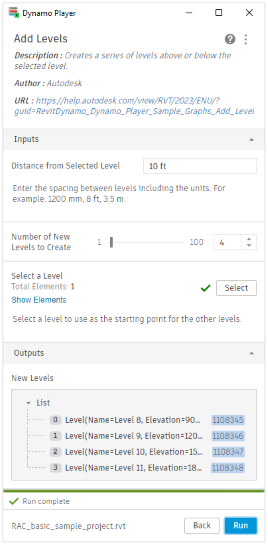
Click on the desired graph. On the next screen, you'll see the required inputs for the graph.

For each
 (Missing Inputs), provide the required input or take action as specified.
For instance, in the example above, you must select a level in the model. To do this, in Dynamo Player, press Select. Then in Revit, open an appropriate view in the model (such as an elevation) and select the desired level.
When taking action, consider the following:
If Revit seems unresponsive, click in the Revit window and press ESC. Then try again.
When you select an element in the Revit model, Dynamo Player does not confirm that you have selected the correct type of element. Check the Revit status bar for verification.
After selecting an element, Dynamo Player displays the element ID under Show Elements. To select a different element, click Select again.
For more information, see Select Revit Elements for a Dynamo Graph.
When all input items are marked with
 (Ready to Run), the Run button at the bottom of the dialog becomes active.
Click Run.
As an alternative, click Cancel and run the graph from the main dialog that shows the list of graphs.
When the graph runs successfully, its status changes to Run Complete. The Outputs section displays information about the results.