Transforming Objects in the Viewport
Transforming object in the Viewport can be done different ways. Use the Transform manipulator when eyeballing it is fine. Enter values when precision is required.
How to Use the Transform Manipulator
This section explains how to move, scale, and rotate objects using only the Transform manipulator. To move, scale, and rotate objects with precision, see the next section for how to enter transform values.
Shift-click or Shift-click and drag to select objects to transform.
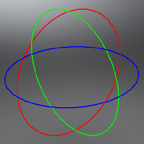
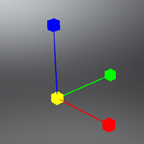
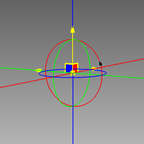
Select View > Show Manipulator to display the transform manipulators.
Use these keyboard shortcuts to select which manipulator is displayed.
Translate: Shift+W Rotate: Shift+E Scale: Shift+R Pivot Transform: Shift+Q 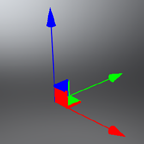
How to Transform Objects by Entering Values
Shift-click or Shift-click and drag to select objects to transform.
In the Quick Access Bar at the bottom, click
 (the Transform icon). The Transform module opens.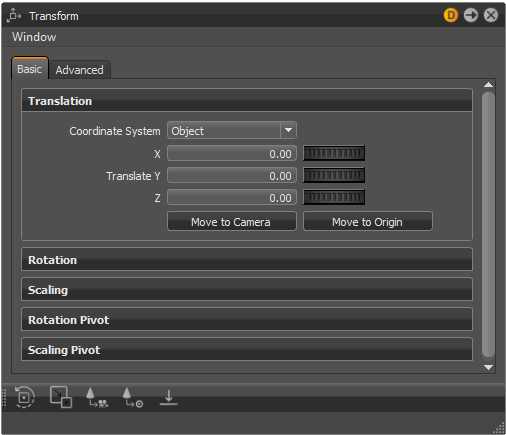
Enter transform values. These values are applied to all selected objects. When transforming multiple objects at once, the Transform module always shows the transformation properties of the last selected object and the Transform manipulator is connected to the last selected object.
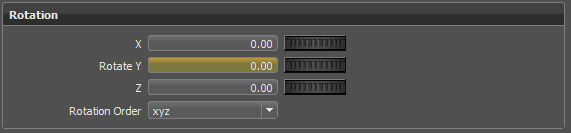
Note:Yellow filled input boxes indicate different transformation values for the selected objects. For example, one of the selected objects might have an X rotation of 7, while another has an X rotation of 45. In this case, the X rotation input box would be yellow.
How to Transform Multiple Objects at the Same Time
When transforming multiple objects, the last selected object displays the Transform manipulator. The transformation properties of the last selected object are displayed in the Transform module. Yellow input boxes indicate the transformation values are different for the selected objects.
- Select multiple objects, either by Shift-clicking and dragging within the Viewport or by Shift-dragging within the Scene Editor.
- For precise transformations, follow the instructions in How to Transform Objects By Entering Values. Otherwise, following the instructions in How to Use the Transform Manipulator.