Enhancements to Inventor and Vault workflows
Open Drawing from Vault
Opening the drawing of a design from Vault involves multiple steps and it is a highly manual effort. One of the most asked Idea station request is to Open the Drawing from Vault for the corresponding design file since Vault knows and stores the relationship of Design documents.
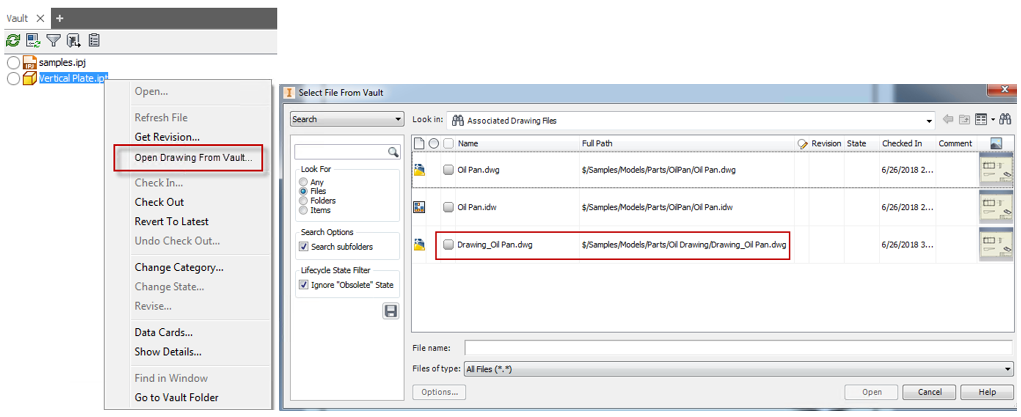
Vault 2019.1 update introduces a new command “Open Drawing from Vault” which helps the Inventor Designer to open the drawing of the design from Vault with a single command.
You can open associated drawings with different names and from different folders other than the source file folder.
In case the model is used in several drawings, you can select the drawing you want to open:

Replace from Vault
Another Idea station request – Replace From Vault- that improves the Design workflows in Inventor was to extend the Inventor’s Replace component command to Vault since Vault stores and manages all the old and new designs. Also searching a replacement is relatively easy in Vault.
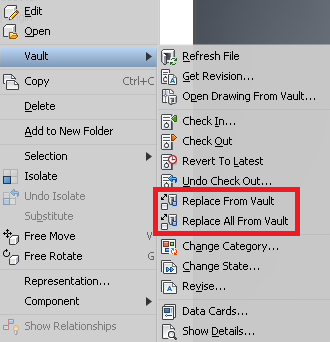
Using new “Replace from Vault” and “Replace all from Vault” commands you can directly go to Vault, search the required components and do the Replace.
These commands are available from Inventor Model Browser and Inventor Canvas. They are not available from Vault Browser since Vault Browser combines all the duplicate instances of a component.
Support for AutoCAD Drawings with PDF attachment
AutoCAD supports attaching PDF files to its drawing as an Underlay. However, Vault was not supporting PDF attachment during Check-in to Vault until now.
Vault now supports handling of AutoCAD drawings with PDF as attachment.
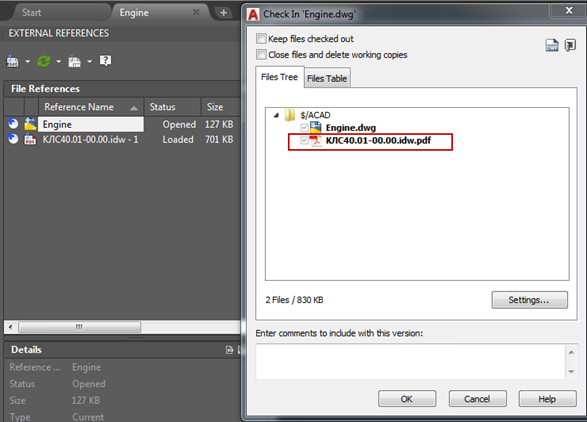
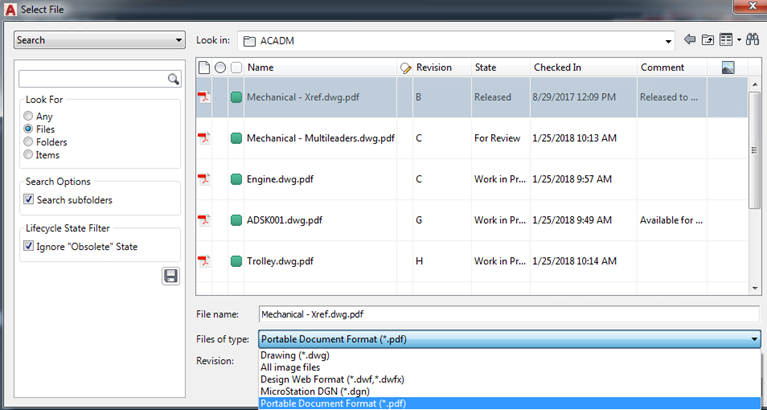
You can also attach PDF files from Vault directly. PDF file option is added in the Attach from Vault dialog to support PDF attachment to AutoCAD drawings.
Change in Lock icon color