Shared Views
Creates a visual representation of your model view from Alias, stores it in the cloud, and generates a link that you can share with colleagues and clients.
About Shared Views
About Shared Views
Use Shared Views to collaborate online with the people you're working with.
Shared Views
Use Shared Views to collaborate on a visual representation of your model or design online. For example, create a shared view for a customer to request approval or to provide easy access to your field sales team for on-site presentations. Using the link you provide, anyone can view, and comment on, the shared view without needing to have an Autodesk product installed. An email is sent to you when anyone comments on the shared view. You view and reply to comments and manage your shared view directly from your Autodesk product.
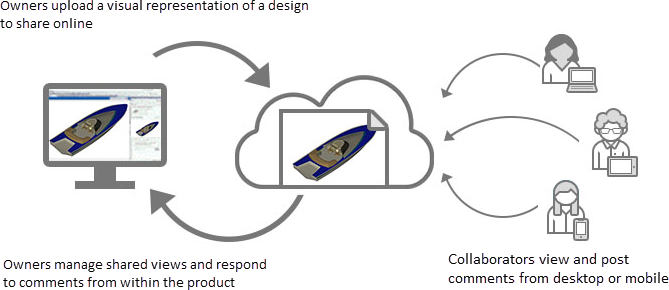
About the Shared View
A shared view is an online visual representation of the view of the model or design uploaded from an Autodesk product. You can upload a shared view free of any intellectual property. The shared view expires by default after 30 days.
When you create a shared view, a pop-up window provides the link to the shared view in Autodesk Viewer. This makes it easy for you to send the link to your collaborators. Your collaborators do not need an Autodesk product. Collaborators can review and post comments directly in Autodesk Viewer.
About the Shared Views Palette
As the owner, you can use the Shared Views palette to quickly access your shared views, start new comment threads, and reply to comments from your Autodesk product. The Shared Views palette also provides management options, such as extending the expiration date and deleting a shared view.
How to share a view from Alias
Subscribe to Alias to upload a shared view.
- If you already are a subscriber, make sure you are signed into your Autodesk Account.
- If you are not a subscriber, click here to learn more.
To Share a View
Open the file you want to share a view of.
Choose File > Share View.
In the Share View dialog box, click New Shared View to create a link to a visual representation of the file in Autodesk Viewer.
In the Create New Design Share dialog box, enter a name for the view and click Publish.
A pop-up window provides the link to the shared view in Autodesk Viewer. This makes it easy for you to send the link to your collaborators.
How to work with Shared Views
Sign into your Autodesk account to access your shared views.
Overview
The list of the shared views you uploaded displays. Here you can search, organize, and manage your shared views.
- Choose File > Share View.
To Search, Organize, and Refresh the Shared Views Palette
To search: Click
 . Enter one or more keywords and press ENTER.
To sort: Click an option from the By: drop-down. You can sort by Date created, Title, and Expiration date.
Note: Expiration date is only available in the Shared Views palette.To refresh the view: Click
 . The shared view information is updated with the latest activity from the Autodesk Viewer.
To Manage Shared Views
In the Shared Views palette, click 
- To copy the link to the shared view: Click Copy link.
- To extend the expiration date: Click Extend.
- To delete the shared view: Click Delete.
To View, Reply to, and Manage Comments
Click a shared view to see the comments. You can start a new thread, view, reply to, and resolve comments, and manage the selected Shared View. To return to the list of Shared Views, click the back button.
- To start a new comment thread: Click Add a comment. The shared view opens in Autodesk Viewer where you can enter a comment to start a new thread.
- To reply to a comment thread: Click Reply.
- To hide a thread: Click Resolve. Use this option when you no longer need to view the comment thread.
- To display hidden comments: Click and then click Show resolved.
How to collaborate on a Shared View in the Autodesk Viewer
How to collaborate on a Shared View in the Autodesk Viewer
An Autodesk product is not needed to collaborate on shared views. All collaborators can view the shared view and add comments online.
To begin collaboration, go to the link provided by the person requesting your collaboration.
The shared view displays in Autodesk Viewer.
Tip: Bookmark the link for easy access to the shared view.Use the tools within the Autodesk Viewer to comment on and view the shared view.
When you comment, the person who created the shared view receives an email notification.
How to disable Shared Views
If you do not want to install Shared Views
- During installation, on the Install > Configure Installation panel, click the small arrow to expand configuration options.
- For Installation Type, select Custom and unselect Shared Views.
- Continue the installation.
To disable Shared Views once it has been installed
- Go to the application list in the Uninstall or Change a Program control panel and select your product.
- Click Uninstall/Change to launch the Autodesk Uninstall/Change program.
- Click Add or Remove Features.
- Unselect Shared Views and click Update.