Color Themes
By default Alias launches in the Light Color theme. To change it, select from the Dark Grey Color, Dark Blue Color themes. Your selection is saved when you exit Alias and set for your next session.
Light Color
Changes application to the light color theme, which is the default.

Dark Gray Color
Changes the application to the dark grey color theme.
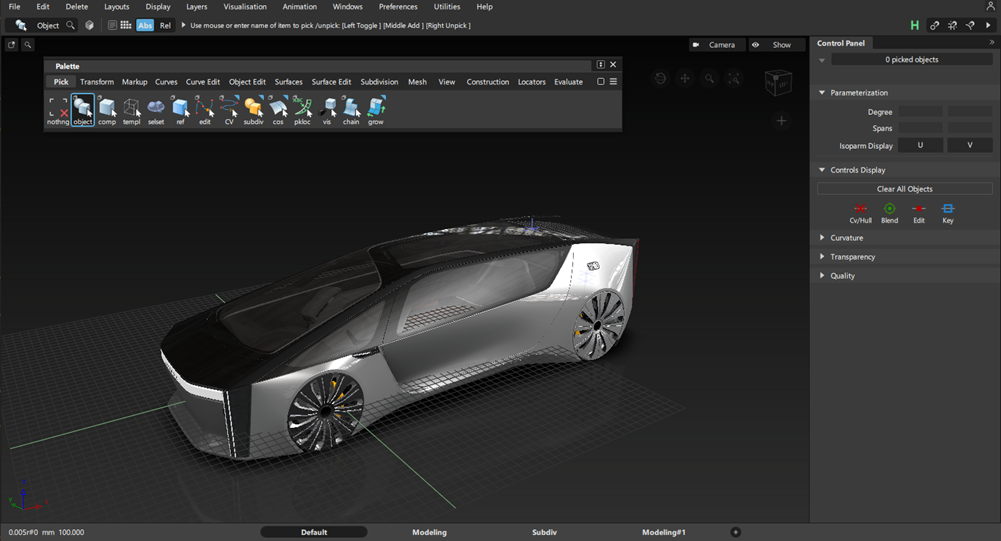
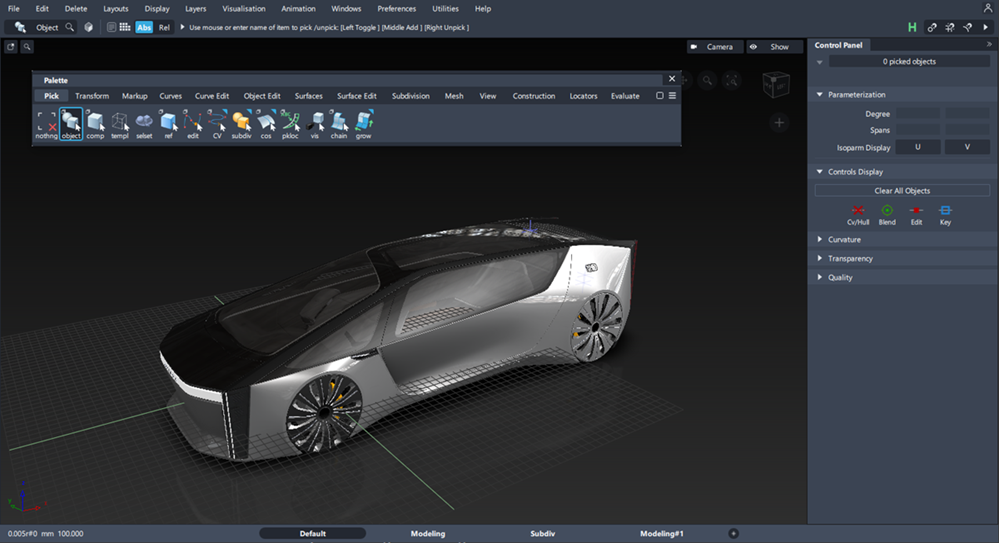
Dark Blue Color
Changes the application to the dark blue color theme.
Customize
Opens the Use Colors Window, which allows you to customize the color themes in the Alias user interface.
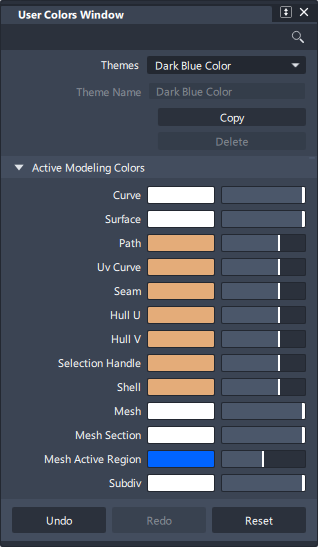
To create a customize color theme, select Copy, and then type a new name for Theme Name. Any color changes you make are saved to your new custom color theme.
- Active Modeling Colors - Defines the colors of different types of objects while picked.
- Inactive Modeling Colors - Define the colors of different types of objects while unpicked.
- Inactive Modeling Colors - Defines the colors used to draw the view windows, including the background.
- Modeling Window Colors - Defines the colors used to draw the geometry and manipulators while using a tool.
- Tool Interaction Colors - Defines the colors used to draw other miscellaneous elements in the user interface, such as buttons.