 Grid Preset
Controls the preset (startup) grid size and options.
Access this tool from the Construction tool palette:

Grid Preset Options
Windows
Choose whether the grid spacing changes in All windows or only the Current window.
Grid Spacing
The distance, in the current linear units, between grid lines.
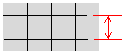
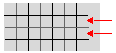
Subdivisions
The number of subdivisions between grid lines. The subdivision lines are lighter than the normal grid lines, but you can still snap to them using grid snapping.
For example, if you set the grid spacing to 1.0, and the number of subdivisions to 4, Alias shows grid subdivisions at 0.25, 0.5, 0.75, 1.25, and so on.
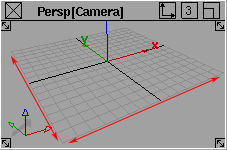
Perspective Grid Extent
The size of the grid in the perspective window, in current linear units. Type a value from 1 to 1000000.
Corner Perspective Gnomon
Show the gnomon in the corner of the perspective window. The gnomon is the small indicator which floats in the corner of view windows. It has colored arrows to show the orientation of the axes and a grey arrow pointing to the origin.

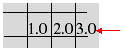
Labels
Label the grid and subdivision lines with their unit values.
The labels only appear in the orthographic windows.
Label Font Properties
This option only appears if Labels is on. The Default setting gives you a font size of 10. Custom lets you select a Label Font Size between 8 and 72.
Grid Preset workflows
Show or hide the grid in display windows
- Choose Display > Toggles > Grid.
Change the distance between grid lines
Shift-select the Grid Preset tool.
Do one of the following:
Drag the mouse left and right to resize the grid.
Type the new distance between grid lines.
Note: You can customize the grid further by turning on Labels to show distances between grid lines.
Set the default grid spacing
- Shift-select the Grid Preset tool.
- Click the icon Reset icon at the bottom of the Preset Grid Options window.
Expand or shrink the extent of the visible grid
- Shift-select the Grid Preset tool.
- Edit the Perspective Grid Extent option to set how far in each direction the grid extends from the origin.
What if...?
I want to change the current unit of measurement?
To change the units of measurement set the Units modeling options in the Construction Options window.
I want to use the grid on a plane other than the ground plane?
Create a reference plane and set it as the construction plane.