Planarize Hull
Projects a single row of CVs onto a plane, or all rows of CVs (in either U direction, V direction, or both) onto individual planes.
Planarize hull can be used to provide a good smooth hull shape by arranging the CVs in each row onto separate planes.
For example, use the tool to improve bad hull shapes that sometimes result from procedural modeling through such tools as Square or Rail surface, or direct manipulation of the CVs.
Access this tool from the Surface Edit tool palette:

Hull Planarize options
Type
Single – Affects a single CV row.
If this option is selected, holding down the
Shiftkey lets you select hull lines on several different surfaces and flatten them all onto the same plane.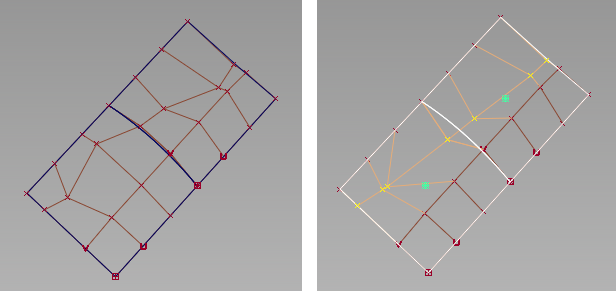
All U – Affects all CV rows in U direction (except possibly the first and last).
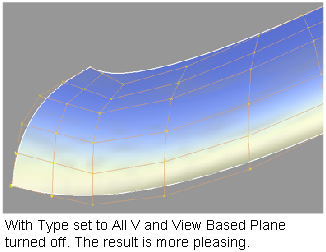
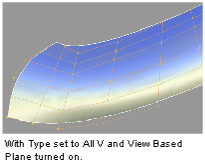
All V – Affects all CV rows in V direction (except possibly the first and last).
U and V – Affects all CV rows in both U and V directions (except possibly the first and last). For the last three settings, the first and last rows of CVs are only planarized if Include Edges is turned on.
Plane
- View based – The plane is calculated from the view vector (perpendicular to the active window) and the vector joining the end CVs of the row.
- Best fit – The plane is chosen as the one that best fits the set of CVs (similar to a least-square fitting) while going through both end CVs.
Iterations
This option appears only when Type is set to U and V. It controls the number of times the position of the CVs is recalculated in both the U and V direction.
Include Edges
If this option is checked, the first and last row of CVs (in U and/or V) are also planarized. The corresponding surface edges appear as straight lines on the planes of projection.
This option is available when Type is not set to Single.
Project Vector
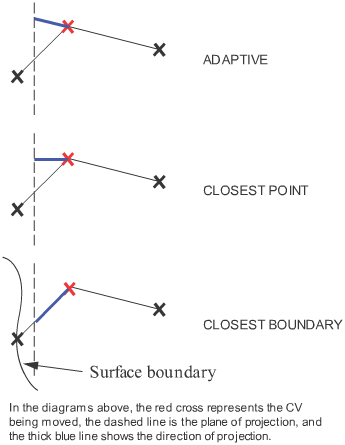
This option determines the direction of projection for each CV.
Adaptive – The direction of projection is along the hull line that is closest to the perpendicular of the plane.
Closest point – The direction of projection is perpendicular to the plane.
Closest boundary – The direction of projection is along the hull line toward the closest surface boundary.
Check Deviation
If this option is checked, a deviation measurement showing the maximum deviation between the old and new surface appears.
Proxy Display
If this option is checked, a green proxy of the original hull appears after the planarization operation.
Planarize Hull tool workflows
Planarize a single row of CVs
Shift-select the Planarize Hull tool
.Set Type to Single.
Select a row of CVs.
All CVs in that row are automatically projected unto the same plane. If the View Based Plane option was checked, the CVs will appear lined up in the current view.
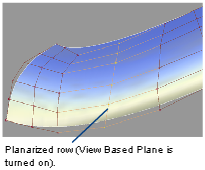
If the result is not satisfactory, choose Edit > Undo, then reapply the tool with different options.
Planarize all rows of CVs
Shift-select the Planarize Hull tool
.Set Type to All U, All V or U and V.
Select a surface.
Adjust the option values in the option box.
Click the Go button.
Each row of CVs (in either the U, V or both directions) is automatically projected unto a separate plane. If the View Based Plane option was checked, the CVs will appear lined up in the current view.
If Include Edges is turned off, the first and last rows of CVs will not be affected.
If the result is not satisfactory, change some option values, then click the Update button.
The new CV positions are recalculated from the original positions (equivalent to undoing the last operation and reapplying the tool).