When you have measured one or more inspection, section or point-cloud groups, you can use Best Fit items to optimize the alignment of the part with the CAD model. PowerInspect compares the points of selected groups to the nominals and adjusts the alignment using one of five fitting methods.
To optimize the alignment:
- Click Home tab > Create panel > Alignment arrow > Best Fit.
The Edit Bestfit Definition dialog is displayed.
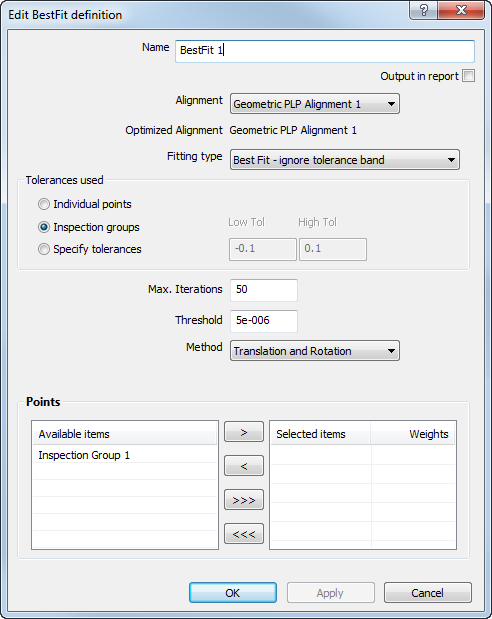
- To optimize the alignment using the inspection group you created, select the group's entry in the Available items list, and then click
 to move it to the Selected items list.
 - In the Fitting type list, select Best Fit - ignore tolerance band.
This adjusts the original alignment so as to minimize the deviations of the group points.
- In the Method list, select Translation and Rotation.
- Click OK to add the Best Fit item to the inspection sequence.
Like alignments, the Best Fit icon includes axes. This indicates that Best Fit items are treated in the same way as alignments.
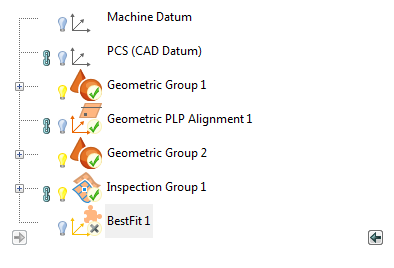
- In the inspection sequence, right-click the BestFit item, and then select Play Item from the context menu.
The Best Fit Analyser dialog is displayed. For each step of the analyser, the mean and standard deviation for the points used in the calculation, and the rotations and translations applied to the alignment are shown. The analyser also specifies the maximum number of times that the calculation is to be repeated, and a threshold for the analysis. For example:
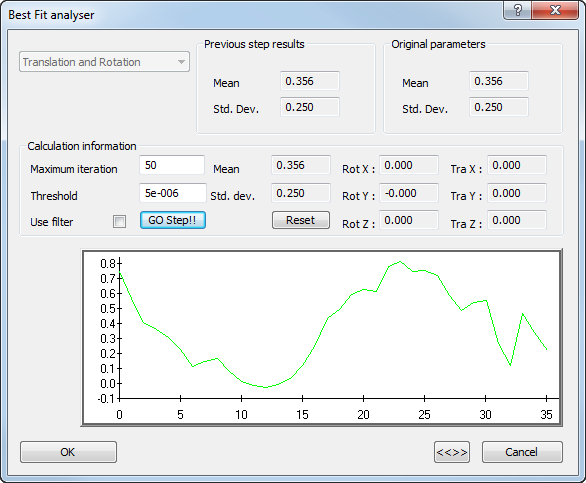
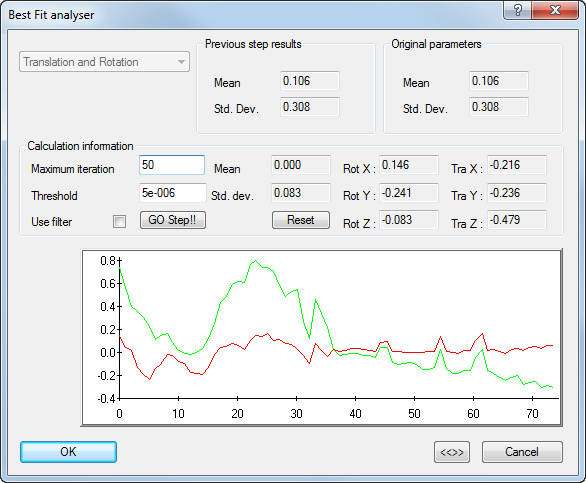
- Click Go Step to calculate the best fit.
A graphical representation of the points' deviations is shown. The green line shows the measurement results before the best fit calculation; the red line shows the results after the best fit is applied.
- If you want to change the scale of the graph, click
 . Click the button again to revert to the original scale.
 - When you are satisfied with the results of the optimization, click OK to close the dialog and apply the best fit.
PowerInspect automatically uses this optimized alignment, instead of the original alignment on which it is based, when reporting results.