Slots are 2D pieces of geometry so they need to be associated with, or referenced to, a plane. To measure a slot, you must probe a minimum of six points.
To create a slot:
- To enable 2D feature picking, right-click the background of the CAD view, and select Wireframe from the context menu.
- In the CAD view, move the cursor over the slot to be measured. For example:
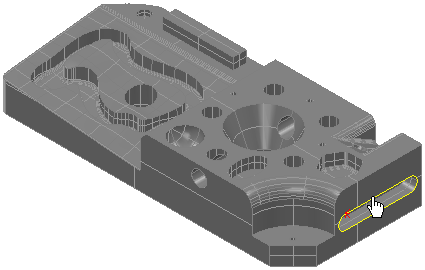
- When the slot is highlighted, click the left mouse button to select it.
The slot's details are displayed in the Geometry Explorer tab.
- In the Geometry Explorer tab, select New Probed Plane from the Linked to list.
This creates a new reference plane for the slot.
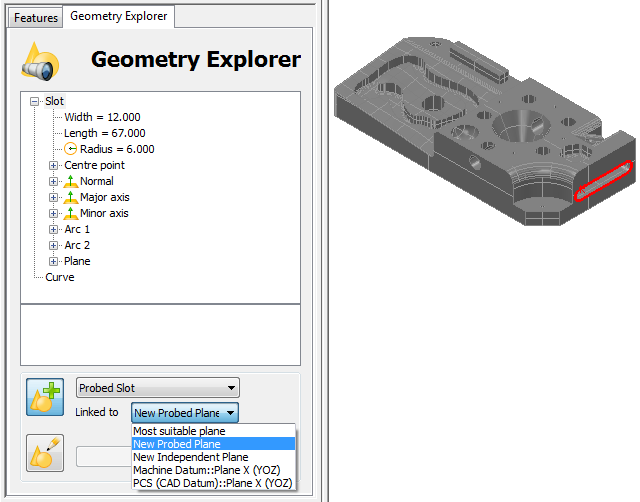
- Click Accept
 .
.The slot and the plane are added to the inspection sequence.
- In the Sequence Tree, double-click the Slot 1 icon to display the item's details and to check that the new probed plane is shown in the Reference Plane list.
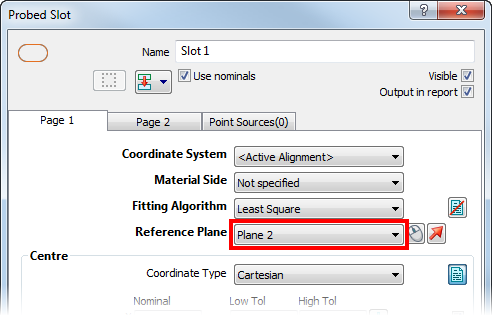
- Click Cancel to close the dialog.
In the inspection sequence, the link
 symbol is shown on the Plane 2 item. This indicates that the plane is referenced by other items in the sequence.
 - Click Up
 to close the geometric group.