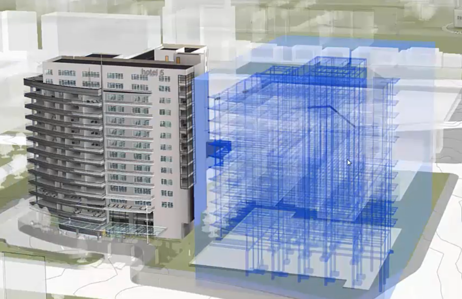
Bring a coordination model from
Autodesk® Navisworks® or
Autodesk Docs into
Revit LT so you can coordinate your design with the work of teams who use different software.
Insert tabLink panel (Coordination Model)
Topics in this section
About Coordination Models
Link various coordination models from local Navisworks files or from Autodesk Docs and manage them in the Manage Links dialog in Revit LT .
Video: Use Coordination Models
Insert coordination models from Autodesk® Navisworks® into Revit LT to coordinate your design with teams who use different software.
Transparency for Coordination Models
After linking a coordination model into a Revit model, use the Visibility/Graphics dialog to define its visibility and transparency. Use the transparency setting to distinguish the coordination model from the Revit model.
Link a Coordination Model
Link a file from Autodesk® Navisworks® or coordination model views from Autodesk Docs and use them as a reference for a Revit LT model, providing context for the design.
Manage Coordination Models
When using a coordination model as a reference for your Revit LT model, you can manage the link to the coordination model as needed.
Use Snap Points for Coordination Models
Use snap points to easily model in context, to measure between two references based on the coordination model points, or to better position the coordination model.