Interaction Preferences
Find out about the interaction preferences for customizing settings for general VR interaction, hand tracking, teleport, pointer, and marker tracking.
In the Menu Bar, click Edit > Preferences, then on the left side of the dialog box, select Extended Reality > Interaction. After making any changes, press Apply and Save to save them.
For information on editing or resetting preferences, see Editing Preferences.
General
- Default Visualization - Sets whether the initial session starts with VR hands or controllers displayed.
- Show Tooltips - Sets the default visibility behavior for controller tooltips. By default, this option is toggled on, displaying tooltips for the controller.
- Create Collision Objects - Sets the default state for the creation of collision objects for all touch sensors and WebEngines in the scene. When disabled, you cannot interact with touch sensors and WebEngines when using VR Hands.
Hand Tracking
Only available for Varjo XR-3 users.
Sets the default state for enabling hand tracking and setting translational and rotational hand offset for tracked hands.
For Varjo XR-3 users, enabling hand tracking in the preferences automatically activates it for VR or XR.
- Use Tracked Hands in XR - Only available for Varjo XR-3 users. Sets the default to always track hands in VR when enabled. If Tracker is set to Varjo Integrated Ultraleap, hand tracking is also enabled in XR for supported HMDs.
Tracker - Only available for Varjo XR-3 and VR-3 users. Sets the default system used for hand tracking.
- Varjo users need to enable Varjo Integrated Ultraleap.
- To use other hand tracking devices, select Custom.
Setting up Hand Tracking for Other Devices
For the Custom Tracker option, you must provide all the tracking data to VRED's Python interface. How to do this can vary from device to device; however, if you can access the tracking data via Python script, the data needs to be set into the
vrdTrackedHandobjects returned by the methods used. This requires the transformation data of the tracked hand and/or different finger joints (see theexternalHandTracking.pyexample file for how this works).For testing, set the corresponding preferences, load the script, and enter VR. You may have to modify the script by changing values for hand and/or joint transforms to understand how everything works.
- Translation Offset - Set the default translational tracking offset from the hands. Use this to adjust any offset between the tracked hands and the hands rendered in VR.
- Rotational Offset - Set the default rotational tracking offset from the hands. Use this to adjust any offset between the tracked hands and the hands rendered in VR.
Teleport
Sets the default state for the teleporting mode and range.
- Availability - Sets the default mode in which you can teleport. Choose from only teleport in VR or in both VR and MR.
Ground Mode - Sets the default mode when teleporting to teleport onto models or into an area around them.
Important:To teleport into a vehicle or anywhere on the ground plane, select On Ground Plane. When On Geometry is selected, you can teleport onto geometry, but not into it.
- Range - Sets the default limit for how far you can teleport within the scene.
Pointer
Use these options to improve the experience when close to an object and using the laser pointer. The sphere at the end of the pointer can be too big when used close to an object.
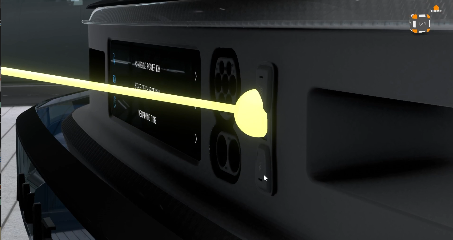
Since, as you get closer to or farther from an object and the sphere size and diameter of the laser change, use these options to sets the ideal size and diameter for both.
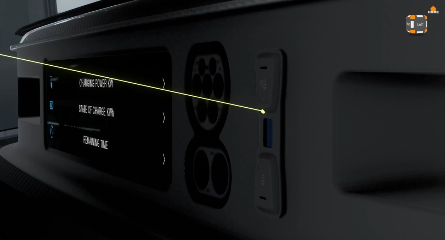
- Scaling Distance - Defines the distance at which the pointer is at full size (100% object scale).
- Sphere Scale Range - Defines and minimum and maximum size of the sphere (1 = 100% object scale). When the Scaling Distance is reached, so is the maximum size of the sphere.
- Ray Scale Range - Defines the minimum and maximum size of the ray diameter (1.00 = 100% object scale). When the Scaling Distance is reached, so is the maximum diameter of the ray.
Marker Tracking
The marker tracking system detects each marker and assigned a confidence value to it, ranging from 0.0 to 1.0.
0.0 means the system deems the detected result (marker ID and position) 100% incorrect.
1.0 means the system deems the detected result (marker ID and position) 100% correct.
For example, a marker that gets a value of 0.9 means there is a 90% confidence in the correctness of the marker's position and IDs.
A marker with a low confidence value appears to be jumping around. Setting the minimal accepted confidence to a higher value makes the system ignore unreliable detected results.
A marker that was detected with high confidence value, but later is detected to have a confidence value lower than the minimum value will be ignored and its position will not be updated.
For more information on using markers, see Markers in Mixed Reality.
- Min Marker Confidence - Sets the default minimum value used by the marker tracking system to determining if the detected marker position is correct.