XR Options Preferences
In the Menu Bar, click Edit > Preferences, then on the left side of the dialog box, select Extended Reality > XR Options. After making any changes, press Apply and Save to save them.
Use these parameters to set the default HMD settings for eye tracking, foveated rendering, and HMD-specific options. These are disabled by default.
Eye Tracking
VRED currently supports eye tracking for the HTC VIVE Pro Eye and the StarVR headsets.
- Eye Tracking - Sets the default eye tracking behavior. This is disabled by default. When enabled, the HMD tracks your eye movement. This data is used by Foveated Rendering when it is enabled to determine which areas need high-resolution rendering.
Foveated Rendering
The OpenGL Shading Rate extension is required for Foveated Rendering and is only available on NVIDIA RTX cards (Turing architecture).
This improves performance by reducing the peripheral image quality and is used with Eye Tracking.
Foveated Rendering - Sets the default foveated rendering state. This is disabled by default. When enabled, eye-tracked areas are rendering in high resolution and peripheral areas in low resolution.
Note:This option is currently not supported for StarVR headsets. For other headsets that don't have eye tracking, you can enable the Foveated Rendering preference option for VR. However, since your eyes cannot be tracked, the foveal region will not move. It will remain fixed to the center of the image.
Note:If a message appears regarding the OpenGL Shading Rate Image extension, this is because Foveated Rendering is only available on NVIDIA RTX cards (Turing architecture).
Foveal Region Size - Sets the default size of the foveal region, which is oval shaped.
Note:A new Python service
vrHMDServicehas been added for access to foveated rendering settings.Shading Quality - Sets the default level used for foveated rendered shading. There are three image regions with foveated rendering that can be rendered with different shading qualities:
- Inner - The foveal region
- Middle - The transition zone between the inner and periphery
- Periphery - The outer periphery region
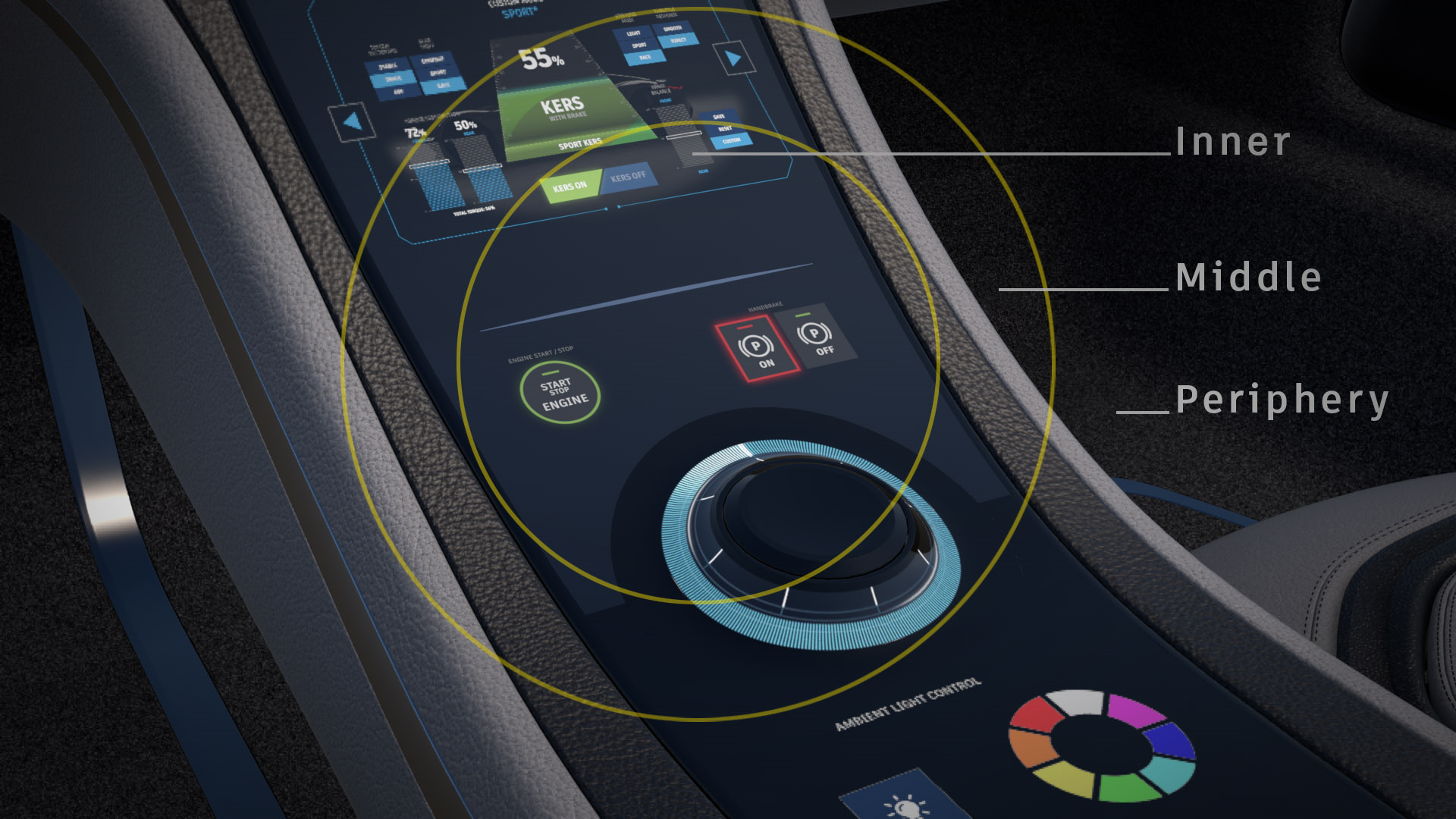
The above rendered image shows the following qualities:
- Inner - 4 Samples (supersampling shading with 4 samples per pixel)
- Middle - 1 Sample (native pixel shading 1x1)
- Periphery - 1 Sample per 4 Pixels (coarse shading with 1 sample per 4x4 pixel block)
Use either a preset or select Custom to set up your own shading qualities. Normally, the innermost region is rendered with the best quality, compared to the other two, with the periphery being the lowest.
Highest Performance - Uses a lower visual quality, but provides the highest performance, by using coarse shading in the periphery.
Balanced and Highest Quality - Improves the visual quality, which is especially noticeable for materials with small repeating patterns, such as the Carbon material, or with certain textures.
Visual quality is improved due to the use of supersampling shading qualities, which can be 2x (2 Samples), 4x (4 Samples), or 8x (8 Samples).
Important:The supersampling shading quality only takes effect if at least the same amount of samples are rendered with multisample antialiasing (realtime antialiasing).
A hint is displayed next to the Shading Quality setting in the Foveated Rendering preferences providing the minimum number of required samples. Activate the level of realtime antialiasing that has a sufficient number of samples. By default, Low uses 2, Medium 4, and High 8 samples.
For example, if the hint indicates that at least 4 samples are needed, activate either Medium or High realtime antialiasing. The Realtime Antialiasing samples can be changed in the preferences (Edit > Preferences > Rendering > Render Window > Visualization Advanced tab > Realtime Antialiasing Presets).
The specific qualities of the presets are:
Preset Inner (Foveal) Middle Quality Periphery Quality Highest Performance 1 Sample 1 Sample per 4 Pixels 1 Sample per 16 Pixels Balanced 4 Samples 1 Sample 1 Sample per 4 Pixels Highest Quality 8 Samples 4 Samples 2 Samples - Custom - Provides full control over individual qualities and exposes the Custom Quality section.
Custom Quality - Sets the default custom foveated rendering shading quality for the inner, middle, and periphery image regions.
Inner - The foveal region
Middle - The transition zone between the inner and periphery
Periphery - The outer periphery region
Select one of the following options for each parameter:
1 Sample - This is the standard shading quality which doesn't use foveated rendering.
1 Sample per 4 Pixels and 1 Sample per 16 Pixels - Shaders with lower shading qualities are evaluated less often. The result of a material evaluation is used for multiple pixels (e.g., 1 Sample per 4 Pixels is coarse shading with 1 sample per 2x2 pixel block).
2 Samples, 4 Samples, 8 Samples - Materials with higher shading qualities are evaluated up to 8 times per pixel.
Note:Displacement materials with accurate silhouettes are currently always evaluated with standard shading quality.