Image Processing Tab
Scene > Camera Editor > Image Processing
All camera image processing parameters are found in this tab.
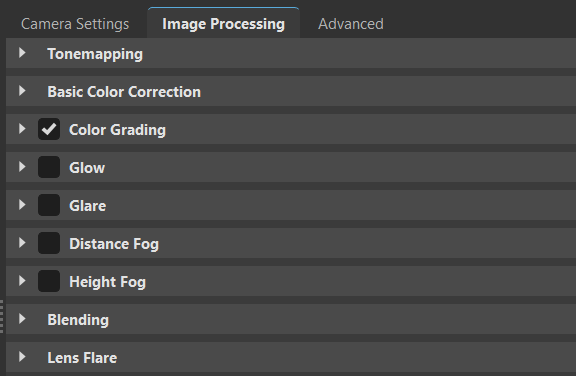
Tonemapping
Makes it possible to map the high dynamic range rendering for display onto an output device with lower dynamic range.
Tonemapper - Selects an algorithm to adjust the appearance of a 32-bit render.
Reinhard Luminance - Uses the tone mapping methods, based on Erik Reinhard’s methods. The tone mapping takes place, based on the luminance values of a pixel. The pixel color information is retained.
Reinhard RGB - Uses the tone mapping methods, based on Erik Reinhard’s methods. The tone mapping takes place separately for each channel of an RGB pixel. Bright pixels are desaturated, as with a digital camera sensor. When selected, the Color Space option appears. Select from sRGB or ACES.
Logarithmic Luminance - Uses a logarithmic mapping, based on the luminance values. This mapping corresponds approximately to the human perception. The color information remains unchanged.
Logarithmic RGB - Uses a logarithmic mapping that affects each channel of an RGB pixel separately. Bright pixels are desaturated. When selected, the Color Space option appears. Select from sRGB or ACES.
Filmic - Uses an s-curve mapping that reproduces the behavior of a photographic film. RGB channels are mapped separately. Two parameters control the shape of the s-curve, Shoulder and Toe Strength.
Physical Camera - Available in VRED Professional and Design as of 2023.4. Enables the option to work with physical values like F-stop, Shutter Speed, Sensor Response, View, Look, and ISO to control the tonemapping of the image. Additionally, presets of response camera curves can be loaded and edited to adjust the appearance of the rendering. These values affect the amount of motion blur and depth of field. Also, a focal length change affects the exposure of the rendering.
Luminance - Available in VRED Professional and Design as of 2023.4. Shows the luminance values in the scene. Luminance is the light reflected from a surface, so this is what a human eye would see.
Illuminance - Available in VRED Professional and Design as of 2023.4. Shows the illuminance arriving at a surface.
- Exposure - Not available for the Physical Camera, Luminance, or Illuminance tonemapper. Affects the illumination behavior from the environment texture on the usage of the related camera. A threshold from 1.0 interprets the HDR environment texture exactly like it's given within its environmental property settings. A value below/above darkens/lightens the illustration from that camera.
- White Point - Not available for the Physical Camera, Luminance, or Illuminance tonemapper. Defines the tone above everything that should be shown as white. It maps the luminance value to the value 1 (that is, the maximum luminance of the display device).
- Contrast - Only available for the Reinhard Luminance, Reinhard RGB, Logarithmic Luminance, and Logarithmic RGB tonemapper. Locally adjusts the contrast, using a contrast range, to keep the image looking as close to the original HDR image as possible.
Color Space - Only available when the Logarithmic RGB, Reinhard RGB, Physical Camera, or Filmic Tonemapper and the Custom Response Curve Sensor Response is selected . Sets the color space used when rendering your images.
- Shoulder Strength - Only available for the Filmic tonemapper. Controls the gradient in the area of bright pixels.
- Toe Strength - Only available for the Filmic tonemapper. Controls the gradient in the area of the dark pixels.
- F-Stop - Only available when the Physical Camera Tonemapper is selected. Sets the ratio of the focal length to the aperture.
- Shutter Speed - Only available when the Physical Camera Tonemapper is selected. Defines a custom shutter speed in 1 over the input value (1/x).
- ISO - Only available when the Physical Camera Tonemapper is selected. Automatically adjusts the camera sensor's ISO when the F-Stop or shutter speed changes to maintain consistent brightness, determining the sensitivity of the image sensor; the lower the number, the less sensitive the camera is to light.
Sensor Response - Only available for the Physical Camera Tonemapper. Sets the tonemapping algorithm to use for mapping HDR rendering results to the valid value range. Provides the following options:
Custom Response Curve - Allows the use of a custom sensor response curve for RGB or Luminance by enabling the Curve Mapping, Editor Size, Response Curve, and Response Curve Mode options.
ACES 1.0 - Uses sensor response behavior, as defined in the Academy Color Encoding System, so there will be a filmic color shift. For example, red glowing objects shift to yellow.
ACES 0.7 - Uses sensor response behavior, as defined in the Academy Color Encoding System, so there will be a digital look, where red glowing objects shift to white.
- Editor Size - Only available when the Custom Response Curve Sensor Response is selected. Sets the response curve editor size to small, medium, or large.
- Response Curve - Only available when the Custom Response Curve Sensor Response is selected. Allows a custom response curve, from or to a file, to be loaded or saved.
- Response Curve Mode - Only available when the Custom Response Curve Sensor Response is selected. Sets the response curve mode to use luminance, red, green, or RGB.
- Luminance (cd/m2) Range - Only available for the Luminance tonemapper. Sets the luminance values in the scene when looking at it from a particular angle or point of view.
- Lux (lm/m2) Range - Only available for the Illuminance tonemapper. Sets the speed at which the illuminance arrives at the surface.
- Mapping Mode - Only available for the Luminance or Illuminance tonemapper. Select one of the following mapping modes: Logarithmic RGB Scale, Logarithmic HSV Scale, Linear RGB Scale, or Linear HSV Scale.
Glow
This section contains glow parameters:
- Enable - Enables/disables glow. When enabled, Threshold, Size, and Intensity are activated.
- Threshold - Determines the threshold of the brightness of a pixel where the glow effect sets in.
- Size - The glow size determines the size of the glow surrounding an object.
- Intensity - The glow intensity determines the brightness of the glow.
Glare
This section contains parameters for glare:
Enable - Enables/disables glare.
Threshold - Determines the threshold of the brightness of a pixel for where the glare effect sets in.
Size - Determines the size of the glare.
Intensity - Determines the brightness of the glare.
- Rotation - Sets the rotation of streaks in a specified angle.
- Streaks - Determines the maximum count of streaks. Higher values appear like stars.
Fog
This section contains parameters for fog. To see how to use fog, see Working with Fog.
- Enable Distance - Enables the distance fog options for defining the characteristics of fog as it gets farther away. As it travels further into the scene, objects become less visible and the fog gets thicker, just like in real life. So, if you want your object to stand out against your background, this is an elegant way to achieve this.
- Color - Determines the color of the fog. Use the slider or enter the RGB value for the color of your Distance fog. The color you set is blended with the lit material color and factors in the Falloff value you've set.
Falloff - Describes how the fog changes in density as you travel deeper into a scene. There are two options:
- Density - Determines the thickness of the fog, based on the selected Falloff option and distance. When set to a high value, objects in the scene quickly blend into the background, getting obstructed by the fog.
- Distance - Sets how near or far the camera is from the beginning of the fog.
- Noise Intensity - Creates noise in the fog density. The density of the fog appears to be different in different places, not uniform. Use it to roughly approximate clouds or similar phenomena.
- Noise Size - Determines the size of the irregularities in the fog, made by the noise function or texture. When Noise Intensity is greater than zero, you can change their size. Use the three sliders to scale the size of the irregularities in one or all three directions (X, Y, and Z). If you want uniform scaling, tick the Uniform Scaling check box.
- Uniform Scaling - Determines whether noise functions/textures are all scaled uniformly or at different rates when Noise Size is set.
- Noise Offset - Changes the position of the irregularities in the fog, made by the noise function or texture, when Noise Intensity is greater than zero.
Enable Height - Helps you simulate effects like ground fog or fog at the top of high buildings. Like Distance fog, Height fog depends how far away things are and where they are inside the fog.
Things that are closer are move visible. As things get further away, the fog gets thicker.
When things are inside the fog, you won't notice a difference between Distance fog and Height Fog. Where you will notice a difference is where parts of objects can be outside the fog, unobscured, while others won't be and are obstructed.
Color - Determines the color of the fog. Use the slider or enter the RGB value for the color of your Distance fog. The color you set is blended with the lit material color and factors in the Falloff value you've set.
Falloff - Describes how the fog changes in density as you travel deeper into a scene. There are two options:
Density - Determines the thickness of the fog, based on the selected Falloff option and distance. When set to a high value, objects in the scene quickly blend into the background, getting obstructed by the fog.
Min Max - Min defines at what height from the ground the fog begins. Max defines at what height from the ground the fog ends. To see Height fog, the Max value must be greater than Min.
Noise Intensity - Creates noise in the fog density. The density of the fog appears to be different in different places, not uniform. Use it to roughly approximate clouds or similar phenomena.
Noise Size - Determines the size of the irregularities in the fog, made by the noise function or texture. When Noise Intensity is greater than zero, you can change their size. Use the three sliders to scale the size of the irregularities in one or all three directions (X, Y, and Z). If you want uniform scaling, tick the Uniform Scaling check box.
- Uniform Scaling - Determines whether noise functions/textures are all scaled uniformly or at different rates when Noise Size is set.
- Noise Offset - Changes the position of the irregularities in the fog, made by the noise function or texture, when Noise Intensity is greater than zero.
- Blend Range - Normally, fog density is constant, resulting in unpleasant sharp transitions between foggy and non-foggy areas. Use the Blend Range slider to gradually change fog density as you get higher into the fog. At the beginning, the fog gradually builds, until it's reached maximum density, then gradually fades away. The fog disappears when Blend Range is set to 1.
Blending
VRED provides different modes of blending. By default, this will be off.
Mode - Sets the blending mode used during image processing.
- Amount - Sets the opacity of the vignette or image. The amount can be used to control the darkness of the vignette or image.
- Radius - Only available when Vignette blending is selected. Sets the radius of the vignette.
- Roundness - Only available when Vignette blending is selected. Sets the shape of the vignette. A roundness of 0 indicates the ellipse fits the render resolution.
- Feather - Only available when Vignette blending is selected. Defines the blurriness of the vignette.
- Left and Right Eye Blend Map - Only available when Image blending is selected. Allows the use of blending textures at pixel level. At a final pass, the input image is multiplied with the rendering. In stereo mode, it is possible to define different images for left and right eye.
Lens Flare
- Enable - Enables or disables lens flares.
For how to use lens flares, see Working with Lens Flares.
Click here to watch the VRED 2019 Lens Flare video.