OpenVDB Materials
Material Editor > Create > Create Material > OpenVDB
The OpenVDB material can load a VDB grid that allows for the shading and rendering of more detailed volumetric data, such as smoke, clouds, or other volumetric effects. Density, scattering, absorption, and emission are properties that can be customized.
IMPORTANT OpenVDB materials can only be applied to volume nodes.
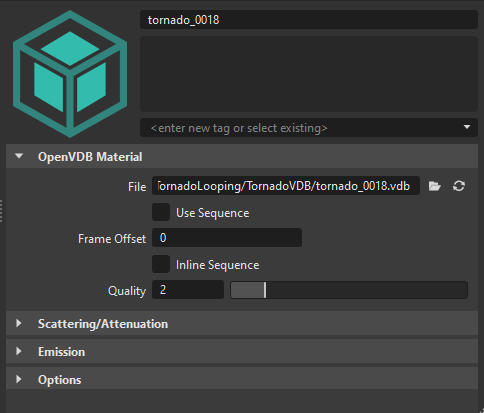
OpenVDB Material
This section houses the OpenVDB Material attributes.
File - Displays the OpenVDB or NanoVDB file used. Click
 to select a file. Click
  to upload the file and load any changes to it.
Use Sequence - Enables the use of a series of VDBs for animations, which can be controlled using the frame control and animated using the Curve Editor. A dialog appears indicating an animation curve will be created in the Curve Editor.
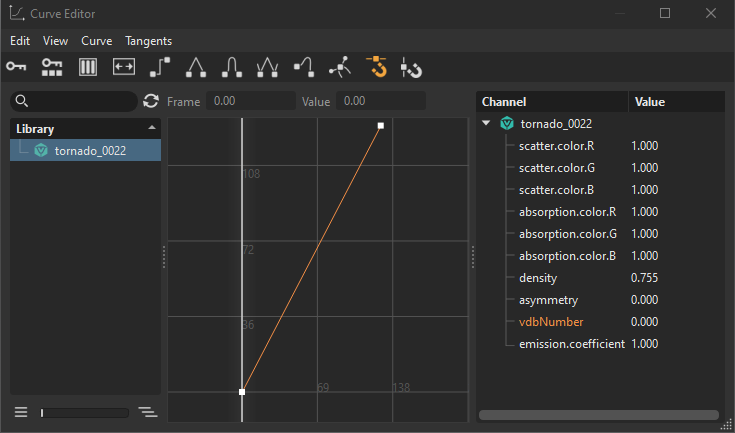
Frame - Determines the length, in frames, of the animation sequence. Drag its slider to get an animated preview of the volume.
Inline Sequence - Embeds the volume animation sequence data directly into the VDB file, instead of storing it as a separate file.
Quality - Determines the number of samples taken along each ray in the scene. The lower values (1), the higher the performance, but at a cost to quality. The higher values (8), the higher the quality, but at a cost to performance.
Scattering/Attenuation
This section houses the Scattering/Attenuation attributes, which are responsible for effects like the glow around a light source viewed through fog (called the halo effect) or the color of the sky.
Channel - Determines which channel in the VDB file is used to control or modify the density. When an OpenVDB is loaded, whenever possible the channels are automatically mapped. However, when it cannot be mapped, VRED sets this to None.
Color - Only available when Channel is not mapped to None. Sets the color of the light scattered by the volume.
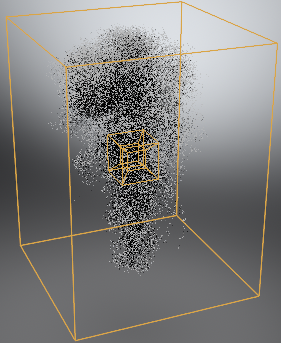
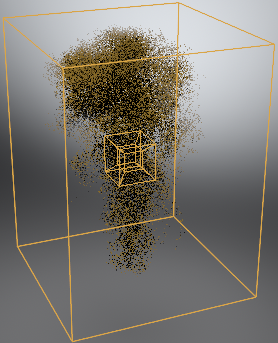
Absorption - Only available when Channel is not mapped to None. Sets the color of the remaining light after absorption by the volume. A high absorption value reduces the radiance of the volume, as the light is converted to another form of energy, such as heat.
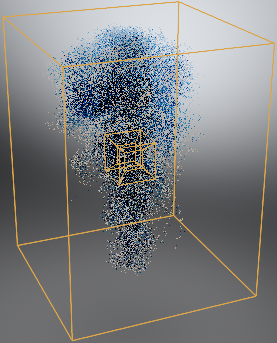
Density - Only available when Channel is not mapped to None. Sets how far light travels through the volume before being scattered or absorbed.
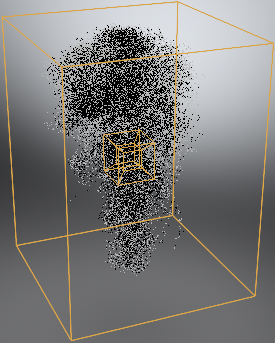
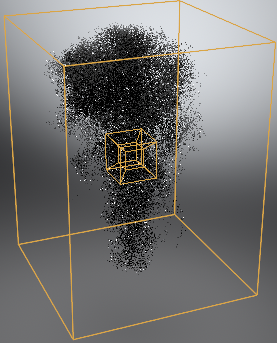
Asymmetry - Only available when Channel is not mapped to None. Sets the directional characteristics of scattering events.
Asymmetry = -0.9 Asymmetry = 0 Asymmetry = 0.9 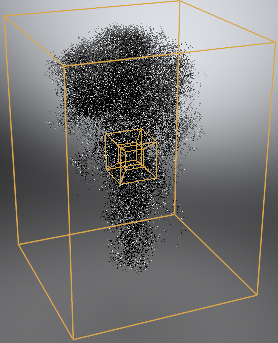
Emission
This section houses the Emission options, which control the radiance that is added to the environment due to luminous particles.
Channel - Determines which channel in the VDB file is used to control or modify the emission. When an OpenVDB is loaded, whenever possible the channels are automatically mapped. However, when it cannot be mapped, VRED sets this to None.
Coefficient - Only available when Channel is not mapped to None. Sets the average number of emission particle interactions per meter. The larger the value, the higher the performance hit.
Gradient - Only available when Channel is not mapped to None. Sets the color of the emission. Use the color ramp, as well as the value field. See Using the Emission Ramp for how to use the color ramp.
Emission Color Ramp - Once a channel is set in the Emission section's Channel option, you can access the gradient emission ramp. Use it to change the emission colors of your OpenVDB volume material.
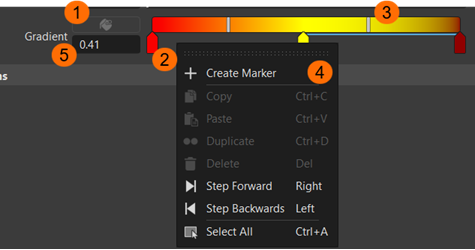
 Color Picker - Click a marker to access the Color Picker. Use it to set the color of a marker.
- To adjust a color, double-click a marker to access the Color Picker. Select a desired color, then click Accept to change the color of the marker that is introduced to the ramp.
 Marker - Set the color for that section of the ramp.
- To select a marker, LMB-click the marker to select it. From here, it can be moved, its color changed, or if there are three or more markers, it can be deleted.
To move a marker, LMB-drag the marker left or right to adjust the color. If the slider between markers has yet to be repositioned, it will always adjust itself to the midway point between the moved marker and its partner.
If a marker is moved beyond another, this inverts the color ramp and the slider adjusts itself to the midway point between them.
 Slider - Adjusts the color values between markers.
 Context Menu - Access editing and stepping options for working with the emission ramp.
To add a marker, RMB-click within the ramp and right-click and select Create Marker to add a marker at that point. The marker will default to the color of the clicked area. To change it, adjust the color.
To delete a marker, click the marker to remove, then right-click and select Delete. The slider between the remaining markers will move to the midway point between them.
To step to the next or previous marker and select it, click a marker, then either right-click and select Step Forward or Step Backwards or use the right or left arrow keys.
 Gradient - Use this to precisely set the position of the marker or slider.
Options
This section houses the Options.
Enable Self Shadow - Enables the volume to shadow itself, as well as other volumes.
Note:This option is very computationally expensive.
Enable Self Shadow disabled Enable Self Shadow enable 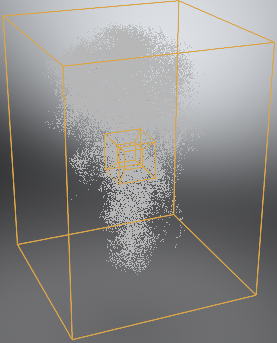
Enable Volume Shadow - Enables the volume to shadow geometries and the shadow plane.
Enable Traversal Optimization - Enables the sampling rays to jump to the first active voxel in the VDB.
Enable Trilinear Sampling - Performs a smoothing operation called trilinear interpolation by interpolating between 8 VDB grid samples.