User-defined properties in a vault can be edited using the Edit Properties command.
Files
Multiple files can be selected at once from the main pane to have properties edited. For example, you can select an Inventor assembly and all of its children from the Uses tab and then use the Property Editing Wizard to edit all the properties for the entire design. The selected files are copied to a temporary location on the local computer, checked out, the properties are updated, and then the files are checked back in to the vault.
For Autodesk Inventor files, including Inventor .dwg files, and Microsoft Office documents, all user-defined properties are available for editing. If a property is missing a value, you can fill it in and it will be added to the file. If the file does not contain the property as a pre-defined object, then a custom property can be created containing the value.
Folders
Folder properties can be viewed and edited in the vault. Any User Defined Properties assigned to folder categories can be edited in the Edit Properties dialog. Select one or several folders and use the Property Edit command to modified the UDP's assigned to the folders.
Items
For more information, see Edit Items.
Change Orders
You can define properties in addition to the default properties (Change Order Number, Change Order Title, and Description, and so on). An administrator must configure additional properties before they can be used. For more information, see Change Order - Custom Properties.
Current versus Historical Data shown in properties
Several properties in Vault have "(Historical)" equivalent properties. If you are looking for both current and historical data based on the state of the change order, it is best to use the properties with "(Historical)" in it. The properties without "(Historical)" in it will show the current data of the tip version of the objects in the change order and go blank when it isn't the tip version or revision of the object.
The File Link State property represents that the change order is up to date with the latest version of the files associated with it. This information is valuable when the change order is in an Open state. The File Link State Historical equivalent is not available because in order to close the item it must be up to date and linked to the latest version of the file, so the items will always be up to date.
Properties based on object type
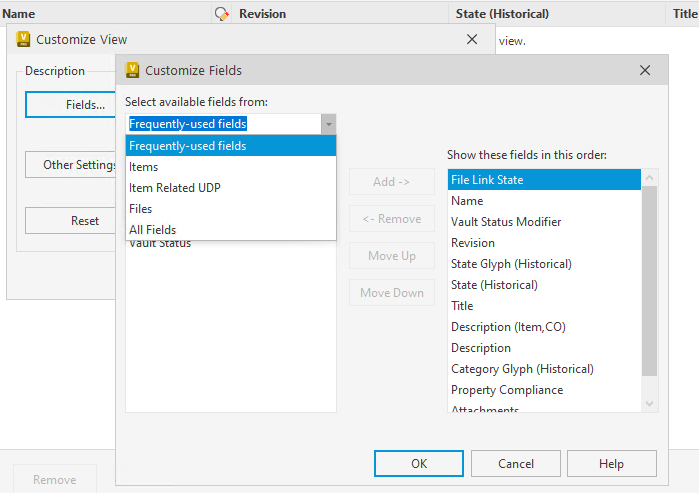
The properties (columns) are based on the object type. In some cases the properties are marked (Item,CO) to denote that they are unique to items and change orders.
While selecting the property, select the property type from the drop-down first so that you know what object that property column applies to.