Transform controls
There are two ways to specify a location or a value for distance, rotation or scale :
- Entering co-ordinate or value numbers in the promptline - covered in Prompts and Go Buttons.
- Using mouse and keyboard input with the Move, Rotate, Scale and Non-proportional scale tools, the Transform manipulator or the Transform CV tool.
This section covers the mouse button direction constraints and the keyboard snap controls that enable positioning by 'hand and eye' for sculpting.
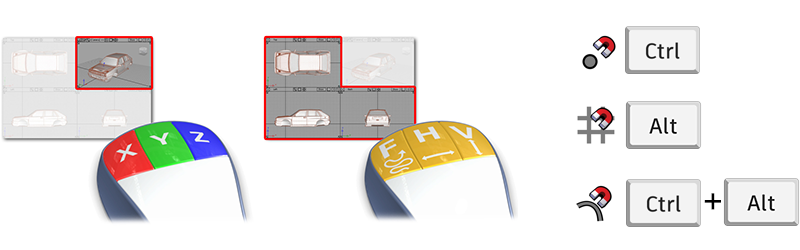
Mouse button - direction constraints
When positioning or transforming an item using mouse input, the three mouse buttons can be used to control the direction of the transform.
In an orthographic view, only two of the three axes are avalable for move and scale.
In a perspective view, all three axes are available for mouse input.
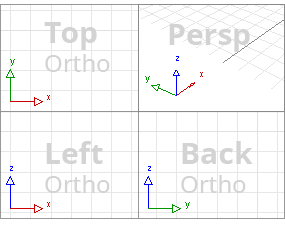
Orthographic View - Move and Scale
In an orthographic window, (or when in an Ortho Face view in the 3D window), the mouse buttons control transforms as follows:
 LMB - Free movement across view plane, scaling in both view axes.
 MMB - Constrained horizontally
 RMB - Constrained vertically
Perspective Window - Move, Rotate and Scale
In a Perspective Window, (when not in a Ortho Face view) the mouse buttons control the x, y, and z direction for transforms:
- LMB - Constrained along X axis
- MMB - Constrained along Y axis
- RMB - Constrained along Z axis
With both methods, transform guides (dashed line, colored RGB for XYZ ) are displayed as the mouse button (or manipulator handle) are used:
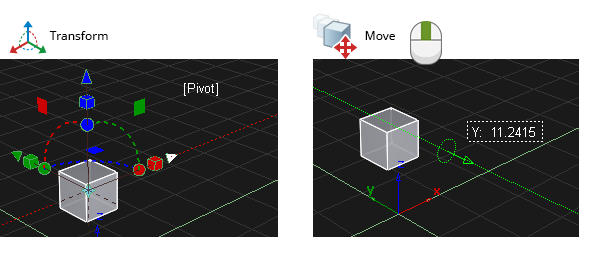
These guides can be turned off in the Preferences > General Preferences, Modeling section.
Snapping and Pivots
Magnet snapping can be used to precisely position an object when placing or moving geometry.
A mouse click specifies a point in space (x,y,z, co-ordinate). This is the 'target' where an item is to be placed or transformed to.
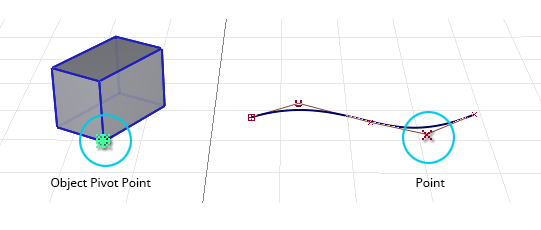
The point being moved or placed will be either:
The pivot point of an object (surface, subdivision, group, curve etc.). The pivot point is displayed in green only when the object is selected.
See Transform > Set Pivot for how to position the pivot point. Snapping is also typically used for moving pivots to accurate positions on geometry.
A control point (CV, edit point, blend point, keypoint).
Snap Modes
The three snap modes are applied by pressing one of the following keys or combinations before clicking or click-dragging the mouse:
Grid Snap - Alt
Move the cursor approximately close to the target grid intersection and hold the Alt key down before clicking to snap the geometry to the grid.
You don't have to be very precise with the cursor location, as long as it is slighter closer to the desired grid point than any others, the snapping will jump to that point.
Grid snap is most commonly used to align objects to the origin or centre-lines.
Point Snap - Ctrl
Move the cursor approximately close to the target point and hold the Ctrl key down before clicking.
In the case of point snap, it's better to position the cursor slightly away from the target point when you click. If too close, a transform tool may switch to moving the target object instead of your intended object.
"Close to, but not touching" is a useful motto when using point snap.
Curve Snap - Ctrl + Alt
Move the cursor onto the curve, edge or isoparm, hold the Ctrl + Alt keys down, then click-hold to drag the item to the required position along the curve.
Curve Snap and Pick Chooser
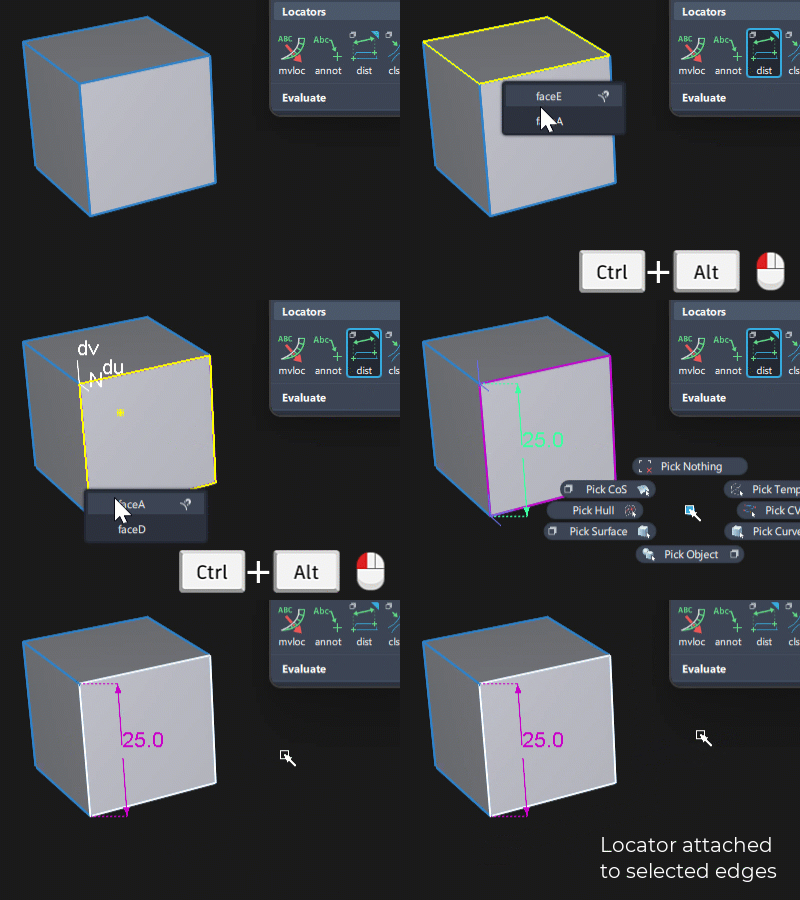
For tools that are associative (i.e. they are attached to the geometry they are placed on) such as Locators or Blend Curves, then the pick chooser will appear when more than one edge is selected.
- Click and hold on the shared edge, the Pick Chooser will appear.
- Keep the mouse button held down and move to the item in the Pick Chooser list that you want to connect to - the magnet icon appears to the right of the object name.
- Keep the mouse button held down and move the cursor to the magnet icon until the pick chooser disappears.
- Keep the mouse button held down and drag to choose the placement.
- Release the mouse button.
Curve snap has the following additional behaviours:
- Curve snap automatically snaps to the locations where the curve intersects a plane. The intersection points are shown as purple crosses.
- If you click on the edge of a construction plane while curve snap is on, movement is constrained to that construction plane.
- When using curve snapping, you can release the hotkeys after the item has snapped to the curve, and the item will continue to stick to the curve as long as the mouse button is pressed.
Snap Lock icons
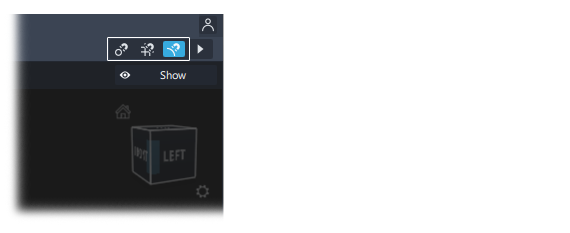
The snap lock icons are at the top of the screen, to the right of the promptline.
Click on one of the icons to turn on it's snapping mode - it will stay applied until it is unselected.
This can cause unexpected behaviour if you have forgotten that they have been applied. Most users therefore prefer to use the Ctrl and Alt keys as they only apply while the key is being pressed.
If you get any unexpected behaviour during placement or transform, check the snap icons to make sure they haven't been applied (they will be highlighted in blue).
Combining snapping with mouse direction constraints
Combining the direction constraints with the snapping controls achives alignment in one direction only.
This works slightly differently depending on whether you are working with the Transform manipulator or the Transform Move tool.
Constrained snapping with the Transform manipulator 
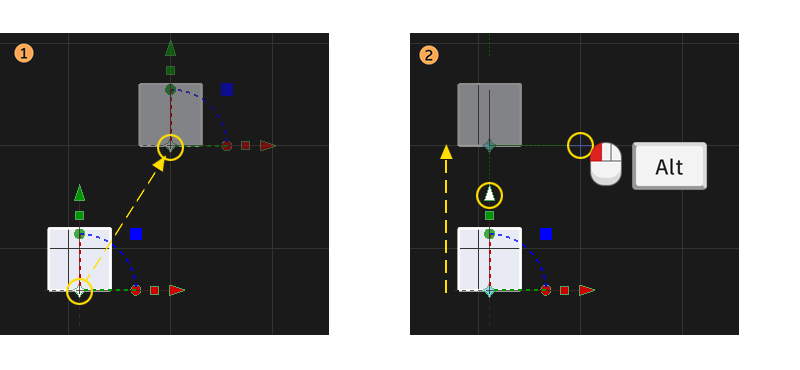
The red-x, green-y, blue-z move arrows can be used to limit the movement in one direction. These work with snapping as long as the snap keys are applied before the arrow is selected and moved.
Using the Transform tool:
- Select the object to move, and then select Transform > Transform to display the manipulator.
- First, press the required snapping key(s):
Alt,CtrlorCtrl+Alt, and keep them pressed. - Select the axis arrowhead (red-x, green-y, blue-z) for the direction you require.
- Keeping the snapping keys held down, move the cursor to the required target.
In the examples below:
- The free movement handle is selected, so grid snap moves the object exactly onto the grid intersection.
- The y-handle is selected, so grid snap only moves in the y-direction to align with the grid intersection location.
Constrained snapping with Transform > Move in the orthographic windows 
This technique is important because it is can be used for positioning a pivot point as well as objects and points.
This technique only works in the orthographic views (or 3D views set to an Ortho Face view), using the MMB for horizontal or the RMB for vertical movement.
- Select the object or point and choose Transform > Move.
- Hold the snapping keys down first (
Alt,CtrlorCtrl + Alt). - Position the cursor on the target to be snapped to - grid, point etc.
- Use either the MMB (Horizontal) or the RMB (Vertical) to click on the target, while keeping the snapping keys pressed.
The item will be moved either horizontally or vertically until it is perpendicular to the target point.
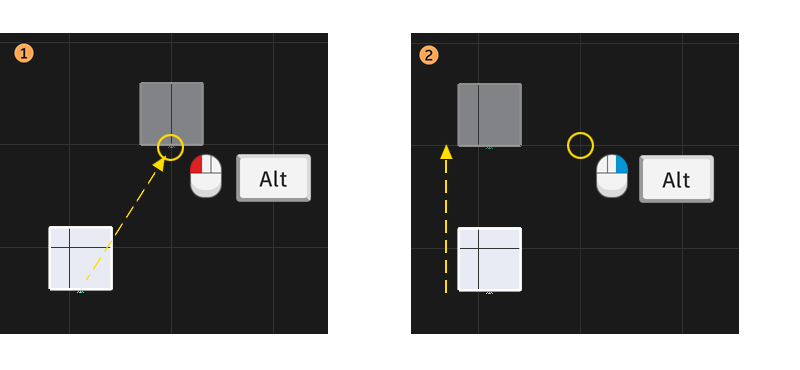
In the examples below:
- The LMB is used, so grid snap moves the object exactly onto the grid intersection.
- The RMB is used, so grid snap only moves in the vertical direction to align with the grid intersection location.
Curve Snap options
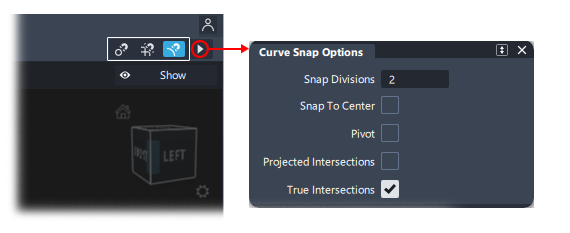
The Curve Snap Options window is accessed from the arrow icon to the right of the snap lock icons.
The settings create additional snap locations when curve snap (Ctrl + Alt) is used:
Snap Divisions
You can snap to the midpoint, 1/3, 1/4, etc. by setting Snap Divisions to a value from 0 to 100. For example, setting this value to 2 and then using curve snap gives you a 'snappable' point (shown as a light blue line segment) halfway along the curve. The arc length of the curve or surface is used to calculate the divisions.
Snap to Center
When this option is turned on and you click on a curve, the center of the curve's bounding box is displayed as a small cross surrounded by a circle. Moving the cursor in close proximity of the center icon lets you snap to it.
Pivot
When this option is turned on and you click on a curve, its pivot is displayed. Moving the cursor in close proximity of the pivot icon lets you snap to it.
You can snap to both the scaling and rotation pivots (if they are not in the same location).
Projected Intersections
When this option is turned on, you can snap to the intersection points between curves in any orthographic or perspective view, even if the curves don’t truly intersect in world space. These intersection points are displayed as pink crosses.
True Intersections
If this option is turned on, then:
- Curve snap will automatically snap to all intersections between free curves, surface edges, isoparms, curves on surface, and trim edges.
- Curve snap will automatically snap a new curve-on-surface (CoS) to CoS-CoS intersections on the same surface.
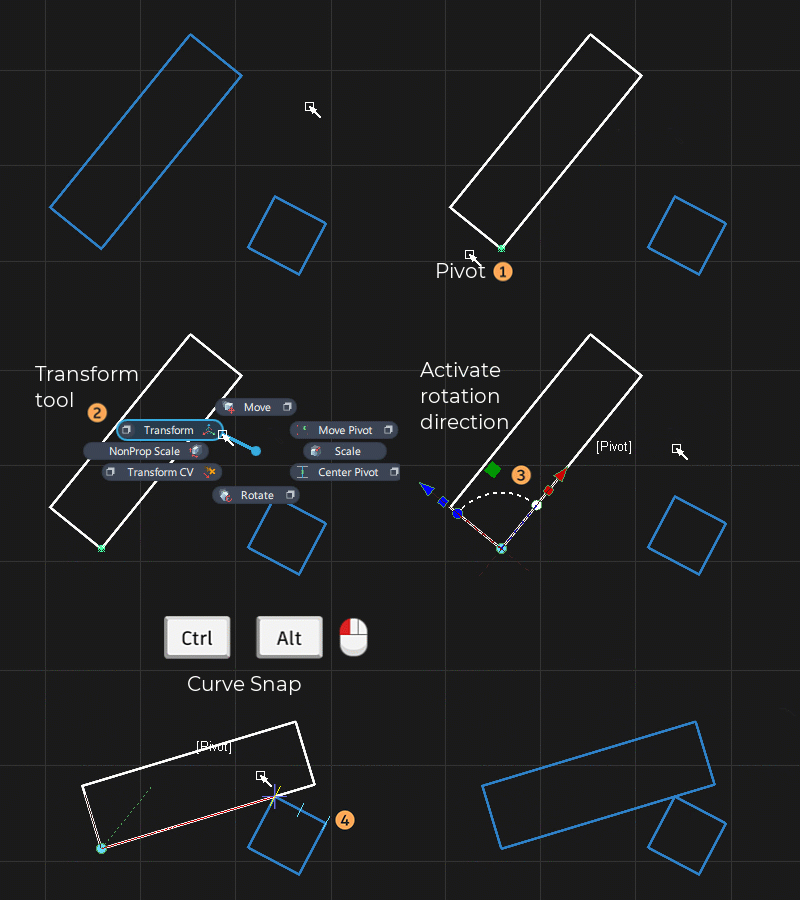
Rotate to a point
The Transform tool manipulator can be used to rotate an object until it meets a specified point, if the local pivot axes are aligned with the geometry.
- Place the pivot at the required rotate axis location.
- Choose Transform > Transform and select pivot mode.
- Select the required arc on the manipulator for the direction of rotation.
- Use snapping to specify the 'landing point' for the rotate.
Nudge
With most transformation tools you can also use the arrow keys to nudge the object by very small amounts.
The relationship between an arrow key being pressed and the distance or value that is effected in the model will depend on how zoomed in the view is. Zoom in very close to geometry to get a smaller movement each time you depress an arrow key.
The arrow keys can also be used with Transform > Transform CV, with more control over the sensitivity of the nudge.
Shift-pick during transform
In most tools, you can temporarily switch to picking geometry. While you hold Shift, mouse clicks pick and unpick geometry.