Checkpoint

Lets you save and load versions of the current .wire file. You can use checkpoints to manage different versions of the model you are working on.
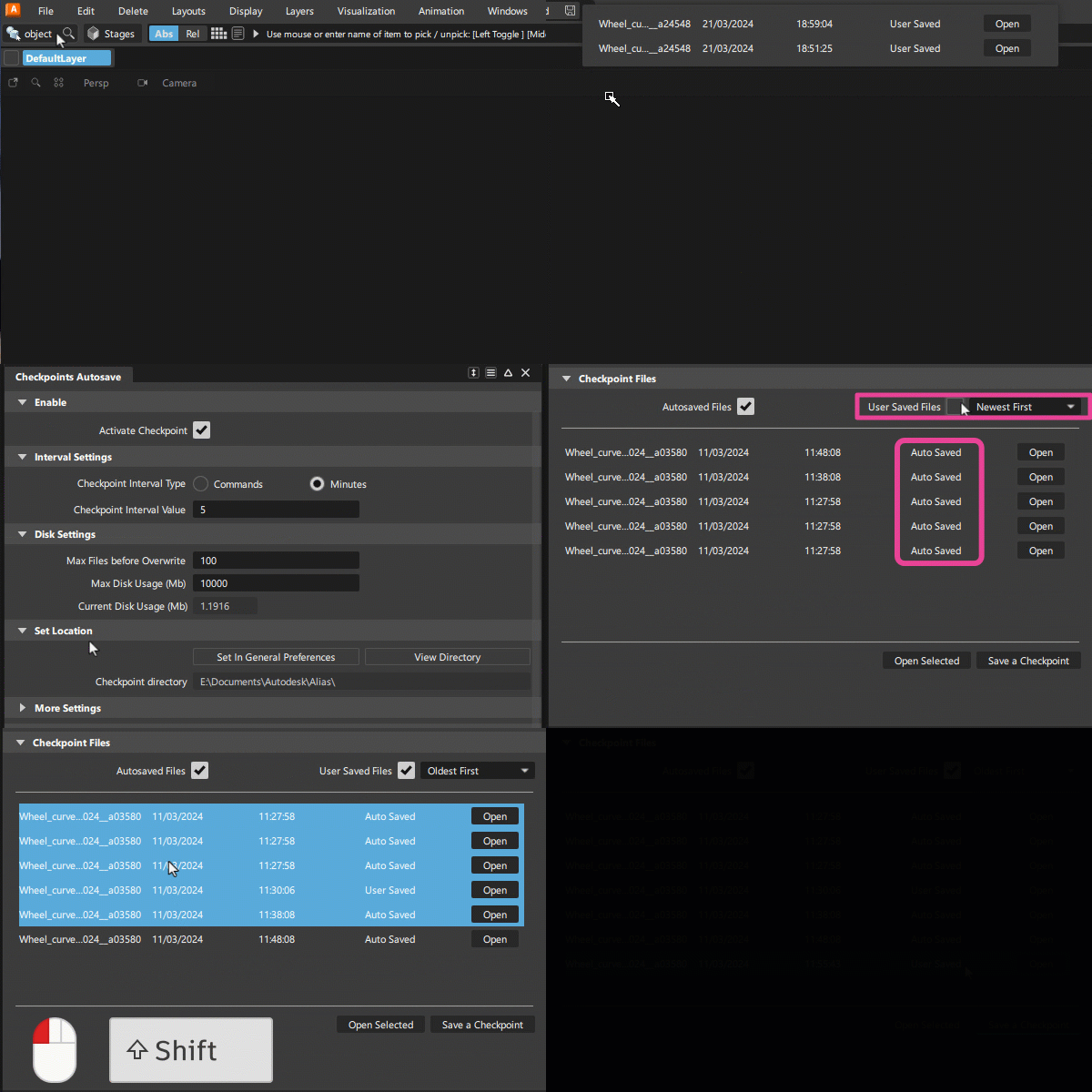
For example, checkpoints let you:
- Quickly revert to a previous point in your current modeling session, such as an earlier version of a design.
- Experiment with different iterations of your model in a non-destructive way.
- Quickly make comparisons between different versions of a model.
By default, all checkpoint files get saved to the _checkpoints folder in your Alias directory. For example:
C:\Users\<username>\Documents\Autodesk\Alias\_checkpoints. Depending on whether the files are auto-saved or manually saved, they are added to sub folders in the _checkpoints directory as follows:
- Auto-saved:
_checkpoints\Checkpoints\AutoSave - Manually saved:
_checkpoints\Checkpoints.
Checkpoints Autosave options
Enable
Activate Checkpoint
When on, you can save checkpoints automatically according to the Interval Settings and at the Set Location.
Also, the following options display in the application title bar.

Auto Save - Saves a checkpoint automatically according to the Interval Settings and at the Set Location. By default, auto-saved checkpoint files get saved to the _checkpoints\Checkpoints\AutoSave folder in your Alias directory. For example: C:\Users\<username>\Documents\Autodesk\Alias\_checkpoints\Checkpoints\AutoSave.
Interval display \ Save Checkpoint Now - When you mouse over the interval display, Save Checkpoint Now appears. Click this to save a checkpoint of the current .wire file. By default, these checkpoint files get saved to the _checkpoints\Checkpoints folder in your Alias directory. For example: C:\Users\<username>\Documents\Autodesk\Alias\_checkpoints\Checkpoints.
Interval Settings

Checkpoint Interval Type
Choose the criteria used to trigger a checkpoint save when the set Interval Value is reached.
- Commands - Saves a checkpoint based on the number of executed commands. Pick-related commands, such as Pick CVs, are not counted as a command execution.
- Minutes - Saves a checkpoint based on minutes.
Checkpoint Interval Value
Sets the number of executed commands or minutes between each checkpoint save.
Disk Settings
Use these options to manage the disk space used by the set Checkpoint Directory.
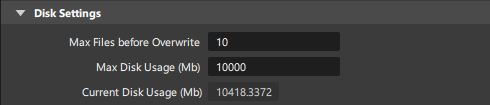
Max File before Overwrite/Max Disk Usage (Mb)
After these numbers are reached, older checkpoints are deleted to make room for new ones.
Current Disk Usage (Mb)
The current amount of space used on disk for all checkpoint files.
Set Location


By default, checkpoints files get saved to a _checkpoints folder in your Alias directory. For example:
C:\Users\<username>\Documents\Autodesk\Alias\_checkpoints. When you specify a custom location for your checkpoint files, Alias creates a subfolder called Checkpoints. The user and auto saved files are saved to this location.
- If you used Checkpoints in these versions, be sure that the Checkpoints directory is not set to the same location as your working files. Otherwise, by default, these will be deleted along with the checkpoint files when you exit Alias.
- If you set your Checkpoints folder to a custom location, you need to move them to either the new
Checkpointsor_checkpointsdirectory in Alias 2025. Otherwise, they will not be visible in the Checkpoints window.
Set in General Preference
Click this to set the directory path for the Checkpoint File Location. This option is located in the File Paths section of the General Preferences window.
View Directory
Opens the currently set Checkpoint File Location. Use this option to access the directory for deleting checkpoint files if necessary.
More Settings
Delete Files on Exit
Deletes all checkpoint files when you exit Alias.
Attempt Save on Crash
Saves checkpoint to the current to the Checkpoint File Location if Alias exits unexpectedly.
Checkpoint Files
Displays the list of autosaved and manually saved checkpoint files with filename and timestamp.
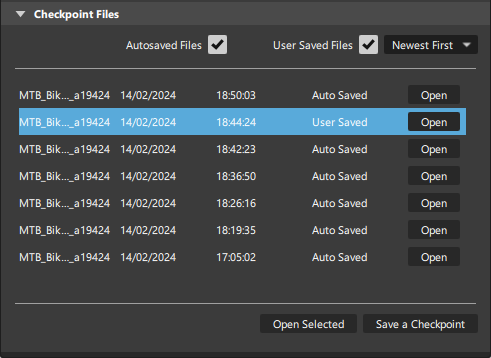
Turn on Auto Saved Files and User Saved Files to display these in the list. Choose either Newest First or Oldest First for the order in which files appear.
Open Selected
Lets you open multiple checkpoint files from the list. Use Ctrl - select or Shift - select to choose multiple files from the list.
Save a Checkpoint
Saves a manual checkpoint of the current .wire file. By default, these checkpoint files get saved to the _checkpoints\Checkpoints folder in your Alias directory. For example:
C:\Users\<username>\Documents\Autodesk\Alias\_checkpoints\Checkpoints.