 Mesh Edge Reconstruct
Creates clean sharp edges over areas of high curvature in a mesh, or reconstructs the edge where two meshes meet, or the edge where a mesh meet one or more surfaces.
The edges on the mesh(es) are rebuilt as NURBS skin surfaces.
Access this tool from the Mesh tool palette:

Mesh Edge Reconstruct Control options
Surface edge distance
Radius of the tube that defines the region where the surfaces are built.
Sampling factor
This value multiplies the Sample edge distance to specify the maximum distance from the outside of the tube that are included in the calculations.
Ensure that this distance covers mostly flat regions, and does not include other sharp features.
Create Fillet
Turn on this option to build a fillet between the NURBS surfaces that meet along the reconstructed edge.
Fillet Type
Constant Radius – Builds a circular fillet of constant radius.
Chordal – Builds a fillet with a constant distance between the two edges of the fillet.
Fillet Radius
This option appears when Fillet Type is set to Constant Radius and lets you set the radius of the fillet. This value must be smaller than the Surface Edge Distance value.
Fillet Chordal Distance
This option appears when Fillet Type is set to Chordal and lets you set the distance.
Mesh Edge Reconstruct workflows
How to create clean sharp edges over areas of high curvature in a mesh, or reconstruct the edge where two meshes meet, or the edge where a mesh meet one or more surfaces.
Preliminary steps
Turn on the Curvature Evaluation shader from the Diagnostic Shading panel.
This will show you areas of high curvature where you may want to create sharp edges.
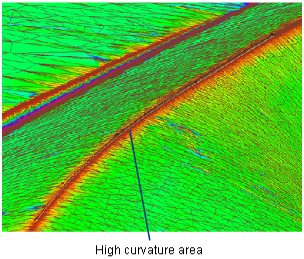
Create a curve along the mesh as a first approximation to the sharp edge. To that effect, we suggest using:
- The feature or theoretical curve output. In the Mesh tool palette, select Mesh Curves, then click the Mesh Extract Theoretical Intersection tool
 .
.
- The feature or theoretical curve output. In the Mesh tool palette, select Mesh Curves, then click the Mesh Extract Theoretical Intersection tool
or
- A curve created with the BlendCrv Tools > Blend Curve Create tool
 , which lets you constrain the blend points to the mesh.
In the case of intersecting meshes, or meshes intersecting with surfaces, the resulting curves-on-mesh can be used.
Sharpen an area of a mesh
Shift-select the Mesh Edge Reconstruct tool
.Select the mesh.
Click the Accept button.
Select the curve
A blue radius manipulator appears at the start of the curve.
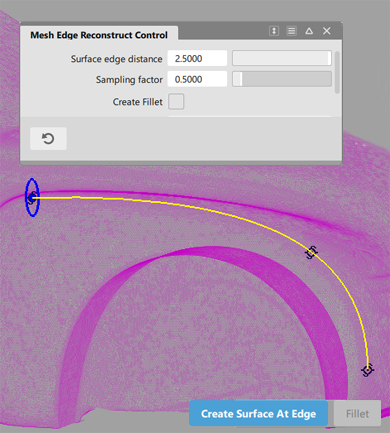
Adjust the radius through the option window (Surface edge distance) or by dragging the mouse on the blue circle.
Tip: Make sure the tube defined by the curve and radius is large enough to encompass the area where you want to build the sharp edge. That is, the outer edges of the tube should lie in the flatter mesh regions (green on curvature map).If necessary, you can click along the curve to create extra radius manipulators and adjust them with the mouse.
This creates a variable-radius cylinder and controls the shape of the surfaces.
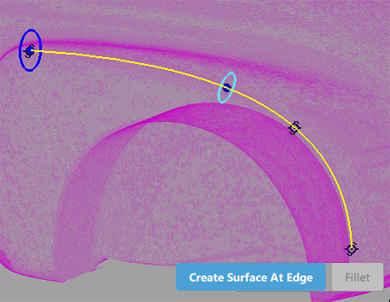
Click the Create Surface At Edge button.
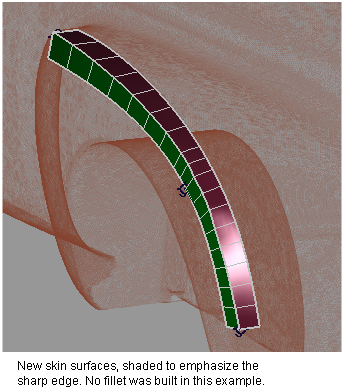
Two NURBS skin surfaces are produced, creating a sharp edge where they meet (at the theoretical intersection). The underlying mesh is removed.
Tangent lines show you where the tube intersects the mesh.
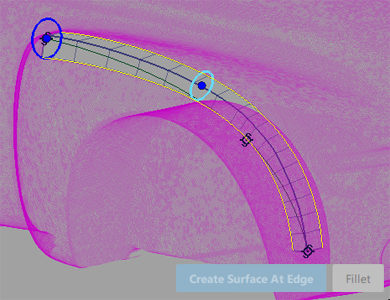
If the Create Fillet option was turned on, click the Fillet button to create a fillet between the two surfaces.
The surfaces are trimmed back to the edges of the fillet (where possible).
Reconstruct the edge between two meshes
Shift-select the Mesh Edge Reconstruct tool
.Select the two meshes.
The meshes must have been previously intersected and cut so that only their edges touch.
Click the Accept button.
The two meshes are merged into one.
Select a curve along the common boundary between the two meshes.
A blue radius manipulator appears at the start of the curve.
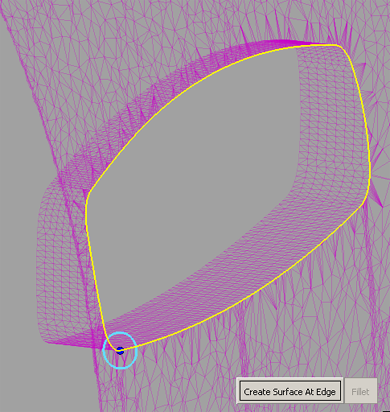
Adjust the radius through the option window (Surface Edge Distance) or by dragging the mouse on the blue circle.
If necessary, you can click along the curve to create extra radius manipulators and adjust them with the mouse.
This creates a variable-radius cylinder and controls the shape of the surfaces.
Click the Create Surface At Edge button.
Two NURBS skin surfaces are produced, creating a sharp edge where they meet (at the theoretical intersection). The underlying mesh is removed.
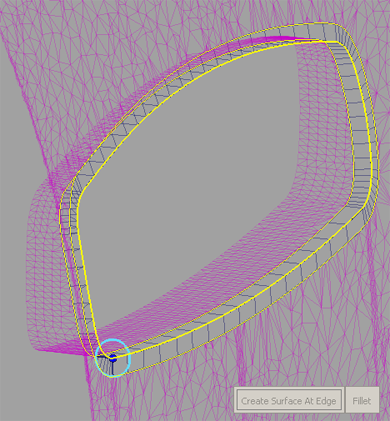
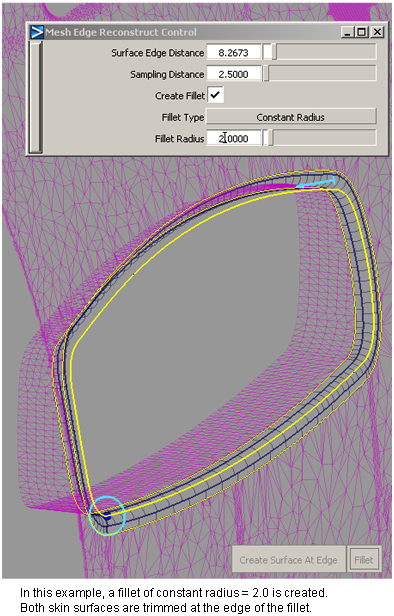
If the Create Fillet option was turned on, click the Fillet button to create a fillet between the two surfaces.
The surfaces are trimmed back to the edges of the fillet (where possible).
Reconstruct the edge between a mesh and one or more surfaces
Shift-select the Mesh Edge Reconstruct tool
.Select one mesh, and one or more surface(s).
The mesh must have been previously intersected with the surfaces and all geometry trimmed/cut to the intersection so that only their edges touch.
Click the Accept button.
Select a curve along the common boundary between the mesh and surface(s).
A blue radius manipulator appears at the start of the curve.
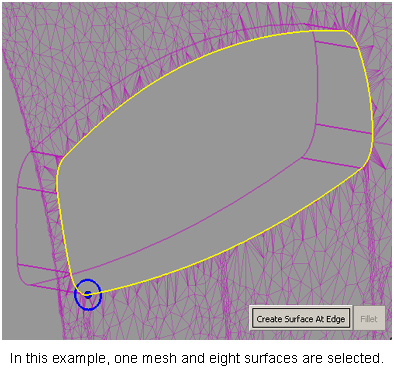
Adjust the radius through the option window (Surface Edge Distance) or by dragging the mouse on the blue circle.
If necessary, you can click along the curve to create extra radius manipulators and adjust them with the mouse.
This creates a variable-radius cylinder and controls the shape of the resulting surface.
Click the Create Surface At Edge button.
A single NURBS skin surface is produced on the mesh, creating a sharp edge where it meets the existing surface(s). The underlying mesh is removed.
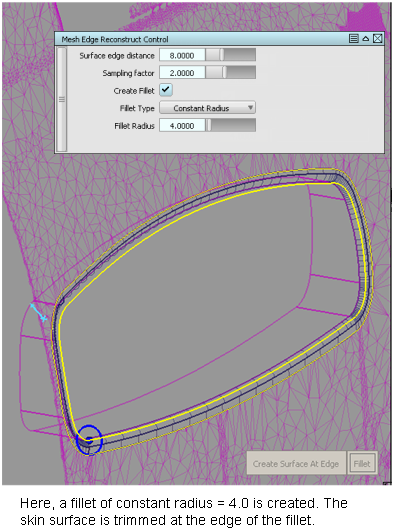
If the Create Fillet option was turned on, click the Fillet button to create a fillet between the surfaces at the sharpened edge.
The surface is trimmed back to the edges of the fillet (where possible).
About reconstructing edges on meshes
About how to create clean sharp edges over areas of high curvature in a mesh, or reconstruct the edge where two meshes meet, or the edge where a mesh meet one or more surfaces.
As with the Mesh Extract Theoretical Intersection tool, an input curve and radius of influence must be provided to define the direction of the sharp edge as well as the area where the surfaces will be built.
The curve can be a blend curve, theoretical curve, or curve-on-mesh, and doesn’t have to lie completely on the geometry.
The edges on the mesh(es) are rebuilt as NURBS skin surfaces.
Edit > Undo  can be used with this tool.