 Cut
Cut
Modifies topology by cutting and rebuilding subdivision edges along a path of selected edges and CVs. Use the cut tool to interactively split, rebuild edges, and insert CVs to quickly reshape and change the topology of subdivision objects.
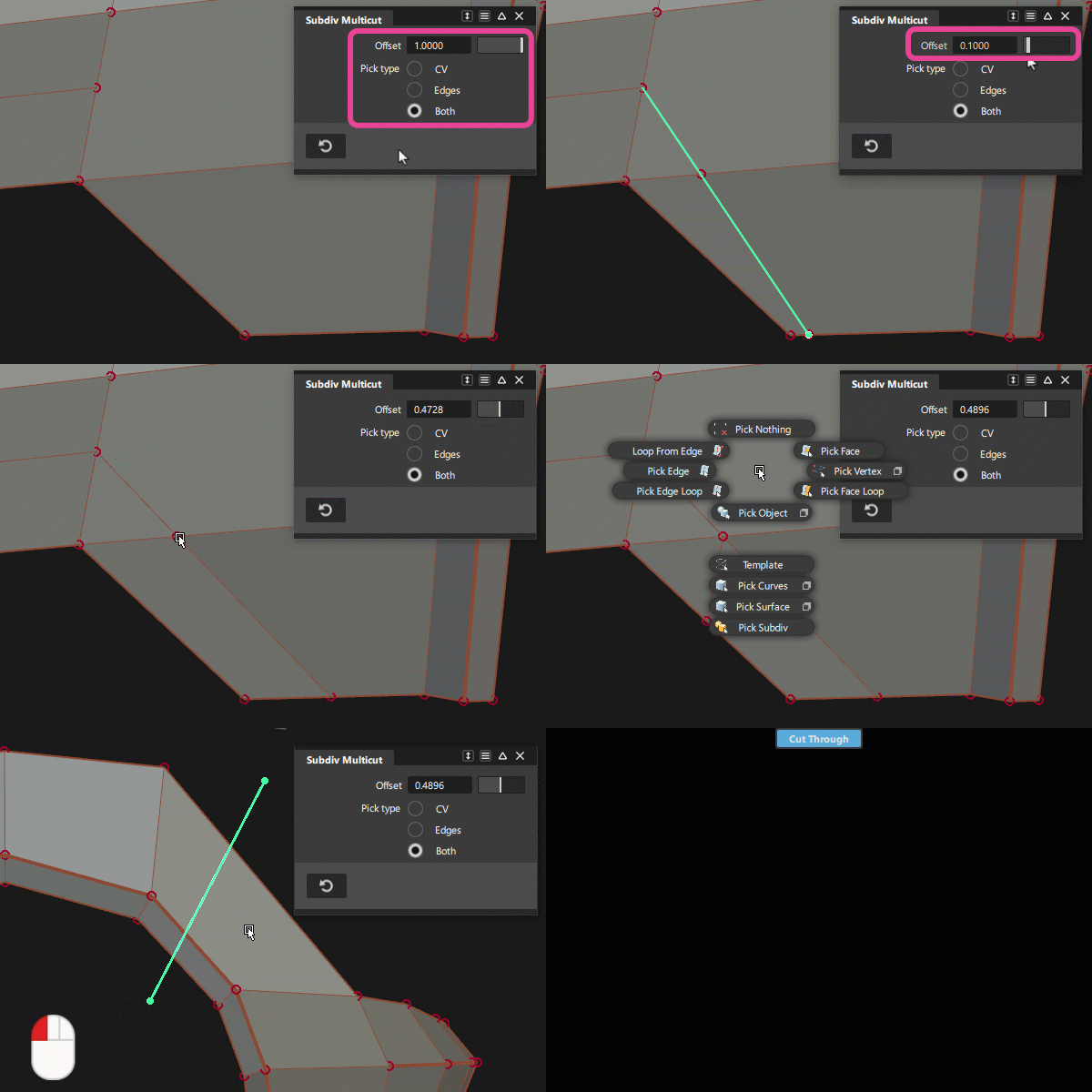
When you cut a subdivision surface at specified points along edges, new edge loops get inserted at the cut points. This way, you can use the tool to cut a rough shape, and then use the other subdivision modeling tools to refine it.
You can also cut through a subdivision object by defining a cut-line in canvas, and then apply it to a subdivision object.
Access the tool from the Subdivision Palette:

Related video

Subdiv Multicut settings
Offset
Specifies the distance along an edge to place the cut in the set working units. You can set this value using the slider, by LMB-dragging, or by input into the promptline.
Pick Type
- CV - Cuts and rebuilds edges along the path of selected CVs.
- Edges - Cuts and rebuilds edges at selected locations along edges.
- Both - Cuts the surface along the path of selected CVs or at specified locations along edges. This is the default setting.
Cut subdiv workflows
Shift-select the tool to open the control window.
In the control window, select a Pick Type for the cut.
Tip: Setting Pick Type to Both allows you to us a combination of CVs and edges in your cut line.Click either an edge or CV as a starting point. A cut must start on an edge or CV.
Tip:Ctrl+ LMB snaps cut point to the nearest CV.A green dot displays at this location to indicates that the tool is active.
To position the cut line, LMB drag or set an Offset value.
Click
 or press the Spacebar to make the cut.
Cut through a closed subdivision object
You can cut through a subdivision object by defining a cut-line in canvas, and then applying it to a subdivision object. Note that the Cut settings, such as Pick Type or Offset are not applicable to the Cut Through operation.
- Click in the canvas to define the start of the cut-line, drag, and then click again to define the end of the cut-line.
- If required, orient the canvas view to reposition the cut-line.
- In the canvas, click
 or press the Spacebar to complete the cut.