 Bevel
Bevel
Inserts edges or edge loops that are offset from the selected edge in both directions. You can use this tool to sharpen the limit surfaces or to created rounded corners by adding a crown to an edge.
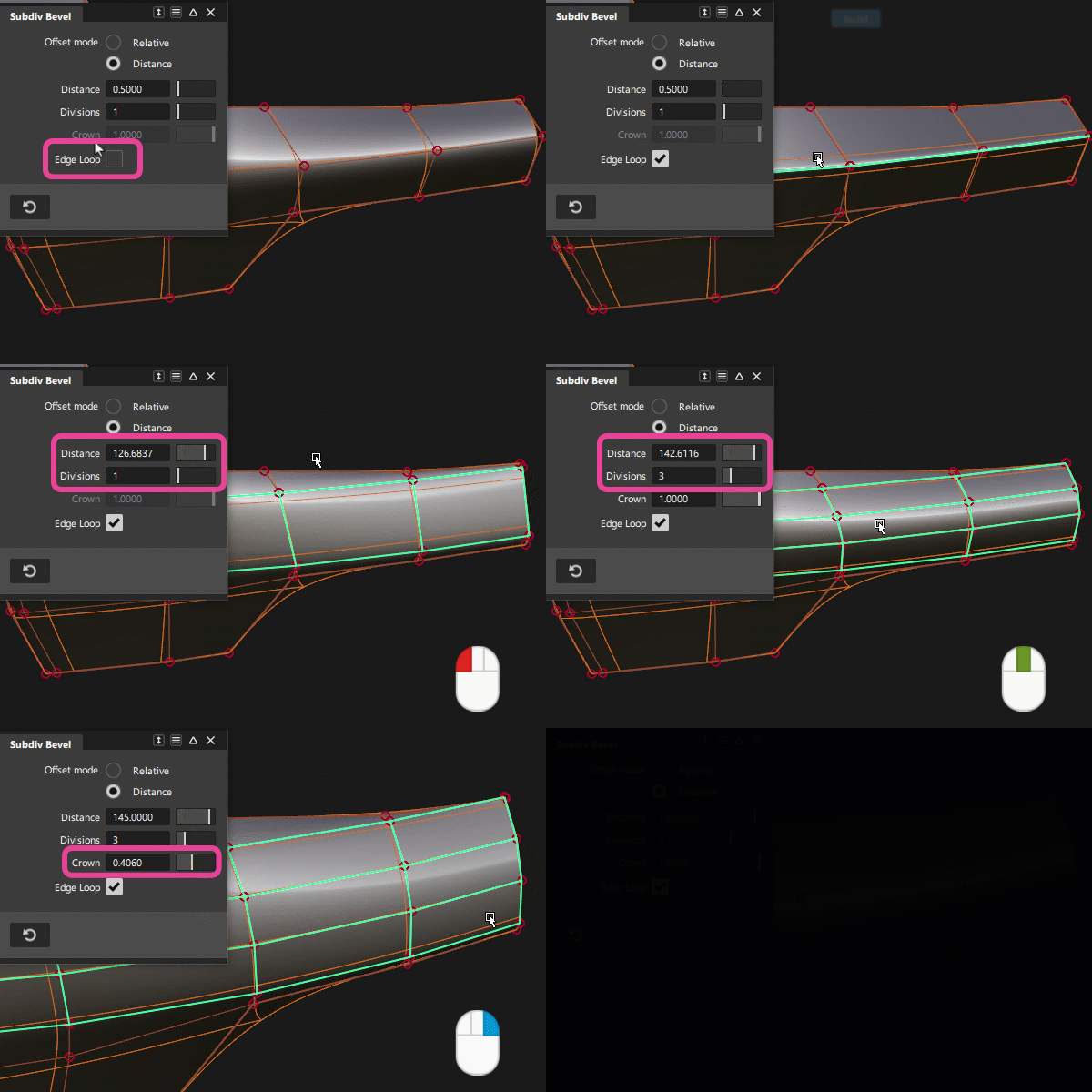
Access the tool from the Subdivision Palette:

Related video

Subdiv Bevel settings
Offset mode
Specifies the way the bevel gets inserted and determines the position of the new edges.
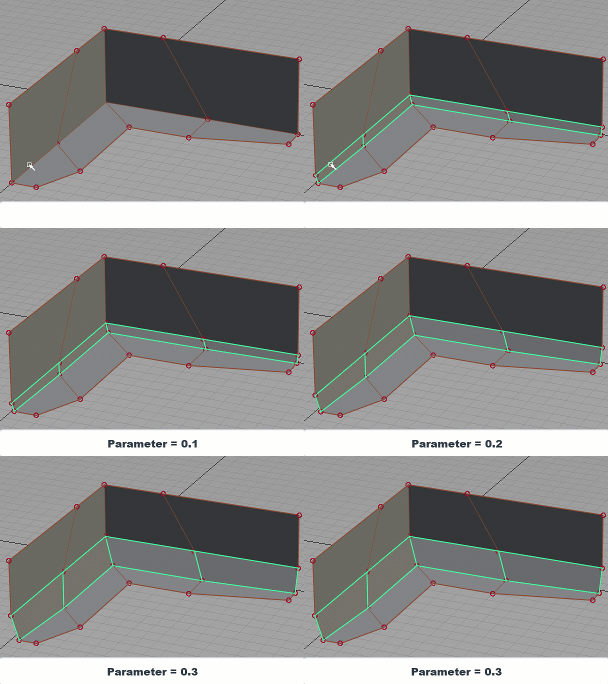
Relative - Calculates the position as an offset relative to the original edge. Use the Parameter control to set the offset value as a percent.
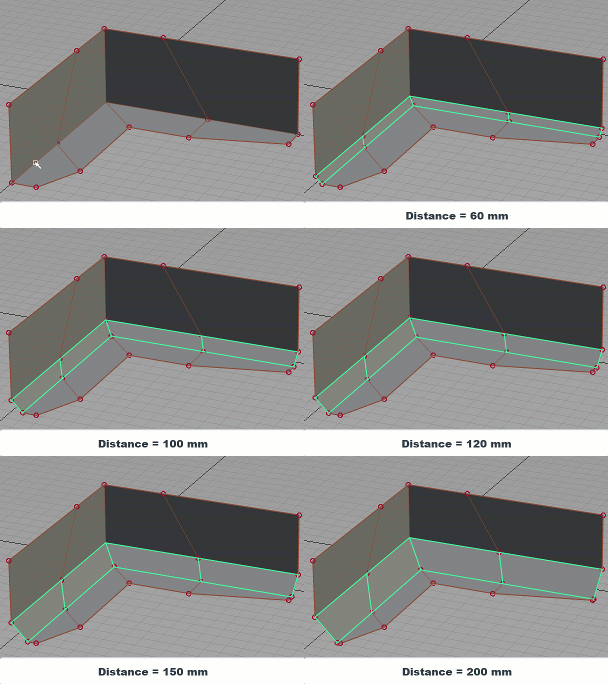
Distance - Inserts a bevel that has a consistent width and parallel edges. Use the Distance control to set the width value in the set measurement units. This is the default setting.
Parameter/Distance
You can set these values using the slider, LMB dragging on your model in the viewport, or by input into the promptline.
Parameter (Relative Offset mode) - Adjusts the position of the bevel edge as an offset value relative to the original edge as a percent. Setting the slider to 0.1 is equivalent to 10 percent.
Distance (Distance Offset mode) - Adjusts the width between the two outer edges of the inserted bevel in the set measurement units. Larger Distance values generate a softer edge. Smaller values make the edge more like a fillet, which creates a sharper highlight.
Divisions
Specifies the number of faces to insert between the new edges. A Division value of 1 adds two new edges equally spaced to either side. A value of 2 keeps the original edge between two newly created edges on either side.
You can set this value using the slider, MMB dragging on your model in the viewport, or by input into the promptline.
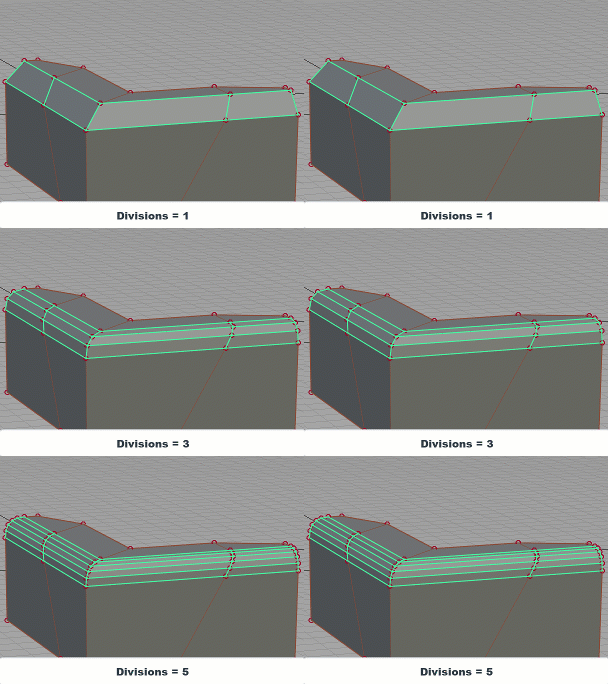
Divisions: 1 to 8
Crown
Creates a rounded crown using the new faces. You need 2 or more Divisions to create a crown. Adjusting this value sets the height of the crown.
A value of 1.0 sets the crown to its the maximum height, which generates a rounded edge. A value of 0 does not create a crown, resulting in a flat beveled edge. By default Crown is set to 1.0.
You can set this value using the slider, RMB dragging on your model in the viewport, or by input into the promptline.
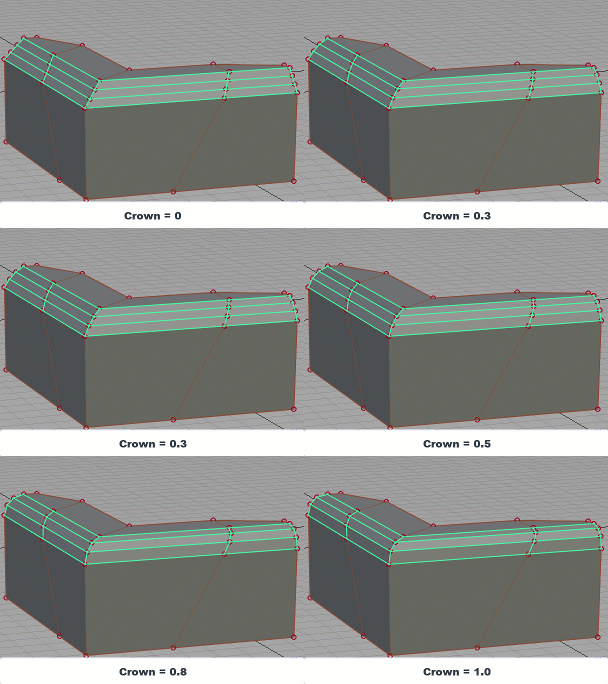
Crown: 0 to 1.0
Edge Loop
Check this box to select an edge loop when you pick an edge.
Bevel tool workflow
- Shift-select the tool.
- Pick the edge or edge loop you want to bevel.
- Click Build in the viewport.
- In the Subdiv Bevel control window, set the following:
- Choose how the bevel gets inserted and positioned. Select Relative mode to use an offset from the original edge, and then adjust the Parameter slider to set an offset value.
- Select Distance to insert a bevel that has a consistent width and parallel edges, and then use the Distance slider to set the bevel width.
Add faces to the beveled edge by adjusting the Divisions slider.
Note: By default, the bevel edge is rounded when you add two of more faces by setting Divisions to 2 or higher. To flatten the beveled area, set Crown to 0.Adjust the shape of the beveled edge by adding or removing curvature using the Crown slider.
- Click Next in the viewport to complete the bevel.
Bevel tool keyboard shortcuts
Use the following keyboard shortcuts to adjust the Bevel tool settings.
 - drag to set Parameter or Distance
 - drag to set Divisions
 - drag to set Crown