Creating Colour Casts
You can use the Midtones trackball to create a colour cast that affects the chroma in the entire image without affecting the luma. Create a colour cast when you want to emphasize a colour range to create an artistic effect or when you want to refine an existing cast. For example, create or refine a bluish cast to convey a cooler atmosphere.
To create a colour cast:
Click Basics.
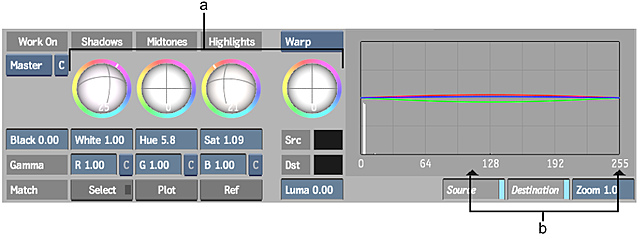
(a) Trackballs (b) Midtones triangles
Tip: You can determine the colour of an existing cast by dragging right in the Saturation field to temporarily increase the saturation while monitoring the sample in the 2D vectorscope. Click Undo once you determine the colour of the cast.To add a colour cast to the entire image, drag the midtones triangles so that they span the entire luma range.
While viewing a vectorscope and the image, drag the Midtones trackball towards the colour you want to increase in the clip or image. For example, to add more yellow to the image, drag the Midtones trackball towards yellow.
In the 2D or 3D vectorscope, the colours update to reflect your changes. In the image window, the colour in your clip changes according to the direction the trackball is being dragged.
Note: When you drag the Midtones trackball, the RGB curves in the 2D luma histogram also reflect the changes you make.To increase a range of colour in the highlights or shadows of the image, drag the Highlights or Shadows trackball.
To increase or decrease the saturation of the cast, drag the Saturation field—drag right to increase saturation and left to decrease it.
Tip: You can make slight modifications to the hue of the cast using the Hue field.