Editing Strokes
By changing to the Edit mode, you can edit the properties, position, and scale of existing strokes. You can also delete strokes, or track them.
To move a shape:
- Click the Edit tab.
- Click the stroke to edit.
- Enable Edit Box.
- With the green Edit Box, move and resize the shape or stroke.
Precisely Editing Strokes
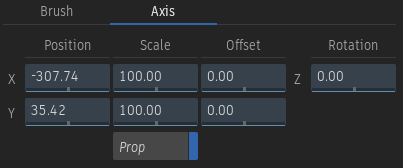
You can also use numeric fields to the Position, Scaling, and Rotation of the selected stroke by using the fields in the Axis tab.
Changing Strokes Priority
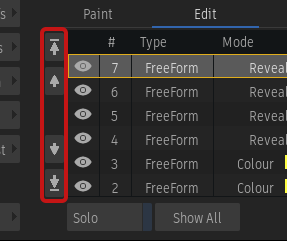
You can edit the strokes priority using buttons in the Edit menu. You can still drag strokes in the Edit menu to reorganize the priority of strokes, but the visual feedback has been improved.
Editing Multiple Brush Strokes
You can select and edit multiple strokes in the Edit list, with a yellow highlight identifying the primary selection. If Edit Box is active, only the primary selection is highlighted with the Edit Box.
- The Brush, Paint Mode, Wipe, and Matte sections display the values from the primary stroke.
- Operations such as Duplicate and Delete strokes are applied to all the selected strokes.
- Changes to Brush, Paint Mode, Wipe, and Matte settings are only applied to the selected strokes that support the changes.
Edit Stroke Start and End
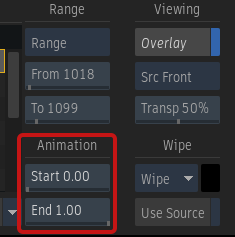
You can edit the Start and End channels with fields in Paint menu  Animation.
By animating these Start and End, you control how a stroke is revealed over time.
Tracking Strokes
You can track strokes using the Tracker tool in the Axis tab.
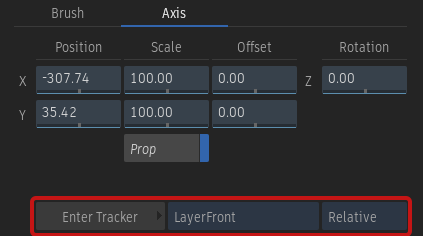
In the Edit list, select the strokes that will follow the track.
Click Axis to display the Tracker tool.
From the drop-down menu, select the layer to track. This can be the Front of the clip (LayerFront), or any other source attached to the Paint node.
Click Enter Tracker to enter the Tracker module.
Track the shot. Exit the Tracker module when done.
Back in the Paint node, the track is applied to the strokes.
After the track, use Offset X and Offset Y to offset the strokes without affecting the position information gathered from the Tracker.
Track by absolute or relative position. Before entering the Tracker, you can select how the tracking data is applied to the selected strokes.
- Absolute: The Edit Box and selected strokes are moved to the position of the pixel used in the Tracker's Reference box.
- Relative: The Shift information from the Tracker is applied to the Edit Box and the selected strokes.