NDI as Remote Broadcast Monitor
Flame, Flame Assist, and Flare support the NDI® protocol developed by NewTek. This documentation highlights what is supported by the SDK version 6.x.
Streaming with NDI
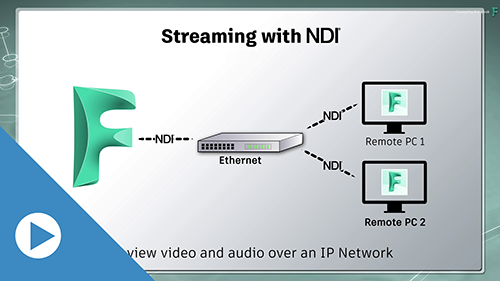
With NDI, you can stream audio and video across a network. It's low-latency, and essentially behaves like video card, allowing you to broadcast the output across your network.
The broadcast is an 10-bit compressed stream, @ up to UDHTV/60p, enough for monitoring and review. For more details, see the NDI® website.
Setting up Flame for NDI broadcast
Follow these steps to set up Flame for NDI broadcasting.
Open the Setup application.
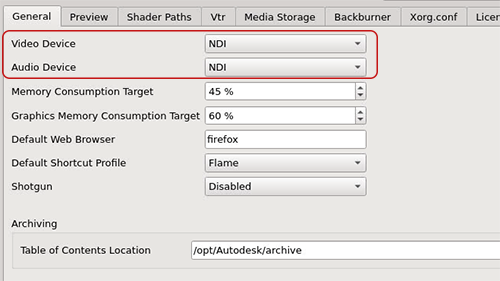
Open the General tab.
Set Video Device and Audio Device to NDI.
Open the Preview menu.
Set Preview Device to NDI to select it as you broadcast output.
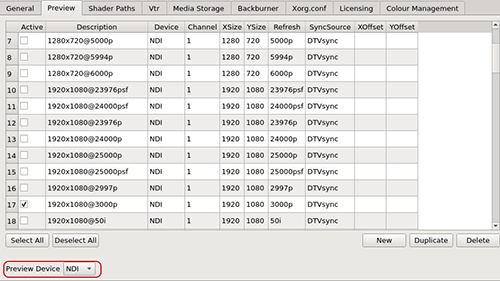
Select a timing and resolution for the broadcast output. The quality of your network should dictate your resolution and timing choices.
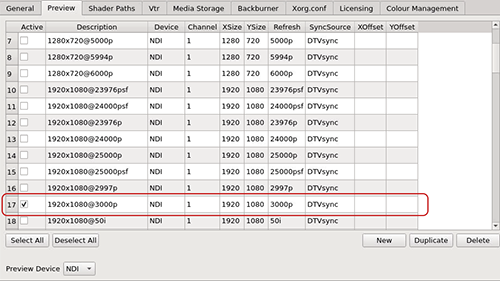
Click Apply, and close the Setup application.
Viewing an NDI Broadcast
Anyone on the same network as the Flame Family network can view an NDI broadcast.
To view an NDI broadcast, one needs:
- NDI Video Monitor (macOS) or NDI Studio Monitor (Windows), a product from Newtek, and both part of the NDI Tools. It must be installed on a macOS or Windows workstation.
- Access to the same network as the Flame workstation.
To view the broadcast:
Start NDI Video Monitor (macOS) or NDI Studio Monitor (Windows).
From the application menu, select an NDI stream.
It detects any NDI stream on the network. If you can't see your broadcast, then the broadcaster and the receiver are not on the same network.
Full Range vs Legal Range
NDI only supports the YCbCr 4:2:2 colour space. RGB is not supported.
You can select whether to use the Full range or Legal range in the Broadcast Colour Space Preferences.
Viewing an NDI Broadcast over the Public Internet
Refer to the NDI Tools for solutions allowing you to broadcast the stream over the public internet.
Third-party applications can treat the NDI signal as any video signal. For example, OBS, Skype, and Zoom allow remote users to monitor your work. Cloud-based services like SetStream also offer extended broadcast possibilities.
AVIO—NDI Downmix
The audio mixdown over an NDI stream can be set from the Audio Preferences.