Autodesk offer two subscription based licences, Ultimate or Standard. Users with either type of licence can use both the Ultimate and Standard InfoWorks ICM products when they are installed from the same Autodesk installer (see here for details). However, users will only be able to access the ICM features and functions that are available for that type of licence in the software. See below for details.
Access to your Autodesk licence is required when running simulations. If you lose access, for example, by signing out of your Autodesk account, before the run is complete, simulation results will only be available until access is lost, and the status of a simulation will be set to incomplete. A message will be included in the log if access to a licence is lost.
Contact Autodesk support or Innovyze if you require assistance with a licence supplied by Autodesk.
InfoWorks ICM - Ultimate
All InfoWorks ICM features including menu and toolbar options, databases, database items and network objects are available with an Ultimate licence. However, the following restrictions apply:
- Concurrent access to
on-premise
databases is only permitted for users with Ultimate licences. This means that you will be able to access the same
on-premise database as other users with Ultimate licences but that you will not be able to access the
on-premise database if a user with a Standard licence is already using it. A suitable message is displayed when this occurs.
There is no concurrent access restriction for cloud databases.
- Updates of a Scalar or Spatial time series data (TSD) for on-premise databases can be performed by ICM but not as a background process. Therefore the Perform the update in a background process (recommended) option is not included in the Update Time Series Data dialog.
- Although it is possible for a simulation, mesh generation or risk analysis job for an on-premise database to run remotely using another machine, an Autodesk licence cannot currently be used to do so. See the Manage Job Agents dialog for further information about the types of licences that can be used for handling remote jobs.
InfoWorks ICM - Standard
The advanced programming features of ICM Exchange are not available with a Standard licence.
And, as a Standard licence does not include Risk or TSD functionality for on-premise databases, the following restrictions apply:
- Database items. The following database items may be included in an
on-premise database (as they could, for example, have been added by a user with an Ultimate licence) but you will not be able to add a new one or
work with an existing one. They will also be excluded from
on-premise simulations.
- Scalar TSD
- Spatial TSD
- Risk Analysis Runs and their results
- Catchment Initial Conditions (requires Scalar TSD)
- Damage Function (used with Risk analysis runs)
- Network objects. The following network objects may be included in a network but they will not be used in an
on-premise simulation:
- Damage Receptors (used in Risk analysis runs)
-
Risk Impact Zones (used in Risk analysis runs)
-
TVD connectors (require Scalar or Spatial TSD)
-
Spatial Rain Zones (require Spatial TSD)
- Menu options. The following options will not be available as they are used with Risk analysis runs:
- Model
 Risk Model
- ModelMeshing |Assign 2D elements to damage receptors
- ResultsRisk report
- Model
The following restriction applies when using a Standard licence with on-premise databases:
- Concurrent access to an
on-premise
database is only permitted for users with Ultimate licences. This means that you will be unable to access an
on-premise database if another user with a Standard or Ultimate licence is already using it. A message is displayed when this occurs.
There is no concurrent access restriction for cloud databases.
The following restrictions apply when using a Standard licence with cloud or on-premise databases:
- 2D simulations are restricted to networks that contain less than 1000 2D elements. Larger 2D networks cannot be opened or simulated.
- Meshes with more than 1000 2D elements can be generated, but the mesh job will fail. A message will be displayed in the mesh log.
- Terrain-sensitive mesh generation is not supported.
- Simulation and mesh generation jobs can only ever be scheduled to run on "This Computer". You will also be unable to run jobs remotely using another machine.
Proxy Server
If a proxy server is used for internet access, InfoWorks ICM will automatically detect the proxy server settings. If a username and password is required, a dialog is displayed by Autodesk licensing. The username and password are stored in the Windows Credential storage. See the Proxy Server section in Cloud Connection Requirements for more information.
Autodesk Account menu
This menu is available in the title bar of the InfoWorks ICM workspace.

Note: When a trial licence is used, an indicator is displayed next to the Account menu, which specifies the number of days remaining before the licence expires.
The following options are available:
- Explore Purchase Options - opens the Autodesk Products page in a web browser.
- Manage Licence - opens the
Autodesk
Licence Manager window, which can be used to manage your
Autodesk licence.
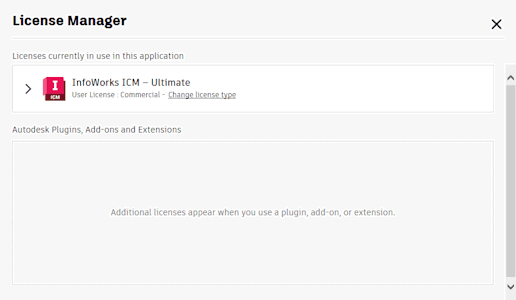
Licence information is displayed by clicking >.
Clicking the Change licence type link displays the Autodesk Let's Get Started window, which you can use to switch Autodesk accounts.
Contact Autodesk support if you require assistance.
- Privacy Settings - opens the Autodesk Sign In window where you can sign into your Autodesk account to manage your personal information, security and settings.
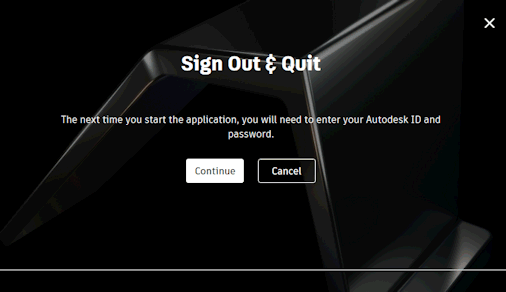
- Sign Out and Quit - Displays the
Autodesk
Sign Out and Quit window. Click Continue to sign out of your
Autodesk account or Cancel to cancel the sign-out operation.
Subscription overuse
Based on your subscription, InfoWorksICM - Ultimate and Standard licences may only be used on limited number of devices at any one time. When this limit is reached and you try to use the software on another device, a Device Limit Reached dialog is displayed. It lists the devices the software is currently being used on and lets you pause the usage on a selected device so that you can use the licence to access the software on the current device. An example is shown below.
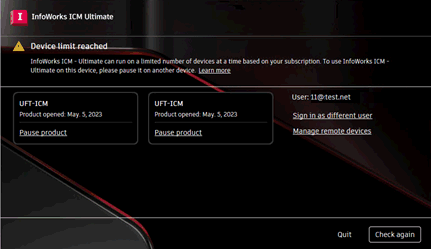
- Pause product - Pauses the use of the licence and software on the selected device. You can now use ICM on the current device.
- Sign in as another user - Displays the Autodesk Let's Get Started dialog. If you have access to another licence, you can sign in using it.
- Manage remote devices - Opens the Autodesk account compromise suspected page.
- Check again - Checks if the device licence limit is still at the maximum. If it is, the dialog is redisplayed. If not, you will be able to work with ICM on the current device.
- Quit - Closes ICM on the current device.
Idle mode
When using an Autodesk licence, InfoWorks ICM goes into idle mode when you stop actively using the software. This prevents you from being charged daily tokens when you leave ICM open overnight, at the weekend or while on vacation.