To Accumulate Values of Several Measurements
Add the values of several linear, area, volume, and/or angle measurements to calculate a total measurement for each measurement type. You can have several accumulated values running at the same time.
What's New: 2024.2
To Accumulate the Values of Linear, Area, Volume, and/or Angle Measurements
Begin by opening Tools tab
 Measure panel Measure.
To add a linear, area, volume, mass, and/or angle measurement to the Accumulated Properties section: Make a selection in the graphics window, and then click the plus sign next to the measurement type. For example, select a line in the graphics window, and then click the plus sign next to the measurement. The value is added to the Distance measurement group under Accumulated Properties.
The plus sign, Add to Accumulated Value, adds selections to the appropriate group in the Accumulated Properties section for every type of measurement you want to accumulate.
Click the plus sign next to a measurement to add the value to the appropriate group in the Accumulated Properties section. Click group header arrow to display added values. 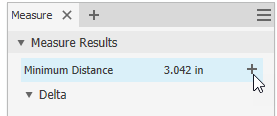
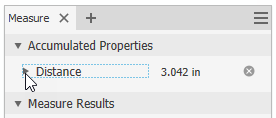
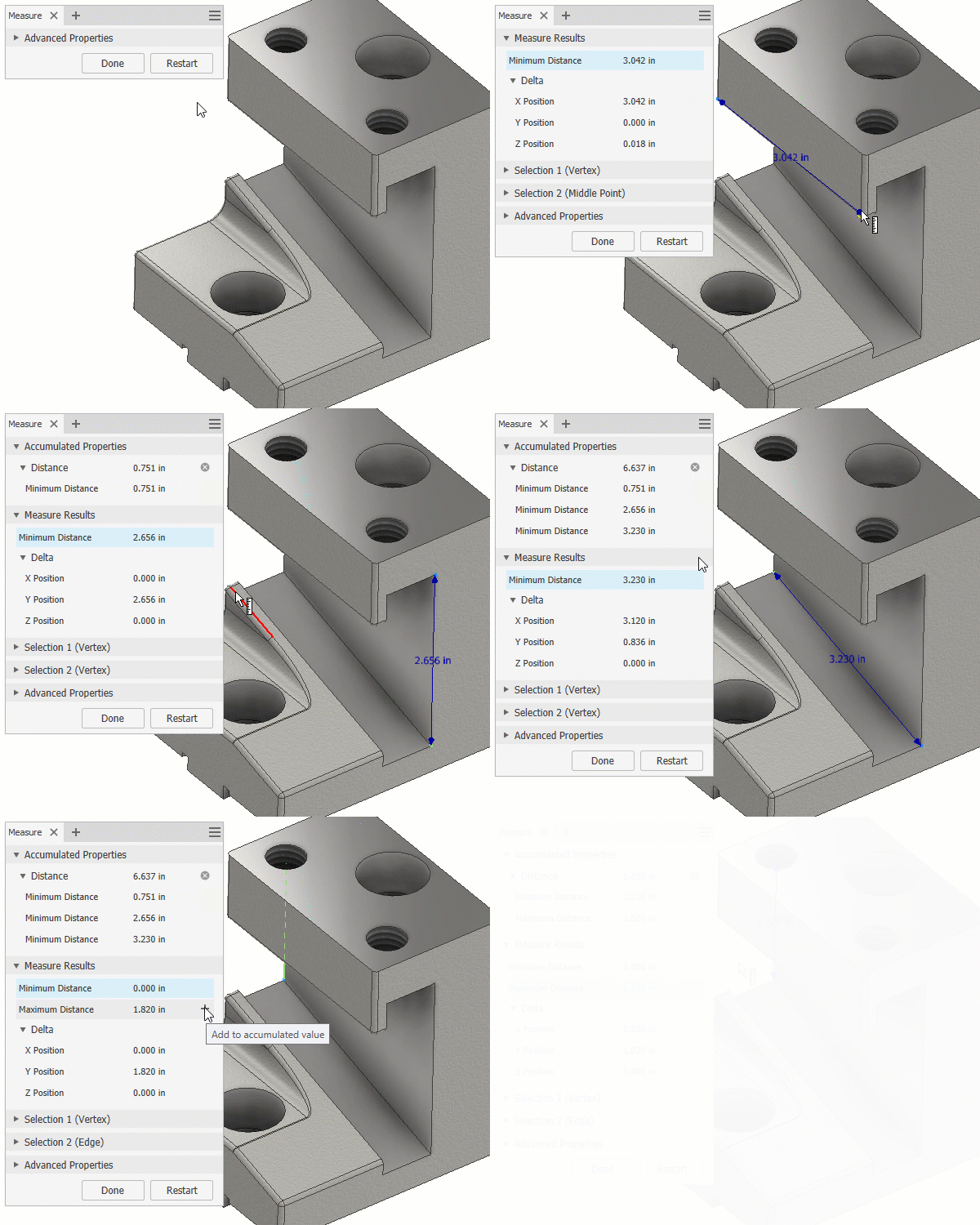
- Make as many selections as needed in the graphics window and click the plus sign next to the measurement type in the Measure panel to add values to an accumulated group. The values display in the accumulation group specific to the measurement type. For example, a radius is added to the Distance group, and an angle is added to the Angle group under Accumulated Properties.
- Continue adding measurements to accumulate measurements as needed.
Watch this short video to learn how to:
- Accumulate values of measurements.
- Delete an individual accumulated value or a set of accumulated values.
To Subtract from Accumulated Values
To subtract a linear, area, volume, mass, and/or angle measurement from the Accumulated Properties section: Make a selection in the graphics window, and then click the minus sign next to the measurement type.
To Delete and Copy Accumulated Values
The buttons for the accumulated measure workflow are located on the right side of the measure panel, directly across from each measurement type. Hover your cursor over this area to access the buttons.
To delete an individual value from the list: Hover over an accumulated value and click the delete icon. Accumulated values adjust accordingly. To delete a group of values, hover over the Distance, Angle or Area to delete all the values from an accumulated group.
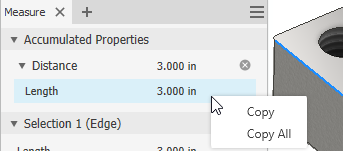
To copy a single or a group of values, right-click on a value, and select Copy or Copy All.