Productivity and Workflow Enhancements
Property panels continue to expand to more areas of Inventor. You can now use the streamlined property panel workflow in Bend, Coil, Combine, Copy Object, Decal, Delete Face, Split, Thicken/Offset, and all frame generator commands.
Commands moving to Property Panels
For detailed information on property panels see About Property Panels. For detailed information about Presets, see To Work with Presets.
As part of the Inventor modernization initiative, the following commands are enhanced to use the property panel.
Bend
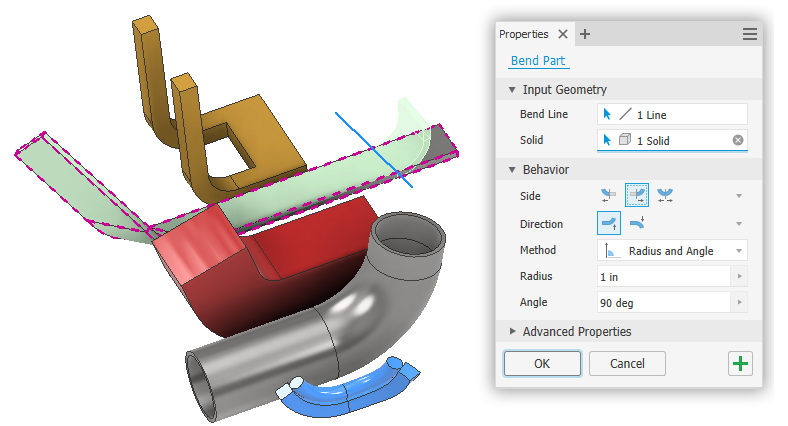
For more information about the Bend command, see To Bend Parts
Coil
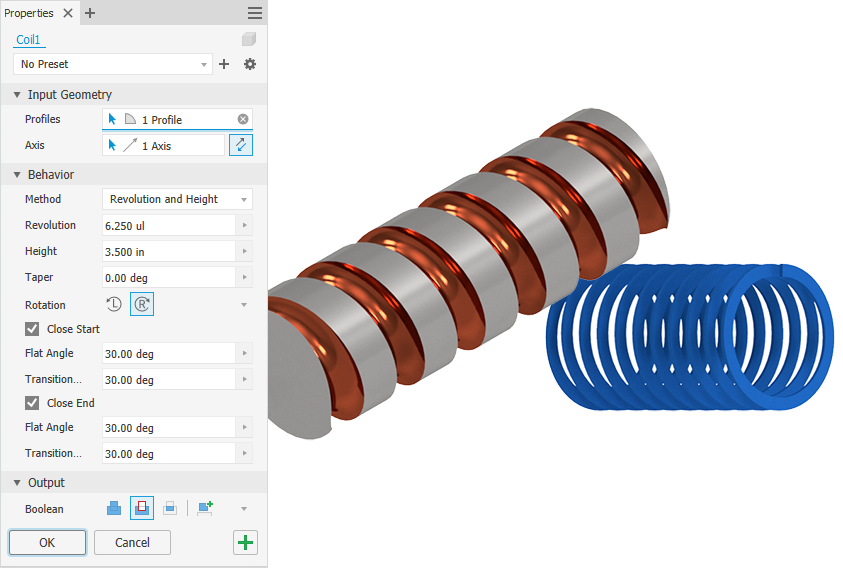
For more information about the Coil command, see To Create Coils
Combine
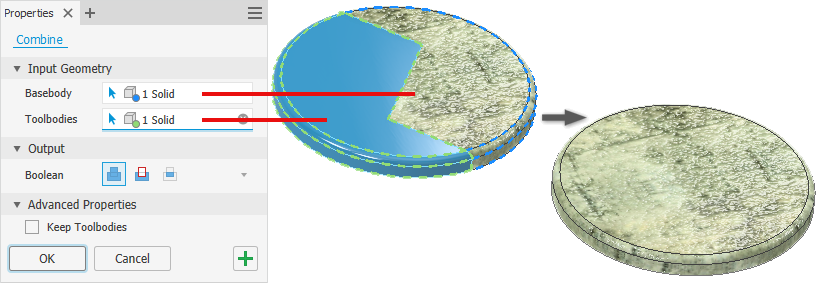
For more information about the Combine command, see To Combine or Split Bodies or Faces
Split
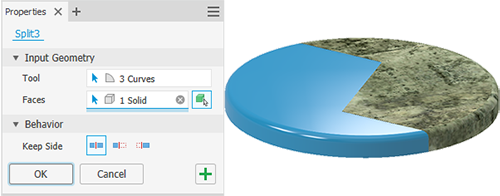
For more information about splitting faces and bodies, see To Combine or Split Bodies or Faces
Decal
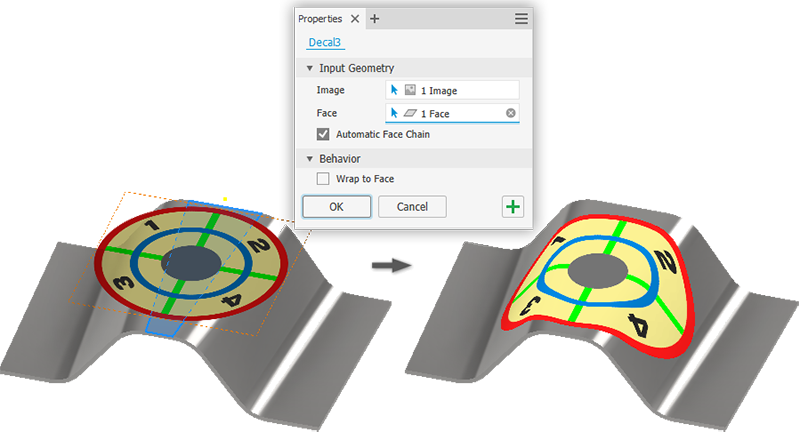
For more information about Decals, see To Emboss or Add Decals to Parts or Surfaces
Delete Face
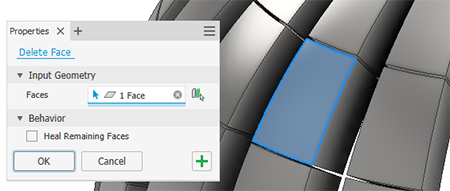
For more information about deleting faces, see To Delete or Replace Faces
Thicken/Offset
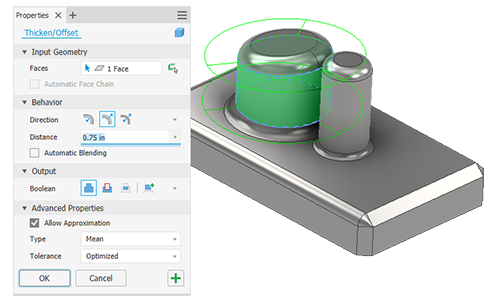
For more about the Thicken/Offset command see: To Thicken Faces or Offset Surfaces
Copy Object
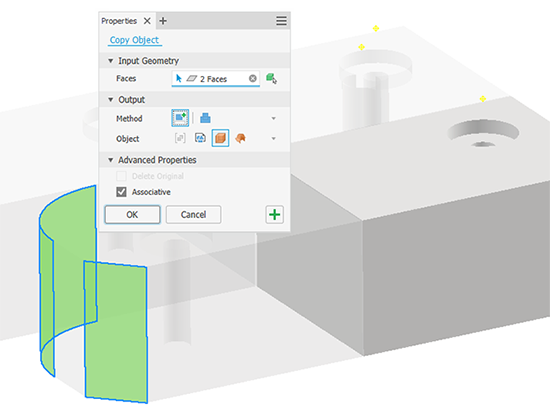
For more about the Copy Object command see: To Copy Objects Between Part, Assembly, and Construction Environments
The Tube & Pipe Route and Derived Route commands use a property panel UI.
Route
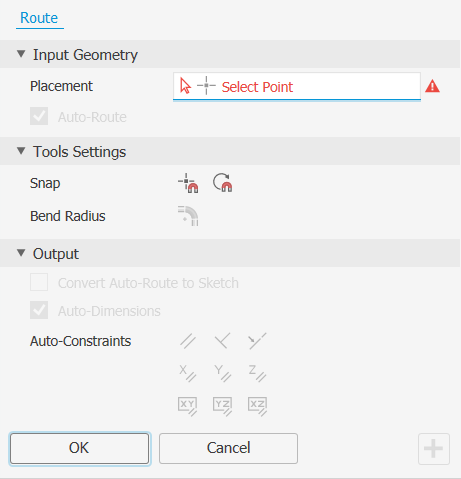
For more information about routes, see To Work with Tube and Pipe Routes.
Derived Route
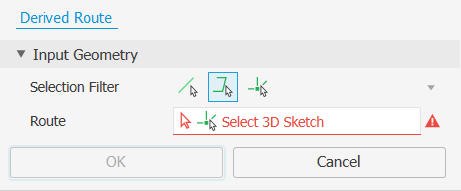
For more information about derived routes, see To Create Derived Routes in Tube and Pipe.
Additional Property Panel Enhancements
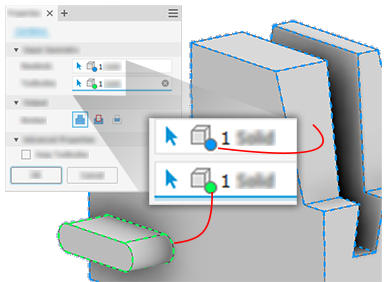
Input highlighting and notifications have been enhanced. This can be seen in commands, such as the Combine command, where more than one selection is required. When satisfied, each field has a colored dot that corresponds to the selection highlight in the graphics window. The active selector field is underlined.
Value Edit controls and HUD - After selecting a feature dimension, the cursor is positioned at the end of the field. Improves support for creating formulas or equations.
Sketch
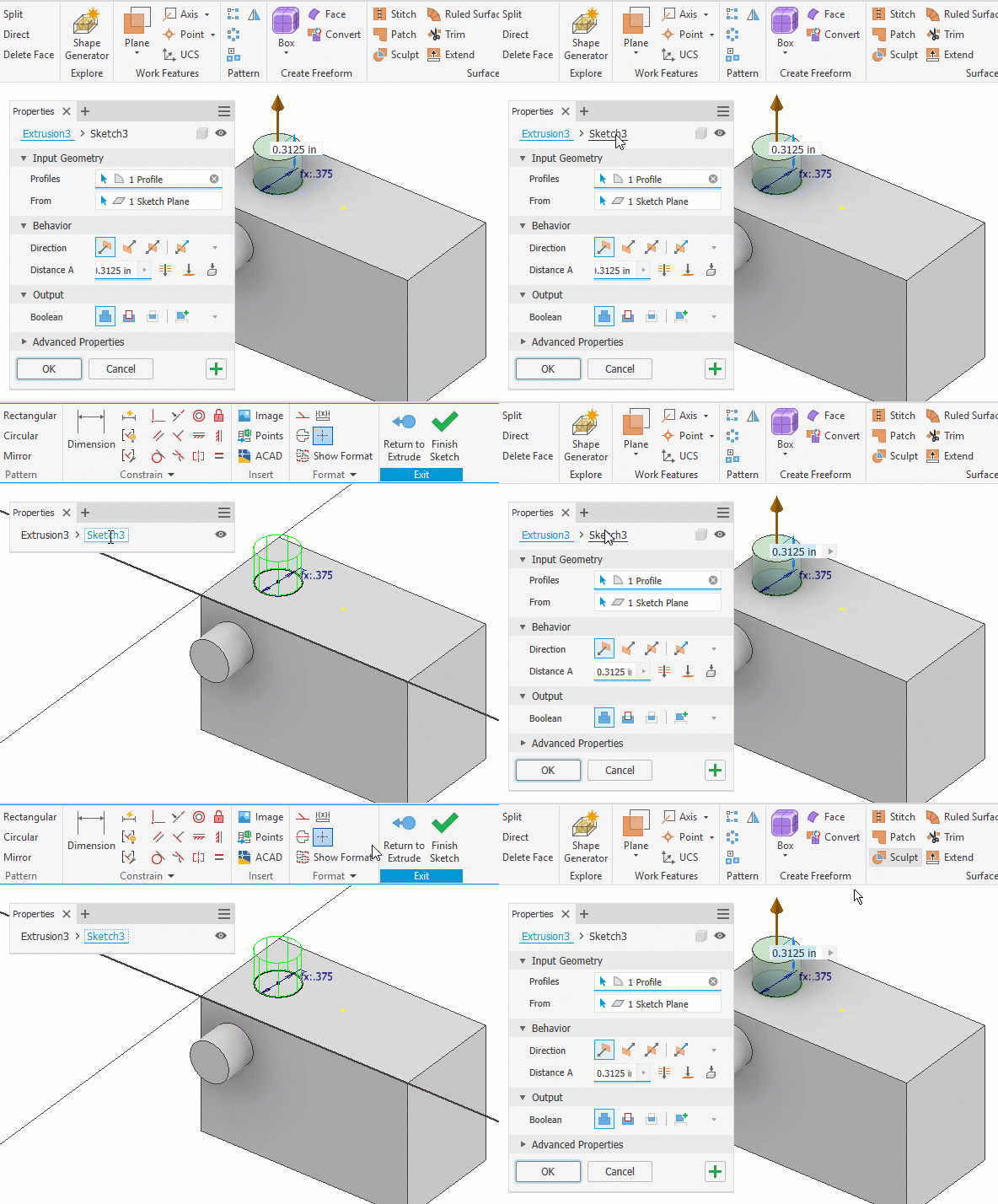
Using the property panel breadcrumb you can switch from the feature edit environment to the sketch environment. You can also click Return to
For more information about moving between environments, see To Enter and Leave an Environment.
Updated Commands
Minimize
Minimize is added to all windows. There are specific behaviors for it. For more information see To Work with Graphics Windows
Hole Command
The Allow Center Point Creation option is disabled and hidden when the Input Geometry is a workpoint. For more information about the Hole command see To Create Holes.
Select Feature Dimension
The Reference Dimension command, allowing you to select a feature dimension to reference when defining another feature dimension, has been renamed to Select Feature Dimension. This more clearly describes the action.

Edit Factory Scope and Edit Member Scope
Delete is now a global operation for both Edit Factory Scope and Edit Member Scope. To remove a feature or component from the active member, enable Edit Member Scope and use Suppress or Exclude in the table.

For more information about Edit Scope, see Configurations.