Scale objects
Before scaling objects, you must activate Scaling mode. Scaling handles then appear on selected objects, which you can use for scaling.
To activate scaling mode in the Viewer window, do one of the following:
Click in the Viewer window and press S.
Select the Scaling button from the Viewer window Manipulation and Transformation mode tools in the Viewer window.
Depending on what you have selected in the Selection Mode Menu, Scaling handles appear on any selected object. If you select “Selection” you can drag the scaling handles to change the size of the object on any axis. The following figure displays the scaling handles of the selected object, enabling you to scale the object on each axis.
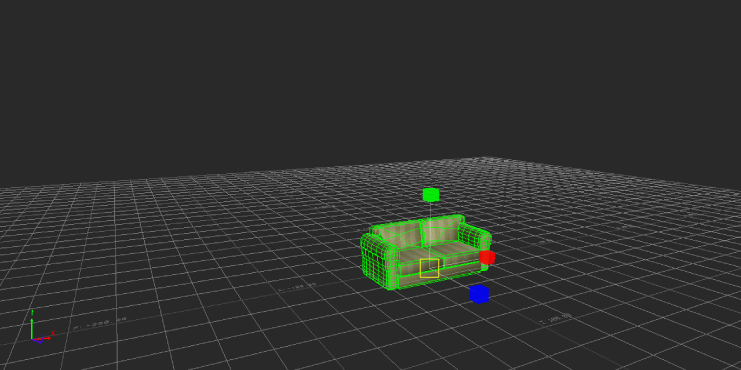
Scaling handles enables you to scale the object on each axis
Optional: Expand the Scaling mode button to choose one of the following scaling modes:
- Choose Uniform to scale a selected object uniformly along the XYZ axes, without changing its proportions. (This option is selected by default.)
- Choose Volumetric to scale your object without changing its volume.
Select the object you want to scale and drag the scaling handles to resize it or do one of the following:
- Enter specific coordinates in the Global/Local/Layer fields.
- Double-click a scaling handle and enter a value in the Axis Scaling Factor Delta dialog box that appears.