About HUD elements
There are 16 HUD elements, which you can add to a HUD asset to display additional information (static and dynamic) regarding a scene in the Viewer.
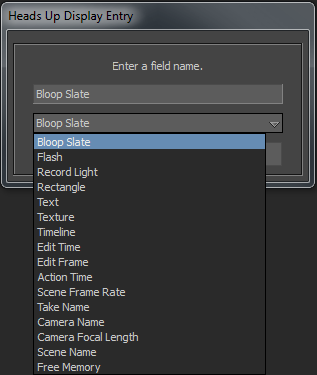
The following table lists the static HUD elements and the information they display in the Viewer:
Texture HUD element
When you import an image, image sequence, or a video (File > Import Video), it appears under the Navigator window > Textures folder.
To display a texture from the HUD Texture element in the Viewer:
Click the
 button in the Texture property.
The Textures folder with all the imported textures appear.
Turn on the checkbox of a texture.
Alternatively, drag a texture from the Navigator > Textures folder and drop it in the Viewer.
Flash HUD element
To display a flash animation from the HUD Flash element in the Viewer:
Click the
button in the Flash File Path property.The Open Directory window appears.
Select the flash animation (.swf format).
Click Open.
Record Light HUD element
The record light let a stage operator know the recording status of a scene. By default, the color of the record light is grey ( ). However, the color changes to indicate the stages in recording.
Record Light Color | What button should you click in Transport Controls to make it appear? | What does it indicate? |
|---|---|---|
| Record | Ready to record |
| Play | Recording is in progress |
| Stop | Stopped recording, and MotionBuilder is busy in the post-recording process. After the post-recording process, the record light turns grey (returns to the default state). |
 green
green red
red (Red with a white, X mark)
The following table lists the dynamic HUD elements and the information they display in the Viewer:
You can also add any property of an object (cube, character, stereo camera, and so on) into a HUD element, and refer the value of the property in the scene.