Selecting Objects in the Viewport
The following table provides instructions for selecting and deselecting objects:
| To: | Do this: |
|---|---|
| Select an object | Shift+ -click the object -click the object |
| Deselect an object | Shift+ -click the object -click the object |
| Deselect all | Shift+-click in empty space |
| Select objects fully enclosed in the selection frame | Shift+-drag from top left to bottom right |
| Select objects fully and partially enclosed in the selection frame | Shift+-drag from bottom right to top left |
| Deselect objects in the selection frame | Shift+-drag |
| Add an object to a selection | Ctrl+Shift+-click the object |
| Remove an object from a selection | Ctrl+Shift+-click the object or on an empty space to clear the selection |
Setting a Selection Target
For a quick way to select only objects, references, groups, or other entities, use the Edit > Selection menu. The option selected sets the selection target. To change this, make another selection.
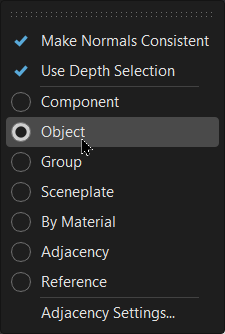
Select Specific Elements of an Object
Access the Edit Selection menu using either Edit > Selection or Shift+ -click the object, then select the option you want:
Component - Selects individual surface patches inside a shell, geometries (meshes, lines, points), and light sources.
Object - Selects shells, surfaces that are not in a shell, geometries (meshes, lines, points), and light sources.
Group - Selects the next parent of an object.
Sceneplate - Selects frontplates and backplates.
By Material - Selects all objects with the same material.
Adjacency - Selects adjacent components.
Adjacent Settings - If the Adjacency Settings are set to Picked Normal, all components/geometries that are neighboring to the selected geometry and are within the specified angle to the picked normal are selected. If the Adjacency Settings are set to Neighbor Normal, all components/geometries that are neighboring the selected geometry and are within the specified angle to its neighbor are selected. This function is the same as the Geometry Editor's Adjacency Selection.
These options are only available through Shift + -clicking in the viewport:
Select Parent - Selects a parent node of the currently selected object from this sub menu.
Select Object Behind - Selects an object behind the currently selected object from this sub menu.
Selectable - Toggles the Selectable state of the currently selected object or its parent.
How to Change Selection Behavior
In the Menu Bar, click Edit > Selection.
Choose a selection behavior:
- Make Normals Consistent - When flipping normals using Alt-click, the vertex and face normals of each selected object will be made consistent, that is, pointed in the same direction.
- Use Depth Selection - Enables you to select all objects within the selection frame, whether they are behind another object or not.
- Select Components - Enables you to select individual surface patches inside a shell, geometries (meshes, lines, points), and light sources. Choose option from the list.